

Author: Aniruddh

  • Oppo F1 Plus Pros and Cons Review

    Oppo F1 Plus is a dual sim Android camera centric smartphone. It is also billed as “Selfie Expert”. The key features of the device are 5.5 inch screen, 16MP front facing camera, Fingerprint scanner and 4GB RAM.

    Oppo F1 Plus is powered by 2.0GHz 64 bit MediaTek MT6755 (Helio P10) SoC with 4GB of RAM and Mali-T860MP2 GPU. It comes with 64GB of internal storage. As it has hybrid sim slot, you can use either 2 nano sim cards or 1 nano sim card with microSD card(Upto 128GB). The device runs on ColorOS 3.0 which is built on top of Android 5.1 Lollipop. The day to day performance was decent. There was no lag or shutter observed during out testing.

    Related reading:

    Oppo F1 Plus Tips and Tricks with FAQ
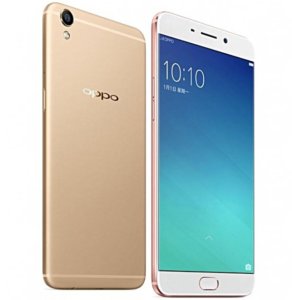
    Oppo F1 Selfie Expert

    Oppo F1 Plus sports 5.5 inch 16 million colour AMOLED display screen with Full HD resolution and pixel density of 401ppi. It also comes with Gorilla Glass 4 screen with round edges. The colors are bright and well saturated. The text and images looks sharp and crisp. The sunlight legibility also decent.

    Oppo F1 Plus houses 13MP f/2.2 unit with PDAF and LED flash in the back and 16MP fixed-focus f/2.0 unit in the front. There is no OIS support. The camera performance on well lit condition came out really good. In low light, the noise creeps in. The 16MP selfie camera does take nice selfies.

    Connectivity features of Oppo F1 Plus includes 4G, 3G, Wi-Fi 802.11 a/b/g/n, Bluetooth V4.0, microUSB v2.0 port and an A-GPS unit. The device has 2850mAh battery with VOOC Flash Charge technology. VOOC charges smartphone in just around 40 minutes. Good thing is inspite of fast charging, the unit remains cool. The battery life is good. It last easily more than a day.

    Advantages and Disadvantages of Oppo F1 Plus

    Pros of Oppo F1 Plus

    • Good Build quality.
    • Vibrant Display screen with good sunlight legibility.
    • Good battery life.
    • Decent camera performance.
    • Fast charging.

    Cons of Oppo F1 Plus

    • No Wi-Fi ac.
    • Hybrid sim slot
    • Average low light camera performance.
    • No FM and NFC.
  • Take screenshot on Samsung Galaxy A3, A5 and A7

    Taking screenshot on Galaxy A3, Galaxy A5 and Galaxy A7 are almost identical as all of them have the same UI. Performing print screen on Galaxy A series smartphone is easy and very useful in many occasions such as saving payment receipt, for sharing highest score of a game or for sending the error etc.  In this post, we will learn to capture screenshot on Galaxy A smartphones.

    How to take screenshot on Galaxy A3, Galaxy A5 and Galaxy A7

    For taking screenshot, there are 2 methods available.

    1. Power button and Home button method
    2. Palm -swipe method

    1.  Power button and Home Button method

    This is the most common way of capturing screenshot on Samsung Galaxy smartphone.

    • Go to the screen on which you want to perform print screen.
    • Press and hold power and Home key simultaneously.
    • The screen will Flickr and shutter sound will heard. This confirms that, the screenshot is captured.

    2. Palm-swipe method of taking screenshot on Galaxy A3, Galaxy A5 and Galaxy A7

    Before you perform palm swipe way of screenshot, ensure that, it is enabled in the settings. You can do that by doing the following steps.

    • Go to settings-> Motion menu-> Hand Motions.
    • Enable Palm swipe to capture check box.

    Now the way to take screenshot.

    Print Screen Galaxy S5 & S4

    • Go to the screen on which you want to take screenshot.
    • Now shape your hand like a knife(Thumb facing upwards). Move your hand across the screen horizontally from either side, edge to edge.
    • The screenshot will be captured.

    Where the taken screenshots will be saved?

    The taken screenshots will be saved in the Gallery folder.

  • Samsung Galaxy J3 Tips And Tricks With FAQ

    Samsung Galaxy J3 or Galaxy J3(6) or Galaxy J3(2016) is a dual sim Android smartphone which got launched in India recently. The main USP of this device is S-Bike Mode. Here are the  quick tips and tricks of Galaxy J3 which will help your to discover the device better.

    Samsung Galaxy J3 is powered by 64 bit chipset with 1.5GB RAM and Mali 400 GPU. Other specifications includes 5 inch Super AMOLED HD(1280 X 720P) screen, 8GB internal storage, microSD card support, 8MP primary camera, 5MP front facing camera and 2600mAh battery.

    S-Bike Mode

    Samsung Galaxy J3 Tips and Tricks With FAQ

    What are the different colour variants of Galaxy J3 available?

    Galaxy J3(2016) is available in White, Black and Golden colors.

    What is the price of Galaxy J3 in India? How to buy this phone?

    Samsung Galaxy J3 price in India is Rs.8,990. As of now, it is available exclusively on Snapdeal.com.

    What is the size of the sim card it accepts? Is it micro or Nano sim cards?

    Galaxy J3 is a dual sim Android smartphone and hence it accepts 2 sim cards. Both sim cards which it supports are microSIM cards.

    What are the sensors available on this device?

    It has only Accelerometer,Proximity sensors.

    What is S-Bike Mode?

    Galaxy J3 S-Bike mode is specifically designed for the two wheeler riders. What it does is, if rider gets a call when he is riding the bike, it plays the pre recorded message telling that the phone’s owner is riding a bike and cannot answer the call. However, caller can override this by pressing 1 in case of emergency.  The phone comes with Motion lock. This will ensure that, unless stop your riding, you will not be able to receive the call.

    How to activate S-Bike Mode in Galaxy J3?

    The Galaxy J3 has NFC. Also there is a bundled pre programmed NFC tag. You need to stick that NFC tag sticker to dashboard or helmet. Then whenever you are riding the bike, you need to just tap on the phone to enable S-Bike feature. You have option to enable this from quick toggle menu as well.

    How to take screenshot on Samsung Galaxy J3?

    If you want to capture screenshot, you just need to press and hold volume down button and power button simultaneously on the screen on which you want to perform print screen.  You can read more on this here. How to take screenshot on Samsung Galaxy J smartphones.

    How to use Galaxy J3 as modem?

    Samsung Galaxy J3 has portable Wi-Fi hotspot, USB tethering and Bluetooth tethering. You can use any one of this feature to share your mobile data with other compatible devices.  You can read more on this here.

    How to download Galaxy J3 PC suite?

    Samsung Galaxy J3 is compatible with a PC suite called smartswitch. I have already done a detailed post on features and how to download guide. You can refer to my post how to download Galaxy J3 PC suite.


  • Honor 5X Tips and Tricks With FAQ

    Honor 5X is one of the best choice if you are looking for a midrange dual sim Android smartphone. It has many features which are appealing to customers such as premium aluminium body,fingerprint scanner, 5.5 inch full HD IPS screen etc.It runs on Android 5.1.1 and EMUI 3.1 on top of it. Here are of the useful tips and tricks on Honor 5X along with FAQ.Huawei Honor 5X

    Recommended Reading:

    Honor 5X Review

    How to take screenshot on Honor 5X

    Honor 5X Tips and Tricks With FAQ

    What type of SIM cards Honor 5X supports?

    It supports 2 sim cards. One is micro SIM and another one is nano SIM card.

    Does Honor 5X support microSD card?

    Yes. It supports microSD card upto 128GB. Good news is that, it has separate slots for sim cards and microSD card. Hence you can use 2 sim cards and a microSD card simultaneously.

    What are the tasks can be performed using the fingerprint scanner on Honor 5x?

    Apart from using the fingerprint scanner to unlock your screen, you can perform many more tasks on this device. Some of them are given below.

    For using below features you need to enable the features  in Settings->Fingerprint ID.

    1. Back to home: If you enable this, then touch and hold on fingerprint scanner will take you to the home screen.
    2. Take photo or Video: This feature will enable you to take photos or start recording videos from the viewfinder screen by touch and hold on fingerprint scanner .
    3. Answer call: You can  answer an incoming call by placing your finger on scanner for few seconds.
    4. Stop alarm – When alarm goes off, touch and hold the fingerprint sensor to stop the alarm.
    5. Recent app – Slide up on the fingerprint sensor to show recent apps.
    6. Show notification panel – Slide down on the fingerprint sensor to display the notification panel, double-touch to clear the panel, and slide up to close the panel.
    7. Quick Launch: You can assign your finger to quick launch apps or contacts. You can do this by following steps.
      • Go to Settings-> Fingerprint ID->Fingerprint management.
      • Tap on to fingerprint ID which you want to assign quick launch app or contact.
      • Tap on to Quick Launch and enable quick launch.
      • If you want to assign app, then tap on to App and select the app which you want to assign.
      • If you want to assign contact, then tap on to Contacts and select the contacts. If you touch and hold fingerprint scanner when screen is locked, it will directly it will unlock your phone and dial the contact you have set.

    What are the motion controls available on Honor 5X?

    Honor 5X offer useful motion control options using which you can perform many tasks. Here are the list of such features. By default these features are turned off. You can enable these features in Settings->Motion Control.

    1. Flip to mute: This will give you option to mute incoming calls or Mute timers or alarms by flipping the phone.
    2. Shake to rearrange: Shake your device from the home screen editing mode to rearrange your icons
    3. Double touch to turn on: When screen is off, double touch will turn on the screen.
    4. Draw letters to open application: You can set 5 application to the 5 letters available in this option. If you draw the letter on the screen when it is off, it will quick launch that app.

    How to download Honor 5X PC suite?

    I have already written a detailed post on this. You can read that here.  how to download PC suite for Honor smartphones.

    How to use Honor 5X as modem?

    Honor 5X offers 3 different ways to share your mobile data with other devices. They are Portable Wi-Fi hotspot, USB tethering and Bluetooth tethering. You can access this settings in Settings->More-> Tethering & Portable hotspot.

  • Lenovo Vibe K5 Plus Review Tips And Tricks FAQ

    Lenovo Vibe K5 Plus is a new entrant into the budget dual sim Android smartphone market. With attractive price tag and a decent spec sheet makes it impressive at least on paper. Here is the quick review and useful tips and tricks on Lenovo Vibe K5 Plus.

    Lenovo Vibe K5 sports 5 inch display with a screen resolution of 1080×1920 pixels and 441 ppi pixel density. The display offers good viewing angles, good sun light legibility and decent colour accuracy. The device also supports Lenovo’s AntVR headset for immersive media experiences. Overall it is good display panel in this price segment.

    Lenovo K5 Plus Dual sim

    Lenovo Vibe K5 Plus is powered by Qualcomm Snapdragon 616 processor with 2GB of RAM and 16GB of internal storage. There is a provision to add microSD card upto 32GB for additional storage requirements. It runs on Android 5.1.1 along with Vibe UI on top. The day to day performance is decent. However, it heats up a bit while using the device.

    Lenovo Vibe K5 Plus houses 13MP primary camera and 5MP secondary front facing camera. Overall camera performance on this device is average. The connectivity features of the device are 4G, Bluetooth 4.1, Wi-Fi b/g/n, AGPS, and USB-OTG. This smartphone comes with removable 2750 mAh battery. The battery life is weak and has a tendency to become hot while using device. Here is the quick summary of Vibe K5 Plus review interms of merits and demerits.

    Advantages and Disadvantages of Lenovo Vibe K5 Plus

    Pros of  Lenovo Vibe K5 Plus

    • Good display panel.
    • Decent look and build quality.
    • Stereo speakers and Dolby Atmos sound enhancement.

    Cons of Lenovo K5 Plus

    • Poor battery life with heating issues.
    • Average camera performance.
    • Expandable storage via microSD card is limited to 32GB.
    • No Android 6.0 out of the box.

    Lenovo Vibe K5 Plus Tips and Tricks with FAQ

    What type of sim card its uses? Or what is the sim size can be used on this device?

    K5 Plus is a dual sim smartphone and it accepts two micro SIM cards. Both sim slots are 4G enabled.

    What are the different colour options available?

    Lenovo Vibe K5 Plus is available in 3 different colours namely gold, silver and dark grey.

     Does Lenovo Vibe K5 Plus any screen protection such as Corning Gorilla Glass?

    No. Lenovo has bundled adhesive screen protector in the box.

    Does it has 5G wifi?

    No.

    How to take screenshot on Lenovo Vibe K5 Plus?

    There are two methods.

    1. Screenshot button method: Go to the screen on which you want to take screenshot. Access quick settings menu and tap on to screenshot button.
    2. Default Android method:  On the screen on which you want to take screenshot, press and hold volume down and power button simultaneosly. The screenshot will be taken.

    Can I useLenovo Vibe K5 Plus as Modem?

    The device comes with support for Wi-Fi hotspot, USB tethering and Bluetooth tethering features. Using this, you can share your mobile data with other devices.

    How to download Lenovo Vibe K5 Plus PC suite?

    You can directly install official Lenovo PC suite by connecting your smartphone to PC. The PC suite is already there in the device itself. Alternatively, you can download it from the Lenovo support page. For more info on this, please refer my earlier post on How to download Lenovo PC suite.

    What are the sensors available on this device?

    Light Sensor, Orientation Sensor, Proximity Sensor, Gravitation Sensor, eCompass.