Motorola has launched its much expected 4th gen Moto G smartphones in India in two variants. Moto G4 and Moto G4 Plus are new smartphones which will succeed the last years Moto G3 and Moto G Turbo. Here are few tips and tricks on Moto G4 Plus with FAQ.
Motorola Moto G4 Plus Tips and Tricks with FAQ
What are the different variants of Moto G4 Plus available in India?
The new smartphone will be available in India in two variants based on the internal storage and RAM size. One is 2GB RAM with 16GB of internal storage and another one is 3GB RAM with 32GB internal storage.
What is the Moto G4 Plus price in India?
The price of 4th Gen Moto G in India are as follows.
2GB RAM and 16GB internal storage-Rs.13,499
3GB RAM and 32GB internal storage- Rs.14,999.
What are the different colour variants available?
Currently, the device will be available in Black and White colour variants.
What type of sim cards Moto G4 Plus accepts?
It accepts 2 micro sim cards.
Is Moto G4 Plus water resistant?
No. It just has water repellant nano coating which we have seen in Moto G, Moto G2 etc.
Does it accepts microSD card? What is the maximum capacity of microSD card can be used on these devices?
Yes. Both variants of 4th gen Moto G plus supports upto 128GB of microSD card.
What is the SoC is used in Moto G4 Plus?
It is powered by Octa core Snapdragon 617 Soc(8x ARM Cortex A53) with Adreno 405 GPU.
Does it has LED notification light?
Yes. It has white LED light. But it glows only when device is connected to charger and it is charging.
What are the camera features?
4th Gen Moto G Plus has 16MP primary camera with f/2.0 aperture. It also has laser auto focus and phase detection auto focus(PDAF). There is a 5MP front facing camera with wide angle lens for selfies and video calling.
Does Moto G Plus 2016 has fast charging option? Is fast charger bundled in the box?
Yes. It supports fast charging. The bundled charger supports fast charging. Motorola claims, 15 minutes of charging will give around 6 hours of power.
How to take screenshot on Moto G4 Plus?
For taking screenshot, follow the steps given below.
Go to the screen on which you want to capture screenshot.
Press and hold volume down and power button simultaneously.
The screenshot will be taken and saved in the Gallery folder. You can access it from “File Manager” or from the “Photos” app from Google which are preinstalled on your Moto G4 Plus.
Here is video guide on How to take screenshot in Moto G4 Plus
How to use Moto G4 Plus as modem?
The new 4th generation Moto G supports USB tethering, WiFi hotspot and Bluetooth tethering. Using any of this method, you can share your mobile data with other devices. You can read more on this here.
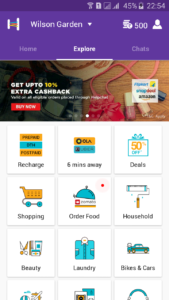
Helpchat is a personal assistant app which aims to provides multiple services in a single app. With the ability to learn from user behavior, it provides customised experience to users. This app is available on iOS and Android platforms.
Helpchat provides a single platform to access multiple services. For example for booking a cab in Bangalore, apart from giving a just option to book a cab, it provides comparison between multiple service provider. This includes the availability of cab, price and how far the nearest cab is the there etc. Users have the option to compare and select the service provider.
Helpchat like many other personal assistant apps, helps to manage our transactions. For example, it fetches the details of post paid mobile bill from your message inbox and provides notifications about your payment due date. You have option to pay the bill right from the same app without installing any other app. Even it shows the details of train PNR status, option to book a train ticket, notification on tatkal ticket etc. Company said that, it will add booking of meals via this app while travelling in trains in the coming days.
Helpchat currently has tie up with many popular service provider such as OLA, Uber, Zomato, Swiggy, bookmyshow, billDesk, mysmartprice, Jugno, cleartrip, nearbuy, urbanclap, redbus to name few. What this means is that, if you have Helpchat app installed in your phone, you can book a cab, book movie tickets, plan your travel, recharge your mobile, pay your mobile bill, buy groceries, get appointment with doctor without having multiple apps.
Helpchat also offers useful cards. This includes weather forecast, air quality in your area, customisable news stand, horoscope etc. It also provides notification on live cricket scores. Apart from this, you will also get customised deals which will help you to save your money on shopping.
In summary, it is a good initiative from Helpchat to offer multiple services in a single app. It eliminates requisites of installing multiple apps for using multiple services. It not only saves your storage space, you have option to compare and get the best. Currently Helpchat is in evolving stages. Company has assured addition of many more services in the coming days. It is worth having this app if you really want to save time, money and space on your smartphone.
Helpchat App Features
Travel: Find information on the nearest cabs, autos, buses and trains. Super efficient to get from point A to point B. It also provides option to book flights, one-click web-checkin, get reminders about PNR and train travel.
Recharge and Bill payments: Get reminded about your postpaid, DTH and utility bills. Pay over 100+ prepaid and utilities providers.
Best Deals: Helpchat has tied up with the top deals websites (both online and offline). Hence you will be notified on the best deals and offers near to you.
Samsung has launched its Galaxy J5 2016 edition smartphone in India. The smartphone comes in Radiant Gold, Midnight Black, and Pearl White colour variants. It will be available exclusively on Flipkart starting 10th May 2016. By looking at the specification and features, here are the some of the cons of Samsung Galaxy J5 2016 edition.
Samsung Galaxy J5 2016 is an incremental upgrade over its predecessor. Coming to the pros of Galaxy J5 2016 over its predecessor are mentioned below.
Advantages of Samsung Galaxy J5 2016 compared to Galaxy J5 2015
Better design and build quality.
Bigger battery. (3100 mAh battery Vs 2600 mAh battery).
Bigger display screen.(5.2 inch screen vs 5 inch screen).
Inclusion of NFC.
Higher RAM. (2GB of RAM instead of 1.5GB)
Cons of Galaxy J5 2016 Edition
As mentioned before, these are the cons of Galaxy J5 2016 editions based on the specification.
Same camera: Galaxy J5 2016 has the same camera specifications as that of its predecessor. It has 13MP primary camera with F1.9 and LED flash. It also has 5MP front facing camera.
No Full HD Display screen: Samsung has increased the size of the display screen of 2016 edition of Galaxy J5. But it continued the same screen resolution of 720p. Hence the pixel density is reduced compared to 2015 edition of Galaxy J5.
No major upgrade over CPU and GPU: The Galaxy J5 2016 is powered by Qualcomm Snapdragon 410 quad core CPU clocked at 1.2GHz along with 2GB of RAM. There are many devices at this price range has more powerful SoC.
No Fingerprint scanner: Being priced at Rs.13,990, it was expected to have fingerprint scanner. The devices like Honor 5X, Coolpad Note 3 etc have fingerprint scanner and priced much lower than this device.
Omission of basic sensors: Samsung Galaxy J5 2016 does not feature basic sensors like light sensor, compass etc.
No LED Notification light: The LED notification light is not available in this device also.
At an event held in Mumbai, LeEco has launched new variant of Le 1s smartphone in India. It is called as LeEco Le 1s (Eco). It will come with 1 year subscription for LeEco membership which is priced at Rs. 4,900. The first flash sale of this smartphone will start on 12th May at 2PM via Flipkart. The price of LeEco Le 1s Eco in India is Rs.10,899. However, the first 1,00,000 will be available for a introductory price of Rs.9,999.
LeEco Le 1s Eco features 5.5 inch full HD(1080×1920 pixel) in cell IPS LCD display with 500-nit brightness and 403 ppi pixel density. It runs on LeEco’s custom EUI based on Android OS. Le 1s Eco is powered by 64-bit octa-core MediaTek Helio X10 SoC clocked at 1.85GHz coupled with 3GB of RAM and PowerVR G6200 GPU.
LeEco Le 1s Eco comes with 32GB of internal storage. Sadly there is no support for microSD card. However, company introduced LeEco Drive which provides 5TB of cloud storage for every LeEco user. It also features mirror-surfaced fingerprint sensor with a 99.3 percent precision rate.
LeEco Le 1s Eco sports 13MP primary camera with PDAF that can record video is 4K resolution, along with a 5MP front facing camera. The connectivity features of the device includes 4G, 3G, GPRS/EDGE, Wi-Fi, GPS/AGPS, Bluetooth, Infrared, WLAN, USB OTG, and USB Type-C. Le 1s Eco has 3000 mAh battery with fast charging support. As per the company statement, 5 minutes of charging will provide 3.5 hours of talk time. It uses USB Type-C port to charge the battery.
LeEco Le 1s Eco weighs 169 grams and measures 151.1×74.2×7.6mm. The company has said that, now it has 550 service centres in India, and 24/7 live chat in 8 different languages. LeEco also announced that, Le 1s Eco will support 10 indian languages in an upcoming OTA update. The supported Indian languages will be Assamese, Bengali, Gujarati, Kannada, Malayalam, Marathi, Oriya, Punjabi, Tamil, and Telugu.
LeEco Le 1s Eco Specification
5.5 inch full HD(1080×1920 pixel) Display
1.85GHz 64-bit octa-core MediaTek Helio X10 SoC with 3GB of RAM and PowerVR G6200 GPU.
ASUS has been known in the smartphone market for being the go-to brand when consumers look for luxury specifications without a price tag that breaks the bank. The latest offering from the company on these lines is the Zenfone Go 4.5 2nd generation.
Design and Build
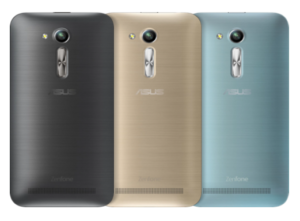
With a metallic hairline finish, the phone, at the first glance itself resembles a premium product. The phone also comes with an ergonomic arc design, managing to be only 3.6 mm at its thinnest edge. This feature, along with the rear key positioning on the phone allows the user to have intuitive one hand control, thus, making it really easy to multitask. The finish on the phone can be attributed to the unique, molding techniques which in turn, has ensured that the phone does not weigh on the heavy side. All of this, has resulted in a phone, which is easy for the user to hold and experience. The company has further compressed the powerful processor, the dual sim card, and the thin design in such a way, that the form factor of the phone retains its usability quotient. One important aspect of their design is the positioning of the buttons.This has ensured that both, right-handed and left-handed people can use it with equal ease.The phone is also available in a variety of colours to suit your mood and personality.
Camera
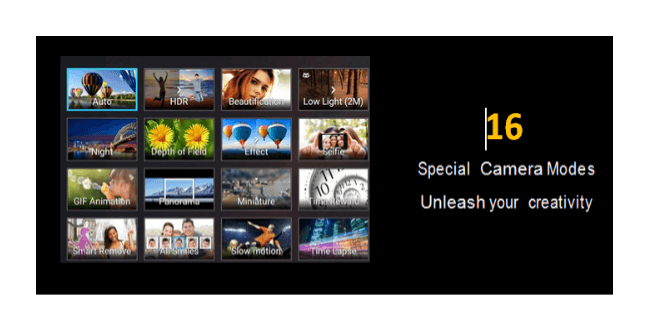
Coming to the camera specifications on the phone, it comes with a rear camera of 5MP and a front camera of 0.3MP. While the 5MP camera might not look like a big deal to us tech experts used to camera specifications of 13 MP and higher, but for a price tag of just Rs. 5,299 – this camera manages to be very appealing. However, ASUS is also offering users an additional choice, in this category, as there is a second variant of the ZenFone Go 4.5 2nd generation that comes with a rear camera of 8MP and a front camera of 2MP priced at Rs 5,699. This variant would definitely satisfy the clicking enthusiast in you. Apart from this, it’s really the features that come built into the camera that excites the reviewer in me. Along with the ‘PixelMaster’ technology unique to ASUS, also inbuilt into the phone are a total of 16 different modes- be it for clicking pictures during the day or night. The zero shutter lag also ensures perfect photos in a snap.
Three of the modes that stood out for me were as below-
Backlight HDR Mode
This mode reduces the shadow effect and therefore allows the images to have a better brightness and contrast factor by expanding the dynamic range of the shot. The detailing results in flawless images captured- all the time.
Low Light Mode
This feature increases the light sensitivity of the image by up to 400%, while reducing the noise and boosting the colour contrast every time. A feature that allows the users to produce clear and bright images in low light as well – this camera is ideal for users who do not wish to worry about the light condition when capturing something they like.
Beautification Mode
On your endless selfie clicking rampages, when out with friends, this phone is your perfect companion, as the beautification mode subtly balances the facial features, softens the tones and removes blemishes to make you and your friends look even better. Just when you think that was enough for all your clicking needs, the phone also has built-in MiniMovie application. This application allows users to combine different photos into short movies which can be further made interesting by adding musical notes and text of your choice. Your creations can then be quickly shared through social media, email, cloud services, and YouTube.
Storage
Despite being in the budget category, the phone still comes with adequate storage capacity – a 1GB RAM, which ensures that you never have to worry about seeing the dreaded – ‘phone capacity full’ message pop up on your phone. The Zenfone Go 4.5 2nd generation additionally offers 100 GB of accompanying Google Drive storage – that too, free for 2 years! You would have to redeem the offer on the Google Drive app by April 1st, 2018.
The ASUS ZenUI
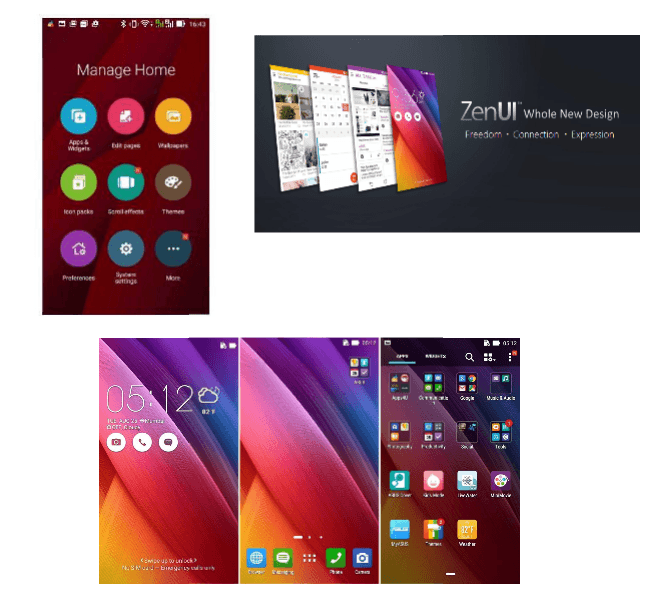
Personally, my favorite aspect on ASUS’ Zenfone range is the ZenUI; it is ASUS’ personalized gift to its users. With a new visual design and features, it allows for classic customization on your phone. The ZenUI is simple, beautiful and brilliant all at the same time. It allows you to have a lock screen accompanied by a customizable font and icon. It has redesigned icons, optional folders, weather and time widgets different, and a variety of ASUS color themes for your use. Further, within the ZenUI, the idea that excites me the most is the ‘ZenMotion’- which allows users to access everything on their phone with just an easy swipe to launch a variety of applications, see notifications of incoming messages, missed calls, and a lot more. It also has a new Boost feature- which acts like your phone’s personal clean up assistant- just by tapping the icon, Boost will clean up background applications to free your phone’s memory and increase its speed.
ZenUI Launcher
In particular, for this, one has to simply swipe up on the home screen to access easy customization tools. You can then go ahead and choose your wallpaper, pick your icons and arrange your apps in a moment.
Performance
The phone matches your needs of smart and quick performance at every step with its Qualcomm quad core CPU@1.2GHz, and dual sim-dual standby feature. Additionally, the Sonic-Master Technology delivers crystal clear sound to your ears, satisfying the music-lover in you. The phone is also probably more obsessive than you, about conserving power especially when searching for a signal, thus significantly increasing its standby time. It has an advanced antenna design that ensures fantastic performance, even in areas with poor signal. Be it for your social media needs, or your routine daily tasks, the phone has adequate capability built into it, to offer a power-packed performance.
To conclude- this phone is perfect for those users that look for class, appeal and performance, without burning a hole in their pocket. The variant with the 0.3MP/5MP (front + rear) camera being priced at just Rs. 5,299, and the 2MP/8MP (front + rear) camera at INR 5,699; it can literally be the ‘Go-To’ phones for the budget smartphone section and is bound to make heads turn when you take it out in public. With multiple features on it, that still do not compromise on build, aesthetic or specifications quality, the Zenfone Go 4.5 2nd generation does all that and more, acting like the ultimate ‘Zen’ companion to your fast paced life.
Noise Cancellation:
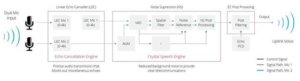
We live in a world that is noisy all the time, and to reflect on that real time experience, ASUS has come up with the NoiseTalk Zero which is an innovative combination of linear-echo-cancellation (LEC) and noise-suppression (NS) that works towards wiping out audio rebound and in reducing background noise to a minimum. In fact, the Zenfone’s LEC is 1.2X (20%) better at blocking echoes and is 2.3X (130%) more effective at noise suppression in multiple environments comparatively. As a result, users get the chance to experience crystal-clear quality during their calls.