Category: Samsung

News, tips and tricks and Reviews on various Samsung Smartphones.

  • Samsung Galaxy A50 Tips and Tricks

    Samsung Galaxy A50 comes with One UI on top of Android Pie. It has many useful features. Many of them are available in other Samsung phones and some are exclusive. Here is some of the useful Samsung Galaxy A50 Tips and Tricks.

    Samsung Galaxy A50 Tips and Tricks

    How to hide apps in Galaxy A50?

    One UI provide a useful feature which provides a option to hide apps from the App drawer. If you enable it, the app which you wanted will not be shown in app drawer. However, you can access it by app search or universal search. To enable it,

    • Long press on the Home screen.
    • Tap on Home Screen Settings.
    • Select Hide Apps from launcher settings.
    • Now select the apps which you want to hide.
    • Tap on apply.
    • App will be hidden from the app drawer.

    Video Demo:

    What is the procedure to take 25MP photos in Galaxy A50?

    By default, photos are captured in 12 Megapixel in A50. However, camera sensor is capable of taking 25 MP photos. To enable it,

    • Open the camera app.
    • Tap on Aspect Ratio icon.
    • Select 3:4H option.
    • Now, the photos will be captured in 25MP.

    How to enable/disable Motion Gestures in Galaxy A50?

    Galaxy A50 comes with many useful gestures. Some of them are enabled by default. If you want enable other gestures or disable some gestures,

    • Go to Settings -> Advanced features -> Motion and gestures.
    • You will see all the available gestures here.
    • You can disable or enable gestures by moving the slider to left or right.

    How to use 2 WhatsApp accounts in Galaxy A50?

    Samsung latest phones comes with a feature called dual messenger. You can use 2 two separate accounts for the same messenger app. For example, 1 for work and one for family and friends. Using this, you can use two whatsapp account in Galaxy A50. With this you can use two numbers for whatsapp in single phone. You can choose different contacts for each account. To use two whatsapp account in Galaxy A50,

    • Go into the Settings → Advanced features.
    • Tap on Dual Messenger.
    • A list of apps which are compatible with Dual Messenger will be displayed.
    • Toggle the switch of the Whatsapp if you wish to use a separate account with.
    • Read the Disclaimer. Once you have read the Disclaimer, tap on Confirm to continue.
    • Tap on Install. A second icon for the selected app will appear on your Home screen. You’ll be able to use a different account in the second copy.
    • You can access it in the home screen.

    What are different ways to customise Always on Display?

    There few options available. You can customise clock and notification details. You can access Always On Display feature here. Settings -> Lock screen -> Always On Display .

    How do one get the pictures in gallery to show on the home page of Galaxy A50?

    If you want to set a picture in Gallery as wallpaper in home screen or lock screen, follow the steps given below.

    • Open the Gallery.
    • Select the picture you wish to set as wallpaper.
    • Once you are in the image, tap Menu (this may appear as three dots).
    • Tap Set as wallpaper.
    • Choose where you wish to set it: Home screen, Lock screen or Home and lock screens.

    You may like to read:

    Galaxy A50 How to extend battery Life

  • How to take screenshot on Galaxy A50

    There are several ways to capture screenshot on Galaxy A50. In this post we will cover three different ways of capturing screenshot in Galaxy A50. These methods of capturing screenshot does not require installing any third party applications.

    How to take screenshot on Galaxy A50

    You can take screenshot in Samsung Galaxy A50 using following methods.

    take screenshot on Galaxy A50

    Method 1: Take screenshot on Galaxy A50 using hardware keys

    • Go to the screen on which you want to capture screenshot.
    • Press and hold volume down and power button simultaneously.
    • Screenshot will be captured.

    Method 2: Take screenshot on Galaxy A50 using Assistant Menu

    • Enable Assistant Menu by going to Settings->Accessibility->Dexterity and interaction. Enable Assistant menu by moving slider to right.
    • Assistant menu will be appear in the screen. You can move it wherever you want.
    • Now, on a page you want to capture screenshot, tap on Assistant menu ->Screenshots.
    • Screenshot will be captured.

    Method 3: Take screenshot on Galaxy A50 using Palm swipe method

    • Enable palm swipe by going to Settings->Advanced features->Motions & Gestures. Enable Palm Swipe to capture.
    • To take screenshot, swipe the edge of your hand across the screen.
    • The screenshot will be captured.

    You may like to read:

    Video Guide

    This video covers taking screenshot in Galaxy A50 using Palm Swipe Gesture. This video is done on Galaxy A50. But same method is working in Galaxy A70 as well.

  • Samsung Galaxy A80 – Top 5 Features and FAQ

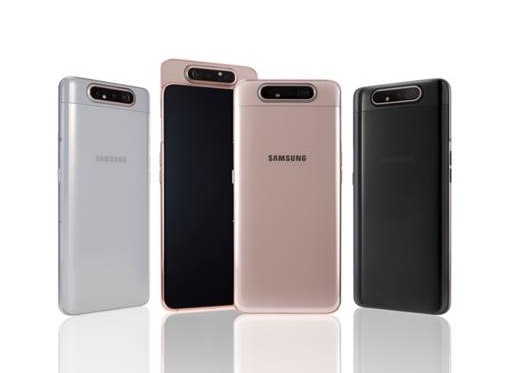
    Samsung India launched Galaxy A80 in India. It has many interesting features such as rotating triple camera setup, Snapdragon SoC, new infinity display etc. Here is the Samsung Galaxy A80 top 5 features.

    This year witnessed Samsung launching different models from Galaxy A series to cater different price segment. So far Galaxy A10, Galaxy A20, Galaxy A30, Galaxy A50, Galaxy A70 and now the Galaxy A80 are launched in India.

    You can also read:

    How to backup and restore Galaxy Phone with SmartSwitch

    Samsung Galaxy A80 is the premium mid range smartphone with innovative features.

    Samsung Galaxy A80

    Samsung Galaxy A80 Top 5 Features

    Rotating Triple Camera setup

    Rotating camera is not a new technology. However, implementation of rotating camera is different. Galaxy A80 sports triple camera setup which consist of 48MP primary sensor with f/2.0, 8MP wide angle lens and a ToF (Time of Flight) camera for depth mapping. The camera setup of the Galaxy A80 slides up and rotates once selected the selfie mode.

    Samsung Galaxy A80 comes preloaded with Super Steady mode. This is suppose to reduce video shake. There is a scene optimiser as well. As per the company, it can recognise and enhance up to 30 scenes. Built in 3D depth camera will help in Live Focus for still and video results. It also has Flaw Detection that is touted to automatically identify glitches before a picture is clicked to deliver enhanced shots.

    Super AMOLED New Infinity Display

    Galaxy A80 sports 6.7 inch full HD+ Super AMOLED new Infinity display with a 20:9 aspect ratio. It is near bezel less and there is notch or punch hole. It also has in-display fingerprint scanner.

    Qualcomm’s new Snapdragon 730G processor

    Samsung Galaxy A80 is the first phone to feature Snapdragon 730G. It is an Octa Core SoC built on 8nm process. It has Adreno 618 graphics. It is gaming focussed chipset with slightly faster GPU clock speed compared to Snapdragon 730.

    8GB RAM and 128GB of storage

    Galaxy A80 comes with 8GB of RAM and 128GB of Internal storage. There is no support for microSD card. Coupled with Snapdragon 730G and 8GB of RAM is expected to provide good user experience.

    3700mAh battery + 25W fast-charging

    Larger screen consumes more power. To accommodate it, Samsung is providing 3750 mAh battery with 25W super fast charging with USB type C.

    Samsung Galaxy A80 FAQ

    What are the different Galaxy A80 color options available?

    Galaxy A80 is available in Phantom Black, Ghost White and Angel Gold.

    What is the Galaxy A80 price in India?

    Samsung Galaxy A80 price in India is ₹47,990.

  • Samsung Galaxy A20 FAQ Comparison Cons

    Samsung launched another affordable Android smartphone in India-Galaxy A20. This year so far Samsung launched 3 Galaxy M series smartphones and 4 Galaxy A series smartphones which includes Galaxy A20. In this post, let us have a quick look into Galaxy A20 FAQ.

    Samsung Galaxy A20

    Samsung Galaxy A20 FAQ

    How many different variants of Galaxy A20 available in India?

    In Terms of storage and RAM, only one variant is available. This variant has 3GB of RAM and 32GB of internal storage. Coming to color variants, customer can choose between Red, Blue and Black.

    What is the Galaxy A20 price in India?

    Galaxy A20 price in India is ₹12,490.

    What are the key specifications of Samsung Galaxy A20?

    Specification summary is as follows.

    • 6.4 inch HD+ Infinity-V Super AMOLED display.
    • 3GB RAM and 32GB of internal storage.
    • 1.6GHz Exynos 7884 processor.
    • Dual rear camera setup: 13MP primary camera with f/1.9 primary sensor and a 5MP f/2.2 ultra wide-angle camera. 
    • 8 MP front facing camera.
    • 4000 mAh battery with fast charging support.
    • One UI based on Android Pie.

    How to take screenshot in Galaxy A20?

    You can take screenshot using two different methods without installing any third party applications. 1st is using the hardware keys. 2nd one is using the Assistive Menu button method. I have made a detailed post on this for Galaxy M20. For more info on this, you can refer to Galaxy M20 screenshot post. The same methods are working on Galaxy A20 as well.

    What are advantages or pros of Galaxy A20 compared to Galaxy M20?

    We are yet to do Galaxy A20 review. However, based on the specifications, here are the pros of Galaxy A20 over Galaxy M20.

    • Super AMOLED display panel.
    • Android Pie with One UI.
    • Slightly larger screen size.

    What are the cons of Galaxy A20 compared to Galaxy M20

    • HD+((1560×720) ) display resolution compared to Full HD+ display panel.
    • Slightly less powerful processor.
    • Storage and RAM. Higher variant of Galaxy M20 is priced at Rs.12,990. which has 4GB of RAM and 64GB of internal storage.

    Also Read: