

Category: Smartphones

  • Take Screenshot on Samsung Galaxy J5, J7 and J2

    Taking a screenshot on Galaxy J5, Galaxy J7 and Galaxy J2 is very simple and easy. All these smartphones share the same procedure. Performing print screen on Samsung Galaxy J series smartphone is useful if you would like to share your high score in a game or making a tutorial or saving a receipt of payment etc. Here are the tips to take a screenshot on Samsung Galaxy J5, J7 and J2.

    Whatever may the reason for capturing a screenshot on Galaxy J smartphone, it always good to know this feature. So here is the step by step tutorial on how to take a screenshot on Galaxy J5, Galaxy J7, Galaxy J3, Galaxy On5, Galaxy On7, Galaxy J5 2016 and Galaxy J7 2016.

    Other Related Tips:

    How to take a screenshot on Galaxy J5, J7 and J2

    This is most of common way to take a screenshot in Galaxy J5 and Galaxy J7.

    • First, go the screen on which you want to take a screenshot.
    • Now press and hold Power and the Home key simultaneously. In my experience, I felt the power key should press fraction of a seconds before home key. If it is not simultaneous then screenshot can not be taken.
    • The screen will Flicker and a shutter sound will be heard. This confirms that the screenshot is taken.

    How to access taken screenshot on Galaxy J7, J5 and J2

    • You can access taken screenshot from the notification area if you have just taken a screenshot or you have not cleared the notification area after taking the screenshot.
    • Another way to access the taken a screenshot is from the Gallery folder.

    Samsung Galaxy J2, J5 and J7 all share a few common features such as AMOLED display screen and Android 5.1.1 with Touchwiz UI. The screen size, screen resolution and internal hardware are different.

    Video guide on how to take screenshot on Galaxy J5, J7 and J2

    This video covers the topic on take Screenshot on Samsung Galaxy J5. However, you can use this method to take a screenshot in other Samsung Galaxy J series smartphones.

    Take screenshot in Galaxy J5 , J7 and J2

    Samsung Galaxy J5, J7 and J2 are budget Android smartphones. So Samsung has trimmed many features on these devices. For example, Palm swipe method of taking a screenshot is not available on this device.  Without installing any third-party apps, if you want to print screen on these Samsung Galaxy J smartphones, then there is only one method is available as of now.

  • Asus Zenfone Laser with 6 inch Full HD display launched at Rs 17,999

    Asus has launched new variant of Zenfone 2 Laser(ZE601KL) in India at a price of Rs.17,999. The device will be available in 3 different color options – Red, Silver and Gold. Starting December 2nd week, ZenFone 2 Laser (ZE601KL) will be available through popular e-commerce sites such as Amazon, Flipkart and Snapdeal. It can be also purchased from offline channels.

    Asus Zenfone 2 Laser(ZE601KL) sports 6-inch IPS full-HD display with a 1080 x 1920 pixel resolution and 367 ppi pixel density. The display has scratch resistant Corning Gorilla Glass 4 protection.  ZenFone 2 Laser (ZE601KL) is a dual sim 4G enabled smartphone and runs on Android Android 5.0 Lollipop-based ZenUI. It includes all Asus Zenfone software customization such as What’s Next, ZenLink, ZenMotion, Quick Access, ASUS Splendid, Kids Mode, Snap View, One Hand Mode, Trend Micro Security, Themes and more.

    Recommended Reading:

    How to take screenshot on Asus Zenfone 2 Laser

    How to use Asus Zenfone 2 Laser as modem

    Asus Zenfone 2 Laser(ZE601KL) is powered by 64-bit octa-core Qualcomm Snapdragon 616 (MSM8939)  Soc coupled with 3GB of RAM. The device has 16GB of inbuilt storage and supports microSD card upto 128GB. The connectivity options available on this device includes Bluetooth, Wi-Fi, GPS/ A-GPS, Glonass, GPRS/ EDGE, 3G,Micro-USB, USB tethering and WiFi Hotspot. Zenfone 2 Laser(ZE601KL) also supports Indian 4G LTE bands. As per the company, the device supports upto 150Mbps of download speed.

    Asus Zenfone 2 Laser

    Asus Zenfone 2 Laser(ZE601KL) has 13MP rear camera with large f/2.0-aperture and 0.03 seconds auto-focus feature. This is said to enable up to two times faster focus and zero shutter lag. The camera performance enhancing features such as ASUS PixelEnhancing and PixelMaster technology which allows users to take up to 400 percent brighter photos and videos also available. For selfie lovers, there is a 5MP secondary camera in the front.

    Asus Zenfone 2 Laser(ZE601KL) measures 164.5x84x10.5mm and weighs 190 grams. The device has 3000mAh Li-Polymer battery. The sensors in the device are accelerometer, e-compass, gyroscope, proximity light, and ambient light.

    With addition of this variant, Asus has 3 differently priced Zenfone 2 Laser smartphone variants. Asus Zenfone 2 Laser ZE550KL is most affordable variant which priced at Rs.9,999. Another variant is Asus Zenfone 2 Laser 5.5 which is priced at Rs.12,999. Asus has recently launched Asus ZenFone Zoom With 3X Optical Zoom in Taiwan which will hit the stores starting mid-December in Taiwan.

  • How to take screenshot on OnePlus X

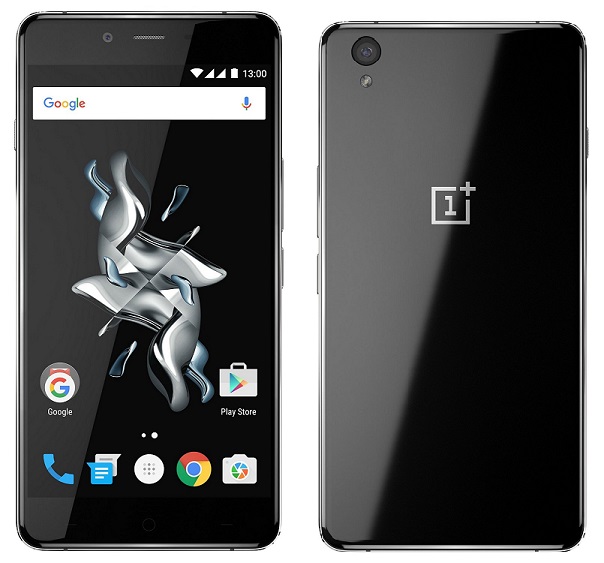
    OnePlus X is considered to be a very good mid-range Android smartphone. It has decent power, elegant look, and an attractive price tag. I already made a post on OnePlus X review which talks about pros and cons of the device. In this post, we will learn one tip on this device. That is how to do the print screen or screen capture on the OnePlus X.

    OnePlus X Dual sim
    OnePlus X

    How to take screenshot on OnePlus X

    OnePlus X runs on Oxygen OS based on Android 5.1. So there are two ways through which you can do the print screen on OnePlus X. The first method is through the default android method or Volume Down Plus Power key method. The second one is using the power menu option. This method of screen capture on OnePlus X does not need any third party apps. It works with default apps and settings.

    How to take screenshot on OnePlus X using Power Button and Volume Down Button or Default Android Method

    This is the most common method of taking a screenshot. Most of the Android smartphones support this method of taking the screenshot and OnePlus X is not an exception. So let’s explore this method of taking screenshot.

    • Go to the screen or App on which you want to take a screenshot.
    • Press and hold volume down and power button simultaneously.
    • The screen will flickr and shutter sound will be heard.
    • The screenshot will be saved in Gallery->Screenshot folder.

    How to take screenshot on OnePlus X using the Power Menu option

    Comparing with the above method, this is the easiest way of taking a screenshot on OnePlus X.

    • Go to the screen or App on which you want to take screenshot.
    • Long press on Power button.
    • You will get a power menu.
    • Tap on to the “Screenshot” Options.
    • It will take the screenshot.
    • The taken screenshot will be saved in Gallery->Screenshot folder.

    Hope this guide on how to take screenshot on OnePlus X is useful. If you face any issues or anything you want to share use comment section below. Also, share any other useful tips you have got with OnePlus X.

  • Samsung Galaxy On5 Review-Pros and Cons

    Samsung Galaxy On5 is the new offering in the price segment of below 10k. With decent spec sheet and affordable price, this Dual sim Samsung smartphone competing with the likes of Lenovo A600 Plus, Meizu M2, Motorola Moto E, Redme smartphone etc.

    Samsung Galaxy On5 sports 5 inch TFT display with screen resolution of  720×1280 resolution and 294 ppi pixel density. Though it is not a AMOLED screen, it is still a good display screen. The viewing angles are decent and color output is good. Sadly display is fingerprint magnet and doesn’t come with Corning Gorilla glass protection. Also screen is bit reflective which affects on the legibility under sunlight. Considering similar priced smartphones, display quality is satisfactory.

    Samsung Galaxy On5 is powered by quad core 1.3GHz Samsung Exynos processor with 1.5GB of RAM and Mali T720 GPU. Out of 1.5GB of RAM, 534MB is free and 681MB is used by system files. Default apps consume around 184MB of RAM. In terms gaming experience as well as loading heavy animation in UI and apps is good. Phone doesnot exhibit any heating issues in my testing. Even with 20 minutes of gaming phone became just warm(36 degree) which is acceptable.

    Galaxy On5 4G Dual sim
    Samsung Galaxy On5

    Samsung Galaxy On5 houses 8MP primary camera with LED flash and 5MP front facing camera.  The primary camera takes some impressive images in outdoor conditions as well as in artificial lighting. It can record videos at 1080p resolution. There is some stabilization from shakes using the software tweaks. Video quality is decent but not great. There is also a pro mode through which you can do manual settings.  Front 5MP snapper is on par with similar priced smartphone front cameras. Wide-Selfie and Interval Shots options are nice addition.

    Samsung Galaxy On5 has 2600 mAh battery. As the Exynos Soc used in this device is optimized for battery usage,  it easily lasted more than 1 day with heavy usage on our test unit. There is also normal power saving mode and ultra power saving mode through which you can increase battery level further. For connectivity, Galaxy On5 has 4G, 3G, GPS, GLONASS, Bluetooth, and Wi-Fi. It is dual sim smartphone and both sim are capable of 4G. But you can use any one of the sim on 4G connectivity at a time.

    Recommended Reading:

    Lenovo Vibe P1m Review- Incredible Battery life at affordable price tag.

    Let us summarize Samsung Galaxy On5 Review by splitting features into merits and demerits.

    Advantages and Disadvantages of Samsung Galaxy On5

    Pros of Samsung Galaxy On5

    • Decent Display screen.
    • Good battery life.
    • Decent camera performance.
    • 4G connectivity and Dual sim support.
    • Samsung Brand trust and availability of service centers.

    Cons of Samsung Galaxy On5

    • Limited Sensors: Device has only Accelerometer and Proximity Sensor. Other basic sensors like Ambient light sensor and compass etc missing.
    • No Corning Gorilla Glass protection: Display screen does not have any protective glass such as Corning Glass. Also no screen guard in the box.
    • Speaker output is bit low.
    •  No LED notification.

    Samsung Galaxy On5 Tips and FAQ

    Does Samsung Galaxy On5 supports USB OTG?

    Yes. It is.

    How to take screenshot on Galaxy On5?

    To take screenshot on Samsung Galaxy On5, press and hold home+ power button simultaneously. The screenshot will be taken.

    How to use Galaxy On5 as Modem?

    You can Samsung Galaxy On5 as modem through USB tethering and Bluetooth Tethering. You can also use personal wifi hotspot feature.


  • Microsoft Lumia 950XL Hands On Review

    Finally Microsoft has launched its flagship smartphones Lumia 950 and Lumia 950XL in India. As reported earlier, both devices support Dual sim. The key attraction of these smartphones are Windows 10, Continuum(using phone as full fledged PC), QHD display and camera. Microsoft Lumia 950 price in India is Rs.43,999 and Lumia 950XL price in India is Rs.49,399. In this post we will have a quick hands review on Lumia 950XL.

    Microsoft Lumia 950XL runs on latest Windows 10. This brings in new features such as Continuum, Cortana,Hello,Edge and MS Office suite. From the look wise, Windows 10 looks very similar to Windows 8 mobile. But there is few changes in icons and addition of new quick settings . Its more of new a features rather than change of UI. In my short duration with the phone, there is no shutter or lag is observed.  The clean look and easy UI feels refreshing and good to use.

     Lumia 950XL Dual sim
    Microsoft Lumia 950XL

    Microsoft Lumia 950XL comes with 5.7 inch AMOLED capacitive touch screen with impressive 1440×2560 pixel resolution which results in pixel density of around 518 ppi. The screen to body ratio is 74.3% which is good. The display offers wide viewing angles, deep black color and good color saturation. Overall display looks gorgeous.

    Lumia 950XL sports 20MP primary camera with features triple LED flash, Carl Zeiss optics, optical image stabilization and 4K video recording. In the front it has 5MP secondary camera which can record videos at 1080P resolution. The primary camera feature includes 1/2.4′ sensor size, 1.12 µm pixel size, PureView technology, geo-tagging, face detection, panorama and HDR. The initial impression on camera is very good.

    For performance, Lumia 950XL has Qualcomm Snapdragon 810 processor along with 3GB of RAM. The device has 32GB internal storage and supports microSD card. Lumia 950XL also supports USB OTG. It packs 3,340mAh user removable battery. To recall, this smartphone uses liquid cooling technology.

    These are initial impressions on the new Microsoft Lumia 950XL. I will be posting a detailed review and tips and tricks on Lumia 950XL in the coming days. If you have any specific questions or any thing you would like to cover in the review, please share it in the comment section below.

    Microsoft Lumia 950XL Specification

    •  Qualcomm Snapdragon 810 processor with 3GB RAM.
    • 32GB internal storage and support for microSD card.
    • 5.7 inch AMOLED screen with 1440×2560 pixel resolution and 518 ppi pixel density.
    • 3,340mAh user removable battery.
    • 20MP primary camera with triple-LED RGB flash and 5MP front facing camera.