Category: How To Guides

List of simple tips and tricks of Smartphone, gadgets and browsers. These includes Tethering of smartphones, Enabling WiFi Hotspots, Browser optimisation, Tips and Tricks on Browsers etc.

  • How to capture screenshot on Honor Holly 2 Plus

    Honor Holly 2 Plus is a budget dual sim Android smartphone. Taking screenshot is an useful functionality which helps in many occasions such as saving a error log, payment reciepts or for sharing the high score of a game with friends etc. In this post, we will learn different methods available on Honor Holly 2 Plus to take screenshot. The price of Holly 2 Plus in India is Rs.8,499.

    How to take screenshot on Honor Holly 2 Plus

    There 2 methods through which you can take screenshot on Honor Holly 2 Plus.

    1. Volume down and power button method.
    2. Using the screenshot button.

    Volume down and power button method of taking screenshot on Honor Holly 2 Plus

    For taking screenshot, you need to press and hold volume down and power button simultaneously for few seconds.  The screen will flicker and shutter sound confirms that, the screenshot is captured. The taken screenshot will be saved in gallery folder.

    Taking screenshot on Honor Holly 2 Plus using the screenshot button

    Honor Holly 2 Plus runs on a customs skin called EMUI which is based on Android. This customization added another way to capture screenshot on Honor Holly 2 Plus which is mentioned below.

    Screenshot button on Honor 5X

    • Go to the Honor Holly 2 Plus screen on which you want capture screenshot.
    • Go to quick settings menu which you can access by swiping down on from the top.
    • In the quick settings menu, you will find a icon for screenshot button.
    • Tap on to it will capture the screenshot.
    • Taken screenshot will be saved in the gallery section.

    Honor Holly 2 Plus is powered by 1.3 GHz Quad core Processor MTK MT6753P with 2GB of RAM and 16 GB Internal Memory. It also supports expandable Storage through microSD card upto 128 GB. As far connectivity, it has 2G, 3G, 4G and CDMA. Holly 2 Plus houses 13 MP Primary camera and 5 MP Secondary  front facing Camera.

    If you find any difficulties in taking screenshot please share it in the comment section below.

  • How to type Indian regional languages in Asus Zenfone Max

    Typing Indian languages such as Kannada, Hindi, telugu, tamil, Bengali, Malayalam etc in Zenfone Max is very easy. Now, there is no requirement of any external  app. Here is the step by step guide on how to type Indian languages in Zenfone Max.

    How to type Indian regional languages in Asus Zenfone Max

    As mentioned before, for typing indian languages such as Kannada, Hindi, telugu, tamil, Bengali etc, first you need to enable the respective languages in the settings.

    • Go to ‘Settings’->’Language & input’

    Type Indian Language

    • Tap on to ‘ZenUI Keyboard’

    Type Indian Language

      • Now tap on to “Input languages’.

    Type Indian Language

    • In this page, you have list of input languages already available in the device.
    • Find and select the input language by check marking.

    Adding Input languages

    If the input language which you are looking for is not available in the list, then you need to add that language.  For that,

    • Tap on to Plus symbol(+) in the top of the screen.

    Type Indian Language

    • You will find many more languages.
    • Select the language which you want to download.
    • Once downloaded, you can select it in previous page as mentioned before.

    How to shift between languages while typing in Zenfone Max

    Shift between Languages

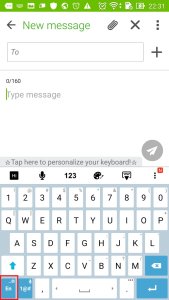
    Whenever, you want to type language in messages, whatsapp messages etc, tap on to ‘En…” button. It will change the languages.

    Video on how to type Indian Languages in Zenfone Max

    I have made video on demonstrating how to type Indian languages in Asus Zenfone Max.

  • How to take screenshot on Asus Zenfone Max

    Asus Zenfone Max is a sub 10k Android smartphone with huge 5000 mAh battery. It runs on Android Lollipop with ZenUI. In this post, we will go though on how to take screenshot on Zenfone Max.

    For capturing screenshot on Zenfone Max, there are 3 different methods are available. 1. Power and Volume down method, 2. Recent Apps key method and 3. Through screenshot button.

    How to take screenshot on Zenfone Max

    1. Power and Volume down method:

    • Go to the screen on which you want to perform print screen.
    • Press and hold power and volume down key for around 1-2 seconds.
    • Screenshot will be saved.

    2. Using the recent apps Key method:

    For using this method, first you need to assign recent apps key to take screenshot.

    • Go to  “Application” >> Tap “Settings” >> Choose “ASUS customized” from options. >> Choose “Key settings”>> Choose “Tap and hold to get screenshot”.
    • Now whenever you want to capture screenshot on Zenfone Max, long press on the recent apps key.
    • The screenshot will be saved.

    3. Using the screenshot button method

    By default quick settings menu does not have screenshot button. So you need to add it to the quick access menu.

    Print screen on Zenfone Max

    • On home screen, go to Access Quick settings and then tap “Quick settings options”.
    • Select the screenshot option from the available tools option. Do note that, you can choose maximum of 4 tools. So you need to disable the tool from quick settings menu which you don’t want.
    • Now whenever, you want to perform screen capture on Zenfone Max, access the quick settings and tap on to Screenshot button.

    Where the taken screenshot will be saved?

    All the screenshot which are taken on Zenfone Max will saved under Gallery->Screenshot folder.

  • How to capture screenshot on Honor 5X

    Honor 5X is a midrage Android dual sim smartphone. In this post, we will cover the topic on how to capture screenshot on Honor 5X. I have done a detailed review on this device. You can refer to it by clicking on the link below.

    Useful links related to Honor 5X:

    Honor 5X Review- Pros and Cons

    How to download Honor 5X PC suite

    How to take screenshot on Honor 5X

    Like other Huawei Honor series smartphones, Honor 5X too offers 2 different ways to take screenshot. These methods are

    • Default android method or Volume down and power button method.
    • Using the screenshot button.

    Method 1: Default android method or Volume down and power button method.

    To take screenshot using this method, you need to press and hold power and volume down buttons simulataneosly and hold it for few seconds.  The screenshot will be taken and saved in gallery folder.

    Method 2: Using the screenshot button.

    Honor 5X runs on Android 5.1 with customised skin called EMUI 3.1. This provides an option of screenshot button in the quick settings menu. For taking the screenshot follow the steps given below.

    Screenshot button on Honor 5X

    • Go to the Honor 5X screen on which you want capture screenshot.
    • Now to access quick settings menu.
    • You will find a icon for screenshot button.
    • Tap on to it. The screenshot will be taken.
    • Taken screenshot will be saved in the gallery section.

    Honor 5X is a good performing android for the price it is offered. It has got excellant display screen, decent camera and useful fingerprint scanner. The day to day performance was also satisfactory.

    Hope this guide on how to take screenshot on Huawei Honor 5X is useful. If you are facing any issues or you want to leave feedback, use the comment section below.

    Video Guide on Honor 5X screenshot Capture

  • How to take screenshot on Letv Le 1S

    To Take screenshot on Letv Le 1s or LeEco Le 1s, there are two methods available. The first one is through default Android method and the second one is through screenshot button in the quick settings menu.

    Letv Le 1s runs on Android 5.0.2 with LeEco’s heavy eUI skin. It offers many customisation and useful options for the users. In this post, we will learn on how to take screenshot on LeEco Le 1s. This is the same method works on all LeEco smartphones such as Le 2, Le Max and Le Max 2.

    How to take screenshot on Letv Le 1s or LeEco Le 1s

    Method 1: Default Android method:

    • Go to the screen on which you want to take screenshot.
    • Press and hold volume down and power button simultaneously.
    • The screen will flickr and the screenshot will be taken.

    Method 2: Through screenshot button

    • Go to the screen on which you want to capture screenshot.
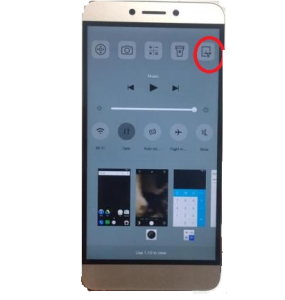
    • Tap on to recent key.
    • In the top, you have the quick settings option.

    How to take screenshot on LeEco Le 1S

    • In that list you will find the screenshot button.
    • Tap on to it. The screenshot will be taken.

    Where the taken screenshot is saved?

    The taken screenshot on Letv Le 1s is saved in Gallery->Screenshot folder.

    Letv Le 1s is exclusively available through Flipkart flash sale. The LeEco Le 1s price in India is Rs 10,999. The device sports 5.5 inch screen with 1080p resolution. It is powered by 64 bit Mediatek Helio X10 processor with 3GB of RAM and 32GB of onboard storage. It has PowerVR G6200 GPU. Letv Le 1s sports 13MP primary camera and 5MP front facing camera. The other key features of Letv Le 1s are fingerprint scanner, USB-C type(fast charging) port and 3000 mAh battery.  I have done a detailed post on the features of Letv Le 1s. You can read that here Top 5 features of Letv Le 1s.

    I will be posting an indepth review on Letv Le 1s in the coming days. Please share your feedback in the comment section below.

    Video guide on How to take screenshot on LeEco Le 1s, Le 2, Le Max, Le Max