Author: Aniruddh

  • Pros and Cons of Xiaomi Redme 1S

    The Xiaomi Redme 1S is a entry level dual sim Android smartphones.  It is powered by 1.6GHz Quad core Qualcomm Snapdragon 400 processor with 1GB of RAM and Adreno 305 processor. It comes with 8GB internal storage and supports upto 64GB of RAM through microSD card. Redme 1S sports 4.7 inch Clear display with 1280×720 resolution and 312ppi pixel density.

    Read:

    Xiaomi Redme Note Review

    Xiaomi Redme 2 Cons and Pros

    Xiaomi REdme 1s sports 8MP primary camera which can record videos at 720p resolution. There is also a 1.6MP front facing camera. The connectivity features of this Dual sim Android smartphone includes GPRS, EDGE, 3G, WiFi, Bluetooth, USB tethering and WiFi hotspot. The device houses 2000 mAh battery.

    Redme 1s Dual sim

    Advantages and Disadvantages of Xiaomi Redme 1S

    Pros of Xiaomi Redme 1S

    • Decent performance
    • Good value or money ratio
    • Good camera performance
    • Good Display

    Cons of Xiaomi Redme 1s

    • No Android Kitkat out of the box
    • Customized skin MIUI does not have a  manual in the box.
    • The screen protector comes as free of very poor quality
    • RAM availability for apps is less
    • Heating Issue. Xiaomi has released an update to fix this heating issue. However, heating issue is not completely fixed.

    Xiaomi Redme 1S Tips and Tricks

    Using Xiaomi Redme 1s as Modem

    Xiaomi Redme 1S does provides USB tethering and WiFi hotspot features. Using the these methods, you can use it as Modem.

    Taking screenshot: To take screenshot on Redme 1s, go to the page you want to take the screenshot and go to quick menu and tap to Screenshots.

    Read: How to take screenshot on Xiaomi Redme 1s

    Switching between apps and Closing the apps: If you want to switch between running apps on Redme 1s or Close the running app, just tap and hold left capacitive button for a second. It will show you all running apps. You can switch between apps or you can close the apps. You can refer my post Switching between apps and Closing the apps in Xiaomi Redme 1s.

    Xiaomi Redme 1 Specification

    • Android v4.3 (Jelly Bean) OS
    • Dual Sim (3G + 2G)
    • 1.6 GHz MSM8228 Quad Core Processor
    • 8 MP Primary Camera
    • 1.6 MP Secondary Camera
    • 4.7-inch Touchscreen with AGC Dragontrail Scratch Resistant Glass
    • 8GB of Internal storage and Expandable Storage Capacity upto 64 GB
  • Type Indian Languages in Moto G Moto E and Moto X

    There are many new smartphones which are released in India recently such Micromax Unite 2, Spice Dream Uno, Karbonn Sparkle V, Micromax Canvas A1 supports Indian language out of the box. But how to type Indian languages on devices such as Moto G, Moto X and Moto E? Not all the Indian languages are supported at the time of writing this post. But you can type Hindi, Kannada, Telugu, Tamil etc on Moto G, Moto E and Moto X. In this post I will demonstrate how to type these Indian Language fonts on these Motorola smartphones.

    Other tips and tricks on Moto G, Moto E and Moto X

    How to take screenshot on Moto E

    How to use Moto G as modem

    How to Type Indian Language fonts on Moto G, Moto E and Moto X smartphones

    You have many methods to work around this. The one which I personally using and satisfied is the one using the apps created by SriAndroid. It is a free to download apps on Google play store. To use Kannada fonts on Moto G, Moto E and Moto X, download and install Just Kannada, for Hindi, Download Just Hindi, or for using Tamil fonts on Moto  phones download Just Tamil apps.

    Once you have downloaded the required language apps, follow instruction given below.

    • Once the app is installed, go to Setup, Langauge and Input
    • Her select Just Hindi or Just Kannada or Just Tamil etc based on your language requisite. You will get a message for your consent. Tap Ok if you want to continue the process.

    Type Indian Fonts in Moto G

    • Now you need change default keyboard. Tap on to Default and chose Just Hindi or Just Kannada or Just Tamil etc.

    Now the language app you download installed font will start appearing on all the text typing apps such Whatsapp, Messages, Mails, Contact creation etc. Good thing about this app is it gives a language keyboard with suggestive words based on the keywords you have used.

    Hope this Moto smartphone tips helps you. If you are facing any challenges or problems feel free to share your questions in the comment section.

    Video:


  • Xiaomi Redme 1s Switch Between Apps

    Xiaomi Redme 1s is one of the best value for money Android smartphone right now. It comes with MIUI 5 user interface. It designed to enhance the user experience. There lot of features and customisations are available in this Xiaomi UI.  In this Xiaomi Redme 1s tips, I will show you how to switch between apps or close apps which are running in the background.

    Read: Pros and Cons of Xiaomi Redme 1S

    How to Switch Between Apps and Close the running Apps in Xiaomi Redme 1s

    Xiaomi Redme 1s provide a very useful way to close the apps individually or at a time all the apps.  To do this, you need to tap and hold left bottom capacitive touch button for a second. It will show all the running apps. You can tap on to the app which you want to open to switch between apps.

    To close individual apps, just swipe the apps upwards. It will close the running apps. There is button through which you can close all the running apps with single tap in Redme 1s. It will also free up RAM usage. I made video demonstrating on how to Switch Between Apps and Close the running Apps in Xiaomi Redme 1s. You can refer that video below.

    Xiaomi Redme 1s Tip on How to Switch Between Apps and Close the running Apps

  • Motorola Moto G Price Slashed by RS2000

    Motorola has made Moto G smartphone more pocket friendly.  The new Price of Moto G is reduced by Rs.2000.  With increase in competition in the lower mid range smartphones, Motorola took this step to get more customers. Recently Asus has launched 5 smartphones under ZenFone series and Xiomi Mi 3 also launched at Rs.13,999. All these smartphones comes with better specifications than Moto G.


    After this price cut, 8GB version of Moto G price is Rs.10,499 and 16GB variant price is 11,999.  Flipkart is the only official retailer for Motorola smartphones in India. According to the listing, price cut is limited time offer which will continue till the stock last. Recently Flipkart gave a exchange offer on Moto G, but price cut is done for the first time.

    Motorola Moto G comes with 4.5 inch 720p resolution  display screen , Snapdragon 400 quad core processor running at 1.2GHz , 1GB RAM, 8GB/16GB internal storage, 5MP primary camera with LED flash, 1.3MP front facing camera. In India, Moto G dual sim variant only available. It runs on Android 4.4 Kitkat. Few days back, it received 4.4.4 update which fixed many bugs and added few enhancements. You can refer on Software update in Moto G Android update.

    Moto G
    Best Dual sim Android smartphone

    Though there are smartphones which are lower the price than Moto G, most of them are running on Android Jelly Bean or Android 4.4.2 Kitkat OS. This is one of the key attraction buy the MotoG. It promised to provide next major Android update too.  I have written few tips and tricks which you can refer in Moto G tips.

  • How to Use Checkbox in Excel Worksheet

    Checkbox in excel is a very handy tool for creating the checklist or simple user forms. There is no need of any Excel VBA knowledge to insert Checkbox into a excel sheet. This is increase the speed at which user enters data as well as it reduces the chances of misspellings which will give trouble in formulas or pivot tables. So lets start learning how to insert Checkbox in Excel.

    Step to Add Check box to Excel Sheet

    1.  To use Checkbox, you need add it to your ribbon, if it is not already available. To Do this, Go to File->Excel Options->Select Show Developer tab in the Ribbon option if you are using excel 2007. If you are using Excel 201o, then go to File->Options->Customize Ribbon. In the list of main tabs select the Developer check box. Choose Ok to close the Options Dialog Box. This works work well for Excel 2o13 on enabling the developer tab in ribbon.

    2.  Once Developer Tab is enabled, go to Developer->Selects Chekbox under form controls.

    3. Now you can place the Check box where ever you want in your excel sheet.

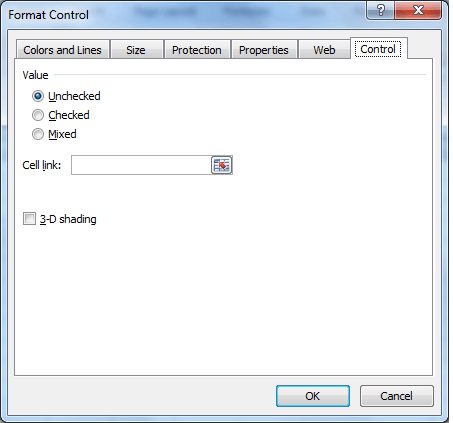
    4.  Once you placed the Check-box, left click on your mouse and choose Format Control option.

    Insert Checkbox
    Format Check Box

    5. Go to Control Tab.  Here you can choose the default value of the check box whether it is Unchecked or Checked or Mixed. If it is checked the output will true and if it is unchecked the output will be False.

    6. The Cell Link refers to the cell on which you want the output to displayed(True or False).