Category: Samsung

News, tips and tricks and Reviews on various Samsung Smartphones.

  • How to screenshot on Samsung Galaxy S22 or S22 Plus – 3 Ways

    Screenshot on Galaxy S22 or S22+ is one of the most sought feature. This is because it is a handy way to share whatever on the screen with someone or save for feature reference. For example, high score on a game, payment confirmation etc. So let us explore how to screenshot on Galaxy S22 or S22+.

    This post covers three different ways to capture screenshot along with long screenshot.

    Recommended Reading:

    Wipe Cache Partition on Samsung Galaxy S22 or S22+

    Turn off or Restart Galaxy S22 or S22+ – 3 Ways and remap side key to the power menu

    Take screenshot on Samsung Galaxy S22 or S22+

    Three different way to do print screen on Galaxy S22 and take a long or scroll screenshot.

    Three ways to screenshot on Samsung S22 or S22+
    Home » Smartphones » Samsung » Page 10

    Time needed: 1 minute

    Three different ways to screenshot on Galaxy S22 or S22 Plus.

    1. Using the hardware button combination

      To use this method, navigate to the page, you want to take a screenshot. Quickly press and release volume down and power(Side key) button. It will save the screenshot.

    2. Using the palm swipe gesture

      To use this method, swipe your palm from left to right or right to left. Ensure the edge of your palm slightly touches the screen. If palm swipe to capture gesture not working on your phone, go to to Settings and navigate to Advanced features. Here go to Motions and Gestures. Ensure the palm swipe to capture is on. If you use the screen protector, go to Settings, Display. Here toggle on “Touch sensitivity”. Now you will be able to take the screenshot using palm swipe.

    3. Using the Edge Panel Screenshot button

      Open the edge panel. Here tap on Settings. Add the “Tasks” board to the edge panel. Next whenever you want to capture screenshot on Galaxy S22, go to Edge panel. Navigate to the edge panel. Tap on.”Take screenshots.”

    4. Long or scroll screenshot

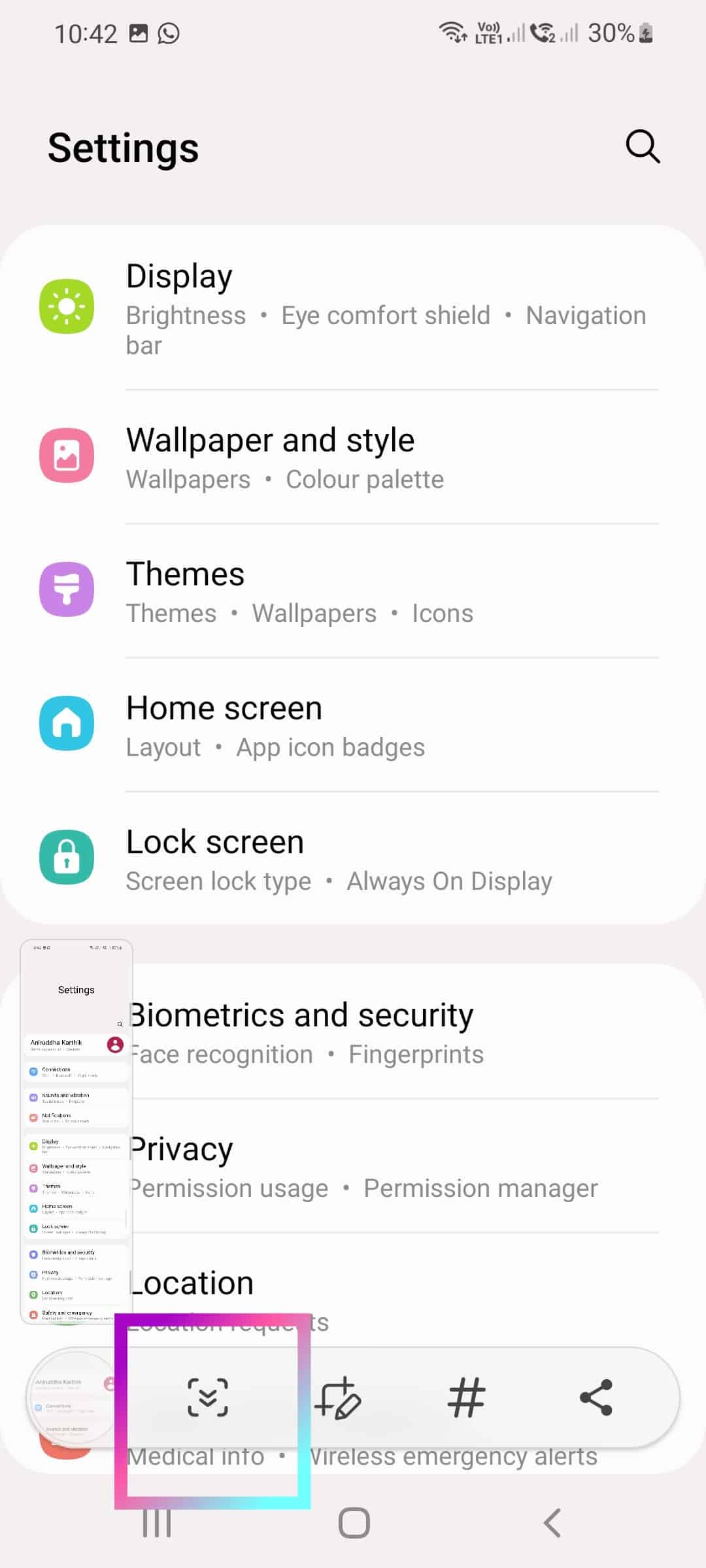
      To take scroll screenshot on Galaxy S22, go to the page where you want to take a long screenshot. Take a screenshot using any of the methods mentioned before. You get the screenshot toolbar. Tap on long screenshot button. It will save the long screenshot.How to screenshot on Samsung Galaxy S22 or S22+

    These are the three way to capture a screenshot on Samsung Galaxy S22 or Samsung S22+.

  • How to turn off Samsung Galaxy S22 /S22 Plus – 2 Ways

    Samsung Galaxy S22 is the latest flagship smartphone with top end features. One of the task which we need is power off or restart the phone. Samsung has replaced power button with Side key. So holding the power button brings Bixby. So, how to power off Samsung Galaxy S22 or S22 Plus?. There are three different ways. One of them is remapping the side key to the power menu. So let us explore the methods.

    How to power off Galaxy S22 or S22 Plus

    There are three different ways to switch off Galaxy S22 or S22 Plus. Let us explore one by one.

    Turn off Samsung Galaxy S22 or S22+

    Time needed: 1 minute

    Here are the different ways to turn off Samsung S22 or S22 +

    1. Using the Volume down and Side key.

      Press and hold Volume down and Side Key(Power button) together. It will bring the power menu. Tap on Power off and again tap on Power off to shut down the phone.

    2. Using the Software Power button.

      Go to the Quick settings panel by swiping down on the home screen. Expand it by swiping down once again. On top you will see the power icon. Tap on it. You will get the power off menu. Tap on Power off and again power off. Power off Galaxy S222

    3. Remap the Side key to power menu

      Go to Settings-> Advanced Features. Here Tap on Side Key. Under the press and hold section, Select ” Power off menu”. Now whenever you press and hold the side key, you get the power menu. Tap power off and again power off to switch off your Samsung Galaxy phone.

    These are the three simple ways to switch off your Samsung Galaxy S22 or Galaxy S22 Plus. If you have questions, you can write to me using the comment form below.

  • How to power off or restart Samsung Galaxy A72

    Samsung Galaxy A72 power key is now called as side key. One of the advantage of this is it is customisable. Out of the box, press and hold on the power button will launch the Bixby. Now you may be wondering how to power off or restart Samsung Galaxy A72. Here is three different methods to get the power menu.

    Power off or Restart Samsung Galaxy A72

    You can get power menu in three different ways in Samsung Galaxy A72. From the power menu, you can restart or turn off your Galaxy A72. So here is the three different ways to turn off Galaxy A72.

    Method 1: Using the combination of Keys

    To power off using this method, press hold Volume down and Side key together for few seconds. You will get the power menu. Select power off or restart based on preference.

    Method 2: Using Software Power Key

    1. Go to the quick settings menu by swiping down on the screen with two fingers. 
    2. The Power icon is here. Tap on it. You will get the Power menu. Here you can choose to turn off or restart.

    Method 3: Remapping the side key to the power menu

    The power button is now customisable. There is an option to reassign the power menu to the Side key. For that,

    • Go to Settings->Advanced Features->Side Key.
    • Select “Power off menu” under Press and hold section.

    Now whenever you press and hold the side key, you will get the power menu.

    These are three different ways to turn off or restart Samsung Galaxy A72.

  • How to turn off or restart Samsung Galaxy S21 or S21 Ultra

    In this post, let us explorer three different ways to turn off or restart Samsung Galaxy S21 or S21 Ultra.

    Turn off or restart the Galaxy S21

    Method 1: Using the Hardware keys

    To use this method, you need to press and hold Volume Down and Power keys together. You will get the power menu on the screen. You can choose Power off, restart or enter into emergency mode by selecting the one based on your preference.

    Method 2: Using the Power off icon

    To use this method:

    1. Go to the quick settings.
    2. Here tap on Power icon. You will get the power menu.
    3. Select the one you want.

    Method 3: Reassigning Side key

    To use this method, go to the Power menu through Hardware keys or Power icon method. Tap on Side Key Settings. Alternatively, you can go to Side key settings from Settings, Advanced Features and Here Side Key. On this page, you have the option to remap side key to Power menu under Press and hold section. Select it.

    Now, whenever you press and hold the side key, you will get the power menu. Using the power menu, you can restart the Galaxy S21 or Power off the device.

  • How to take screenshot on Samsung Galaxy S21

    Samsung Galaxy S21 provides several different methods to take screenshot. Some of them are common to all android phones and some methods are unique to Samsung S or note series. Here is the quick look at popular methods of taking a Samsung Galaxy S21 screenshot.

    Different methods to take screenshot on Samsung Galaxy S21

    Method 1: Button combination

    This is the most common way to take a screenshot and it works on all latest Android phones. Just press and release volume down and Side key buttons simultaneously. The screenshot will be saved. Please note, no need to hold the buttons—just press and release. Holding the two buttons will display power off or restart menu. The screen will flash and screenshot will be saved to Gallery.

    Method 2: Using the palm swipe

    Taking a screenshot on the Galaxy S21 with a palm swipe may feel a bit difficult when you first try it out but it is easy once you get use to it. Just swipe the side of your palm across the whole screen from right to left or vice versa to take the screenshot. By default, this feature is activated. Incase if it is not working, go to Settings > Advanced Features > Motions and Gestures > and toggle the Palm swipe to capture.

    Method 3: Screenshot button

    This may be the the easiest method. For using the using method,

    • Go to Edge panel, by Swiping left to right. You can identify the edge panel by a small white line.
    • Tap on the Setting.
    • Add the “Tasks” to the Edge Panel by selecting it. 

    Whenever you want to take Galaxy S21 screenshot, go to Edge panel and then Task page. Choose take screenshot button. It will save the screenshot.

    How to take Scroll screenshot on Galaxy S21

    To take scroll screenshot, go to the page you want and take a screenshot using any of the methods mentioned here. You will get a screenshot toolbar. Tap the scroll capture button( first option that shows up at the bottom of the screen which looks like a down arrow). Repeat the tapping the scroll capture till you want or you reach end of the page. It will save the screenshot.

    Where to find taken screenshot on Samsung Galaxy S21

    S21 Screenshots are by default saved in Gallery->Albums->Screenshot folder. You can edit, delete or share the screenshots like any regular photo.