Category: Smartphones

  • How to turn off Pixel 8 and Pixel 8 Pro

    Pixel 8 and Pixel 8 Pro are the latest flagship smartphones with lot of emphasize on AI. This tutorial covers three different ways to turn off Pixel 8 or Pixel 8 Pro.

    How to turn off or restart Pixel 8 or Pixel 8 Pro

    Out of the box, long pressing the power button launches Google Assistance. So how to switch off Pixel 8. Is there a way to re assign power key to the power menu? Here is the solution to all of these questions.

    Method 1: Shut down using Physical buttons

    This method uses Volume up and power buttons. So press and hold Volume up and power buttons together. You will get the power menu. From this menu, select Power off or restart based on your requirement.

    Method 2: Switch off using Quick Panel

    To use this method, go to the Quick Panel by swiping down twice on the screen. You will see the Power icon. Tap on it. You will get the regular power menu. You can perform your action as per your preference.

    Method 3: Remap the power key to Power menu on Pixel 8 or Pixel 8 Pro

    If you wish to reassign the power key to the power menu, there is a easy steps you can follow. So go to Settings and then System. Tap Gestures. From the available gestures select “Press and hold the power button“. Select Power Menu in the Press & hold Power button to access the section.

    In the future, if you press and hold the power button, you will get the power menu to restart or shut down Pixel 8. From here, tap on Power off to switch off the device.

  • How to change Wallpaper on iPhone 15

    Adding a wallpaper to the home screen and Lock screen is one of the first personalisation of your phone. So in this post, let us explore how to change wallpaper on iPhone 15 Home screen and Lock screen.

    How to change Wallpaper on iPhone 15

    in iPhone 15, you can add same wallpaper to Home screen and Lock screen or add different images. Best part is you can add your own photo as Wallpaper.

    Recommended Reading:

    How to take screenshot on iPhone 15

    Change Wallpaper in iPhone 15

    To begin,

    • Go into Lock screen.
    • Tap and hold on to the centre of the screen.
    • tap on plus sign.
    • Now you can add the wallpapers from the preloaded list.
    • If you want to set your photo as Wallpaper on your iPhone, Tap Photos.
    • It will show the images from the Gallery.
    • Choose any image as per your Choice.
    • It will show the Wallpaper preview. You can use a pinch to crop or add filters by swiping the pictures. Next, tap Add button from the top right.
    • To set the same Wallpaper on Home screen and Lock Screen Tap Set as Wallpaper pair.
    How to change Wallpaper on iPhone 15
    • To set home screen Wallpaper using different photo, tap Customise Home screen and then tap Photos. Choose any image of your Choice. Tap Done. You can blur or Unblur home screen wallpaper using Blur icon.
    • Tap Done to save the Wallpaper.

    This concludes the tutorial on how to set or change Wallpaper for iPhone 15 Home screen and Lock Screen. If you have any questions, please write them on the comment section below.

  • How to take screenshot on iPhone 15 – 4 Ways

    There are several reasons to screenshot on iPhone. It may be to save a payment receipt, high score of a game or report bug etc. This post covers how to take screenshot on iPhone 15 using four different methods.

    How to take screenshot on iPhone 15

    Recommended Reading:

    How to change Wallpaper on iPhone 15

    How to screenshot on iPhone 15

    Method 1: Using the Hardware button combination

    To screenshot on iPhone 15 using this method, quickly press and release Volume Up and Side buttons together. It will save the screenshot. You can leave it as it is or edit it by tapping the preview.

    Method 2: Using the Siri

    This is one of the easiest way to capture a screenshot on iPhone 15. To screenshot using this way, Launch Siri by saying Hey Siri or Long pressing the side key. Now give a voice command “Take screenshot”. It will save the screenshot.

    Method 3: Using Back Tap

    To use this method,

    • Go to Settings->Accessibility->Touch.
    • Go inside Back Tap
    • You will get two options. Double Tap or Triple Tap.
    • Choose the one as per your preference.
    • Next assign Screenshot.
    How to take screenshot on iPhone 15

    In the future, to take a screenshot, Double tap or triple tap on the back of the iPhone based on the option you have chosen. It will save the screenshot.

    Method 4: Using Assistive Touch

    To use this method,

    • Go to Settings->Accesibility->Touch.
    • Go inside Assistive Touch and Enable it.
    • You will get a circular floating icon on the screen. Tap on it.
    • Next Choose Device and then More.
    • You will see screenshot icon.
    • Tap on it to take a screenshot.

    So these are the four different methods you can use to screenshot on iPhone 15.

  • How to reduce photo file size in iPhone – Compress image size

    iPhones are known for its camera capabilities. It takes good photos and videos. With the latest iPhones such as iPhone 15 Pro, iPhone 14 Pro, image quality is great but at the same time, file size is also increased. To share it with someone, you may be thinking of reducing the file size. So in this post, let us explore how to reduce photo file size in iPhone without using any third party tools.

    How to reduce photo file size in iPhone and convert file formats of the images

    You can do it with the built in feature of the iOS. So to begin,

    • Go to Photos app. Select the photo you wish to reduce the file size or change the file format such as PNG, JPEG etc.
    • Tap Share and then select Save to Files.
    • Choose the destination folder and save it.
    • Now Go to Files apps and Navigate to the folder where you saved the photo.
    • Long press on the photo you want to reduce the file size.
    • You will get a menu. Select Quick Actions. Next tap “Convert image“.
    Convert image in iPhone
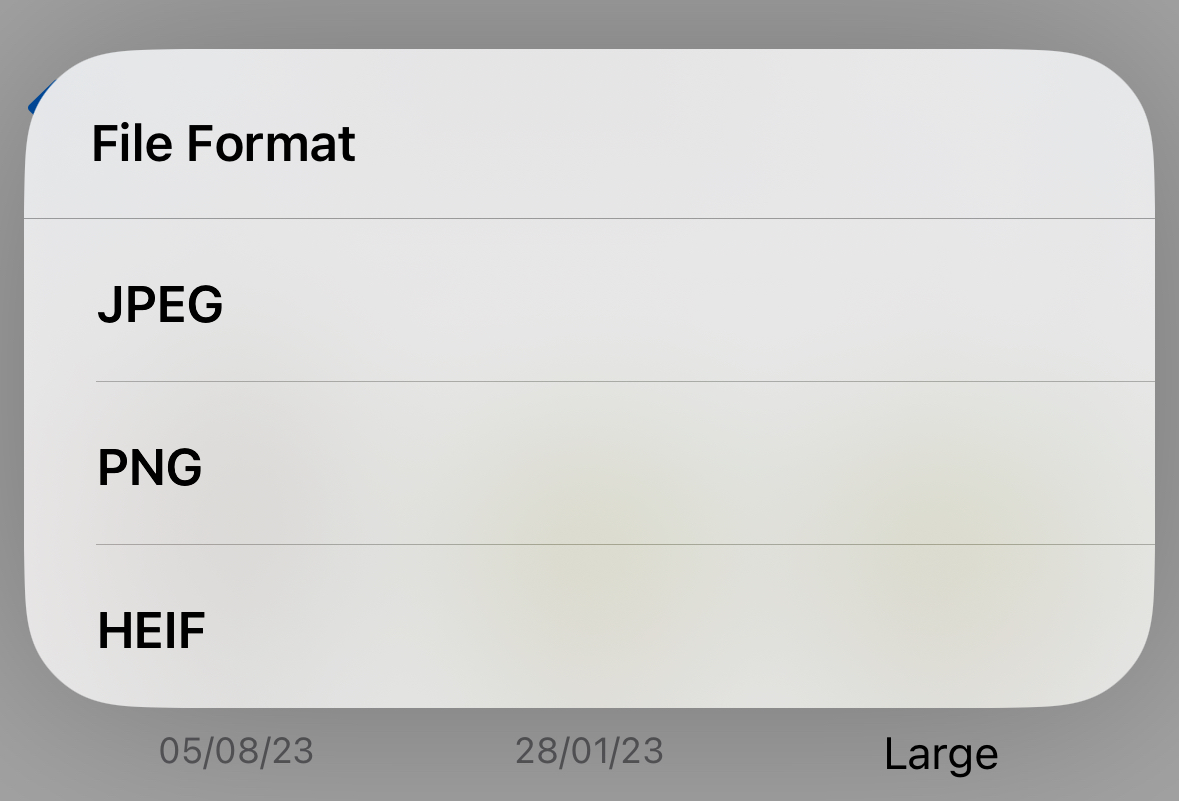
    • Select the File Format of your choice. Now you can choose the image size between Small, medium, large or Original.
    How to reduce photo file size in iPhone
    • It will create copy of the image with compressed file size.
    • To create a compressed PDF from the image, long press on the compressed image. Select Quick Actions and then tap Create PDF.

    This way you can compress images on iPhone running on latest iOS. It is a good option if you want to create small sized pdf of scanned documents.

  • How to Turn Off iPhone 15 – 3 Ways

    If you wish to save battery or fix some annoying bug, easy solution is to turn off your iPhone 15. You can do this in three methods. So in this post let’s explore how to turn off iPhone 15.

    How to switch off iPhone 15

    Power off iPhone 15 using hardware button combination

    The first method to shutdown iPhone 15 is using the hardware buttons on your Phone. To use this method, press and hold down the Volume Up or Down button and the Side button at the same time.

    You will get a page which shows Slide to power off. Here Drag the power icon to the right to turn off your iPhone.

    Turn off iPhone 15 using the Settings menu

    If your iPhone physical buttons are not working or you prefer onscreen method to power off, you may find this method helpful.

    Start by navigating to Settings app on your iPhone and then Select General.

    Scroll down to the bottom and tap Shut Down.

    How to turn off iPhone 15

    Now drag the Power icon to the right.

    Switch off iPhone 15 using the Siri

    If you prefer to power off your phone without touching it, then Launch Siri by saying “Hey Siri”. Next say ” Shut down my iPhone”. You will get a confirmation prompt. Tap Power off.

    To turn on iPhone 15, hold the side button until you see Apple logo on the screen. You will phone will restart.