Category: How To Guides

List of simple tips and tricks of Smartphone, gadgets and browsers. These includes Tethering of smartphones, Enabling WiFi Hotspots, Browser optimisation, Tips and Tricks on Browsers etc.

  • How to Share Live Photos as GIF in Twitter from iPhone

    Twitter recently added a new feature to its iOS app. The feature we are talking here is about the option to share Live Photos as GIF. Earlier, twitter iOS app had the option to edit the image which they want to tweet. Now user can convert live photos into GIF. So in this post, let us have a quick look into how to share live photos as GIF in twitter from iPhone.

    This new feature allows you to record short videos and upload them as GIFs via your iPhone. However, this feature is not yet added to twitter android app.

    You may like to read:

    How to share Live Photos as GIF in Twitter from iPhone

    • Tap on the new tweet.
    • Select photos option. Now you can select Live photos.
    • Choosing Live photos instead of all photos will help to select live photos.
    • Tap Add.
    • Now tap on “GIF” option at the bottom left corner of the live photo. Initially, there will be a cross line on the “GIF” option. Upon tapping, the cross-line will go off.
    • Now you can share the tweet. The live photo will be shared as GIF.

    There are many iPhone users already started using this feature. If you have share-worthy live photos, it is the time to try out this new feature. If you are an android user, you may need to wait for some time. However, you can use third-party apps to convert live photos and GIF in Android.
  • Whatsapp how to set up fingerprint lock

    Whatsapp is regularly adding many new features to its popular chat app for both iOS as well as Android devices. At the beginning of this year, it added Touch ID and Face ID unlock features to iPhone users. Now the Android users can add fingerprint lock to WhatsApp. So in this post, let us explore how to set up fingerprint lock to WhatsApp.

    WhatsApp fingerprint unlock provides an extra layer of protection for anyone who uses the app. This will work on any android phone with the capacitive fingerprint scanner or in-display fingerprint scanner. This feature will be available on Whatsapp version 2.19.221 or later.

    You may like to read:

    How to setup fingerprint lock in WhatsApp

    Before proceeding, ensure you have the latest version of Whatsapp. You can check for update in Google Play store WhatsApp page. Once you have WhatsApp version 2.19.221 or later, follow the below steps to secure your WhatsApp chats on Android with Fingerprint authentication.

    Time needed: 1 minute

    Steps to enable fingerprint lock in Android phones.

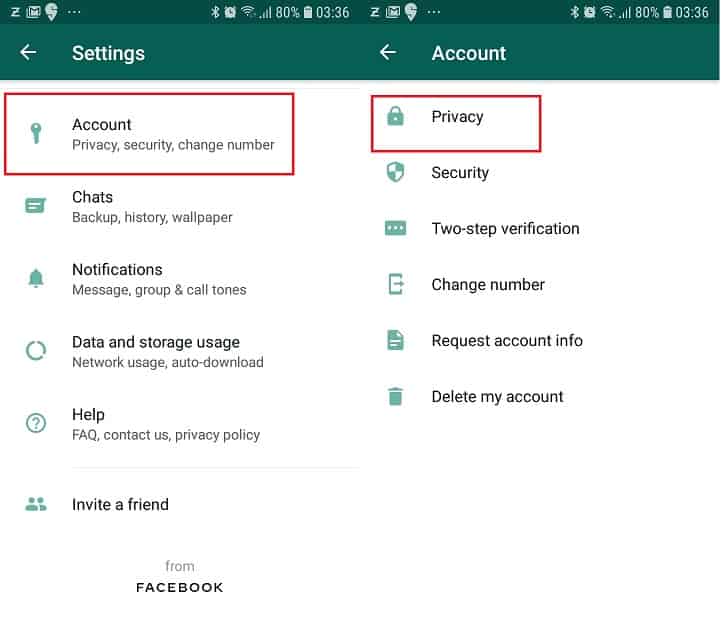
    1. Go to Settings

      Open the WhatsApp. Tap the three vertical dots icon on the top right. Now go to settings.
      Whatsapp settings page

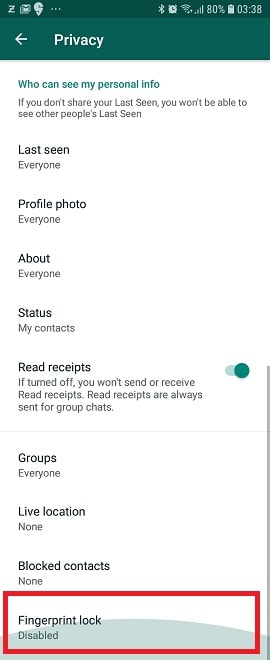
    2. Go to Fingerprint lock.

      Navigate to Account->Privacy. Scroll down till the end. You will find the Fingerprint lock. Tap on it.

      Fingerprint option in WhatsApp

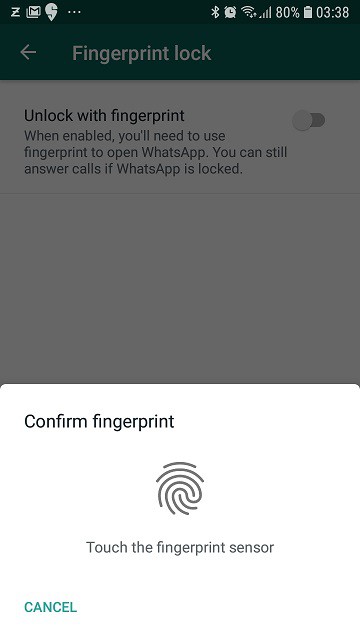
    3. Enable Fingerprint unlock

      Now enable unlock with fingerprint by tapping slider to right. You need to confirm with your fingerprint.
      Fingerprint enable

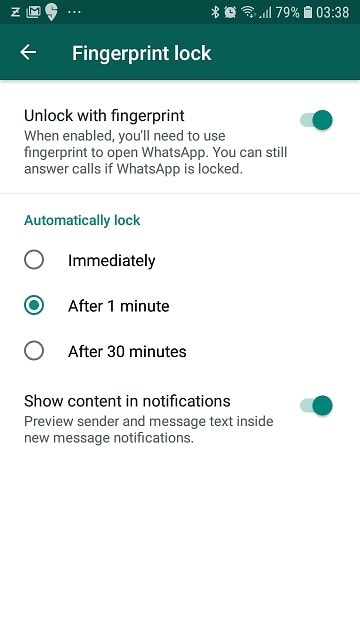
    4. Setup Automatic Lock

      You have the option to customise the lock timings. You can choose between, immediate, after 1 minute or after 30 seconds. If you want, you can disable the preview of sender and message in new message notification.
      Whatsapp how to set up fingerprint lock

    Now, whenever you open Whatsapp, depending on automatic lock duration you have opted, you need to authenticate to access the chats. However, you can take incoming calls even if the app is locked. Do note that, there is no fallback password option. That’s it for this quick guide on how to setup Fingerprint lock on Android.

  • How to take screenshot on Vivo V17

    Vivo V17 provides multiple ways to take screenshot. The long screenshot, rectangle screenshot and Funny screenshot are also available. In this post, we will learn on how to take screenshot on Vivo V17.

    Vivo V17 runs on Funtouch OS 9.2 based on Android 9.0. The methods mentioned in this post will work on most of the other Vivo phones such as Vivo V17 Pro, Vivo U20, Vivo U10, Vivo Y17 etc.

    You may like to read:

    How to take screenshot on Vivo V17, V17 Pro, Y17, U10, U20

    Video demonstration

    There are three different ways to take screenshot on Vivo Y17, V17 and Vivo U20.

    Take screenshot using Hardware keys

    To take screenshot using this method,

    • Navigate to the page or app where you want to capture screenshot.
    • Now press and hold Volume down and power button simultaneously.
    • It will take screenshot. The preview will be shown in the top right corner.
    • If you want to long screenshot, tap long screenshot just below the preview.
    • It will take long screenshot.

    Three finger swipe gesture to take screenshot on Vivo V17

    To take screenshot using this method, first ensure, you have enabled three finger swipe gesture. For that,

    • Go to Settings->System management->S-Capture.
    • Enable the Three fingers swipe screenshot.

    Now to take screenshot,

    • On a page where you want to capture screenshot, using three fingers, swipe up on the screen.
    • It will take screenshot.
    • Tapping Long screenshot below the preview will take long screenshot.

    S-Capture screenshot

    This is another way to take a screenshot.

    • Swipe up on the screen.
    • You will get the shortcut center.
    • Tap on S-capture.
    • You will get options Long screenshot, Rectangular screenshot and funny screenshot options.
    • Tap on the option on which you want to use.
    • It will capture the screenshot.

    These are the three different ways to take a screenshot on Vivo V17 and Vivo 17 Pro. This method works well on Vivo Y17, Vivo U10, Vivo U20 as well.

  • iPhone 11 How to view the battery percentage Indicator

    If you are upgraded your phone to iPhone 11 or bought new iPhone 11, you may be wondering, how to view the battery percentage indicator. iPhone 8 or earlier versions had an option add battery percentage to the status bar. However iPhone X, iPhone XR, iPhone XS, iPhone 11, iPhone 11 Pro and iPhone 11 Pro Max do not have this option.

    In case if you are looking for an option to add battery percentage indicator to the status bar on iPhone 11, chances are high to get disappointed. As there is a huge notch, there is not enough space to add a battery percentage indicator. However, Apple has added other ways to see the battery percentage. In this post, let us explore two different ways to display battery percentage on iPhone 11.

    You may like to read other iPhone 11 features such as

    How to view the battery percentage indicator on iPhone 11

    iPhone 11 view  battery percentage
    Battery percentage in iPhone 11

    The two ways to see battery percentage are,

    View battery percentage using control center

    • Open the control center by swipe down from the top right corner.
    • You will see the hidden battery percentage along with other hidden status bar icons such as Bluetooth.
    • You can close the control center by swipe up from the bottom.

    View battery percentage using Siri

    • Launch Siri by saying Hey Siri or long-press the side key.
    • Now say “Show battery percentage”.
    • It will show the battery percentage.

    That’s it. These are two different ways to display battery percentage on iPhone 11 without using any third-party apps.

    iPhone 11 battery life is significantly improved compared to previous iPhones. Due to which requirement to see the battery percentage also minimised. What to do you think on removing the option to add battery percentage to status bar in iPhone 11? Write in the comment section below.

  • How to turn off iPhone 11- Force Restart

    If you are purchased new iPhone 11, you may have noticed some changes. Compared to iPhone 8 or older, iPhone XR, iPhone X, iPhone XS, iPhone 11, iPhone 11 Pro, options and controls are bit different. The operations such as taking a screenshot in iPhone, accessing control centre and notifications are changed. In addition, the way to switch off iPhone 11 also changed. Here is the guide on how to turn off iPhone 11 with step by step instructions.

    iPhone 11 has many features which include just an improvement of existing features and new additional features such as Dark Mode.

    Here is How to turn off iPhone 11, iPhone 11 Pro and iPhone 11 Pro Max

    The methods are fairly simple. If you already used iPhone XR or iPhone X, the methods are identical.

    • Press and hold the Side button(Power button) and either the Volume Up or Volume down key until power menu appears on the screen.
    • Now simply swipe to power off.
    • Wait for the iPhone to switch off.
    • If you want to switch it on back, hold down power button until Apple logo appears.

    Force restart iPhone 11, iPhone 11 Pro and iPhone 11 Pro Max

    If you are facing issues such as screen freezing, black screen, etc, one of the fix is to force a restart. To do force restart, follow the steps given below.

    • Quickly press and release Volume Up key and then Volume down key.
    • Now hold down power key(Or side key) until phone restarts and apple logo appears.

    Video guide on how to turn off iPhone 11 and restart

    Here is the video tutorial which covers how to switch off iPhone 11. This method work well on iPhone 11 Pro and iPhone 11 Pro max.

    iPhone 11 switch off/turn off

    Hope this quick guide on how to power off iPhone 11 is useful. If you have any queries or difficulties, please share in the comment section below.