Category: Samsung

News, tips and tricks and Reviews on various Samsung Smartphones.

  • Samsung Galaxy M40 – 5 Amazing Features

    Samsung officially launched Galaxy M40 in India. It comes with a price tag of Rs.19,990. Samsung has added many of the features from its flagship to this new mid range phone. In this post we will cover such Samsung Galaxy M40 five features.

    Though Galaxy M40 is a mid range Android smartphone, it packs some powerful hardware and software features. The new phone has many first for a Galaxy M series mid range phones. It comes in Midnight Blue and Seawater Blue gradient colour options.

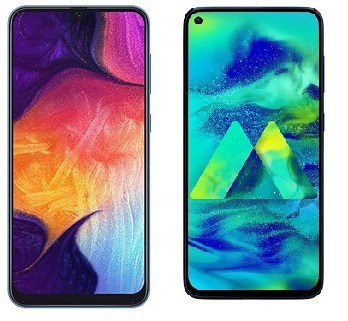
    You can also read: Galaxy M40 Vs Galaxy A50: Which is a better buy

    How to take screenshot on Galaxy M40

    Samsung Galaxy M40- 5 Impressive features

    Here is the list of key features of Galaxy M40.

    Samsung Galaxy M40

    Full-HD+ Infinity-O Display

    Samsung Galaxy M40 sports 6.3 inch FHD+ LCD display with a small circular cutout on the display for front camera. This is the first phone from from Galaxy M series to feature Infinity-O Display and also the most affordable phone with Infinity-O Display. The minimal bezels around the screen provides good body to screen ratio. Hence, in spite of having a large screen, phone feels compact in hand.

    Snapdragon 675 processor

    Galaxy M40 is powered by Snapdragon 675 processor. This is the first Galaxy M series phone to be powered by Snapdragon SoC. The device runs on Android 9 Pie with OneUI. System-wide Night mode, redesigned user interface with an emphasis on one-handed use and new gesture navigation features are available.

    6GB RAM and 128GB of internal storage

    The new Galaxy M series phone comes with 6GB of RAM and 128GB of internal storage. It also supports microSD card upto 512GB.

    Triple Camera Setup

    One of the cons of Galaxy M30 was its camera. Samsung tried to fix it in Galaxy M40 with new set of 3 camera. It has 32 MP primary camera with f/1.7 aperture, an 8MP ultra wide-angle camera with a 123-degree FoV, and a 5MP depth sensor. For taking selfies, there is a 16MP front facing camera.

    Fingerprint scanner and Face unlock Feature

    Galaxy M40 houses rear mounted fingerprint scanner and has support for face unlock. Though in display fingerprint scanner are the latest technology, they are still in evolving stage.

    In summary Samsung Galaxy M40 has everything to become a ideal midrange smartphone. Powerful processor, Infinity-O Display , Triple camera setup, fast charging support and more importantly it is priced aggressively. We have to test it to know how it fares in real time usage.

  • How to Reset Samsung Galaxy A50

    Resetting the Galaxy A50 is useful in many situations. For fixing a bug or deleting all the data from the phone while selling the phone, reset is one of the options. There are different types of reset options available on this smartphone. In this post, let us explore two different ways to reset Galaxy A50.

    How to Reset Galaxy A50

    You can reset Samsung Galaxy A50 using the settings option or through recovery mode.

    Different ways to reset Galaxy A50

    How to Reset Galaxy A50 from Settings Menu

    • Go to Settings->General Management.
    • Tap on Reset.

    Here you have multiple options.

    Reset Settings: Select this option, if you want to reset all the settings of the phone to their default. It will not delete user data.

    Reset Network Settings: If you have any issue with Wi-Fi, Bluetooth and other network-related settings, you can choose this option. This will only reset network settings to their defaults.

    Factory data Reset: This will reset Galaxy A50 to its factory default settings. This will delete all data which includes files and downloaded apps.

    How to Reset Galaxy A50 using recovery mode

    If you are not able to login to your phone or if your android is not starting, then you can use this method. This mode works independently and boots up if Android is not booting.

    Using recovery mode, one can factory reset, wipe cache partition, Nandroid backup, update firmware, flash third-party firmware and so on.

    Steps to get into recovery mode in Galaxy A50,

    • Power off of your Galaxy A50.
    • Now Press and hold Volume Up and Power buttons at the same time for a few seconds.
    • Release the buttons once Samsung Logo appears.
    • If a warning screen appears, press Volume Up button to confirm your action.
    • The device will enter into the recovery mode.

    In Galaxy A50 recovery mode, you can do a factory reset which will delete all your data and user-installed apps. If you want to delete just cache data in Galaxy A50, then wipe cache partition. This will remove entire cache files and may improve performance and stability. This is very useful if there are performance issues after updating your device to the latest Android versions.

    Reset Samsung Galaxy A50 Camera Settings

    If you want to reset the camera settings to their factory defaults, follow the steps given below.

    • Lunch the camera app.
    • Go to settings.
    • Tap on Reset settings.
    • This will reset all the camera settings to default.

    It is recommended to perform device maintenance regularly. You can find Device maintenance in the settings tab. It will help in optimising RAM, battery life and storage. This will give you the best possible performance.

    You can also see:

    Galaxy A50 Tips and Tricks

    How to take screenshot in Galaxy A50.

  • Samsung Galaxy A50 Tips and Tricks

    Samsung Galaxy A50 comes with One UI on top of Android Pie. It has many useful features. Many of them are available in other Samsung phones and some are exclusive. Here is some of the useful Samsung Galaxy A50 Tips and Tricks.

    Samsung Galaxy A50 Tips and Tricks

    How to hide apps in Galaxy A50?

    One UI provide a useful feature which provides a option to hide apps from the App drawer. If you enable it, the app which you wanted will not be shown in app drawer. However, you can access it by app search or universal search. To enable it,

    • Long press on the Home screen.
    • Tap on Home Screen Settings.
    • Select Hide Apps from launcher settings.
    • Now select the apps which you want to hide.
    • Tap on apply.
    • App will be hidden from the app drawer.

    Video Demo:

    What is the procedure to take 25MP photos in Galaxy A50?

    By default, photos are captured in 12 Megapixel in A50. However, camera sensor is capable of taking 25 MP photos. To enable it,

    • Open the camera app.
    • Tap on Aspect Ratio icon.
    • Select 3:4H option.
    • Now, the photos will be captured in 25MP.

    How to enable/disable Motion Gestures in Galaxy A50?

    Galaxy A50 comes with many useful gestures. Some of them are enabled by default. If you want enable other gestures or disable some gestures,

    • Go to Settings -> Advanced features -> Motion and gestures.
    • You will see all the available gestures here.
    • You can disable or enable gestures by moving the slider to left or right.

    How to use 2 WhatsApp accounts in Galaxy A50?

    Samsung latest phones comes with a feature called dual messenger. You can use 2 two separate accounts for the same messenger app. For example, 1 for work and one for family and friends. Using this, you can use two whatsapp account in Galaxy A50. With this you can use two numbers for whatsapp in single phone. You can choose different contacts for each account. To use two whatsapp account in Galaxy A50,

    • Go into the Settings → Advanced features.
    • Tap on Dual Messenger.
    • A list of apps which are compatible with Dual Messenger will be displayed.
    • Toggle the switch of the Whatsapp if you wish to use a separate account with.
    • Read the Disclaimer. Once you have read the Disclaimer, tap on Confirm to continue.
    • Tap on Install. A second icon for the selected app will appear on your Home screen. You’ll be able to use a different account in the second copy.
    • You can access it in the home screen.

    What are different ways to customise Always on Display?

    There few options available. You can customise clock and notification details. You can access Always On Display feature here. Settings -> Lock screen -> Always On Display .

    How do one get the pictures in gallery to show on the home page of Galaxy A50?

    If you want to set a picture in Gallery as wallpaper in home screen or lock screen, follow the steps given below.

    • Open the Gallery.
    • Select the picture you wish to set as wallpaper.
    • Once you are in the image, tap Menu (this may appear as three dots).
    • Tap Set as wallpaper.
    • Choose where you wish to set it: Home screen, Lock screen or Home and lock screens.

    You may like to read:

    Galaxy A50 How to extend battery Life

  • How to take screenshot on Galaxy A50

    There are several ways to capture screenshot on Galaxy A50. In this post we will cover three different ways of capturing screenshot in Galaxy A50. These methods of capturing screenshot does not require installing any third party applications.

    How to take screenshot on Galaxy A50

    You can take screenshot in Samsung Galaxy A50 using following methods.

    take screenshot on Galaxy A50

    Method 1: Take screenshot on Galaxy A50 using hardware keys

    • Go to the screen on which you want to capture screenshot.
    • Press and hold volume down and power button simultaneously.
    • Screenshot will be captured.

    Method 2: Take screenshot on Galaxy A50 using Assistant Menu

    • Enable Assistant Menu by going to Settings->Accessibility->Dexterity and interaction. Enable Assistant menu by moving slider to right.
    • Assistant menu will be appear in the screen. You can move it wherever you want.
    • Now, on a page you want to capture screenshot, tap on Assistant menu ->Screenshots.
    • Screenshot will be captured.

    Method 3: Take screenshot on Galaxy A50 using Palm swipe method

    • Enable palm swipe by going to Settings->Advanced features->Motions & Gestures. Enable Palm Swipe to capture.
    • To take screenshot, swipe the edge of your hand across the screen.
    • The screenshot will be captured.

    You may like to read:

    Video Guide

    This video covers taking screenshot in Galaxy A50 using Palm Swipe Gesture. This video is done on Galaxy A50. But same method is working in Galaxy A70 as well.

  • Samsung Galaxy A80 – Top 5 Features and FAQ

    Samsung India launched Galaxy A80 in India. It has many interesting features such as rotating triple camera setup, Snapdragon SoC, new infinity display etc. Here is the Samsung Galaxy A80 top 5 features.

    This year witnessed Samsung launching different models from Galaxy A series to cater different price segment. So far Galaxy A10, Galaxy A20, Galaxy A30, Galaxy A50, Galaxy A70 and now the Galaxy A80 are launched in India.

    You can also read:

    How to backup and restore Galaxy Phone with SmartSwitch

    Samsung Galaxy A80 is the premium mid range smartphone with innovative features.

    Samsung Galaxy A80

    Samsung Galaxy A80 Top 5 Features

    Rotating Triple Camera setup

    Rotating camera is not a new technology. However, implementation of rotating camera is different. Galaxy A80 sports triple camera setup which consist of 48MP primary sensor with f/2.0, 8MP wide angle lens and a ToF (Time of Flight) camera for depth mapping. The camera setup of the Galaxy A80 slides up and rotates once selected the selfie mode.

    Samsung Galaxy A80 comes preloaded with Super Steady mode. This is suppose to reduce video shake. There is a scene optimiser as well. As per the company, it can recognise and enhance up to 30 scenes. Built in 3D depth camera will help in Live Focus for still and video results. It also has Flaw Detection that is touted to automatically identify glitches before a picture is clicked to deliver enhanced shots.

    Super AMOLED New Infinity Display

    Galaxy A80 sports 6.7 inch full HD+ Super AMOLED new Infinity display with a 20:9 aspect ratio. It is near bezel less and there is notch or punch hole. It also has in-display fingerprint scanner.

    Qualcomm’s new Snapdragon 730G processor

    Samsung Galaxy A80 is the first phone to feature Snapdragon 730G. It is an Octa Core SoC built on 8nm process. It has Adreno 618 graphics. It is gaming focussed chipset with slightly faster GPU clock speed compared to Snapdragon 730.

    8GB RAM and 128GB of storage

    Galaxy A80 comes with 8GB of RAM and 128GB of Internal storage. There is no support for microSD card. Coupled with Snapdragon 730G and 8GB of RAM is expected to provide good user experience.

    3700mAh battery + 25W fast-charging

    Larger screen consumes more power. To accommodate it, Samsung is providing 3750 mAh battery with 25W super fast charging with USB type C.

    Samsung Galaxy A80 FAQ

    What are the different Galaxy A80 color options available?

    Galaxy A80 is available in Phantom Black, Ghost White and Angel Gold.

    What is the Galaxy A80 price in India?

    Samsung Galaxy A80 price in India is ₹47,990.