

Category: Smartphones

  • Xiaomi Mi Max Tips And Tricks with FAQ

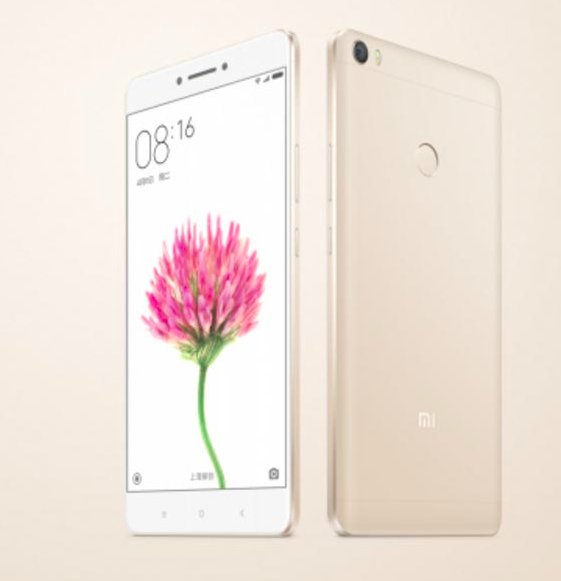
    Xiaomi Mi Max is a hulked up version of Redmi Note 3. It is purely aimed at people who uses smartphone for mainly content consumption. In this post we will have some of the Xiaomi Mi Max Tips And Tricks with FAQ.
    Xiaomi Mi Max Tips

    Xiaomi Mi Max Tips And Tricks with FAQ

    What are the different variants of Mi Max available in India?

    Xiaomi has launched 2 variants of Mi Max in India. Details of them are given below.

    1. Mi Max with Snapdragon 650 chipset (2x Cortex-A72 at 1.8GHz and 4x A53 at 1.4GHz cores); Adreno 510 GPU; 3GB RAM and 32GB of internal storage. Price of this variant Mi Max is Rs.14,999.
    2. Mi Max with Snapdragon 652 chipset (4x Cortex-A72 at 1.8GHz and 4x A53 at 1.4GHz cores); Adreno 510 GPU; 4GB RAM and 128GB internal storage. Price of this variant Mi Max is Rs.19,999.

    What are the different colour variants available?

    Mi Max will be available in Silver, Gold and Dark Grey color options.

    What is the size of sim cards Mi Max supports?

    Mi Max comes with dual hybrid sim slot. It accepts 1 microSIM card and 1 nano sim card.

    Does it has dedicated microSD card slot? What is maximum size of the microSD card can be used in Mi Max?

    No. You can add upto 128GB of microSD card if you can compromise on the second sim card.

    How to take screenshot on Mi Max?

    To Take screenshot on Xiaomi Mi Max, there are two methods are available.

    1. Screenshot button method of taking screenshot on Mi Max

      • Go to the screen on which you want to capture screenshot.
      • Now, access quick setting menu.
      • Tap on to the Screenshot button.
      • Screenshot will be taken.
    2. Volume down and power button method of taking screenshot on Mi Max:

      • Go to the screen on which you want to do print screen.
      • Press and hold volume down and power keys at the same time.
      • The screenshot will be taken.
      • Taken screenshot can be accessed from Gallery folder.

    How to download PC suite for Xiaomi Mi Max?

    Xiaomi provides free PC suite for its devices. You can download it from the official support page. I have written a detailed post on how to download Xiaomi Mi PC suite and features. You can go through that post.

    How to share Mi Max mobile data with PC/Laptop?

    There three methods through which you can share mobile data with PC or laptop.

    • Portable Wifi hotspot.
    • USB tethering.
    • Bluetooth Tethering.

    Is it possible to share internet from PC to Mi Max?

    Yes. You can share the internet from PC to Mi Max using the Xioami PC suite. Connect the phone to PC via USB cable. Run the PC suite. It will start sharing the mobile data.

    These are the some of the useful Xiaomi Mi Max Tips And Tricks. If you know, any other tips and tricks, please share it in the comment section below.
  • LeEco Le 2 Cons- Reasons not to buy

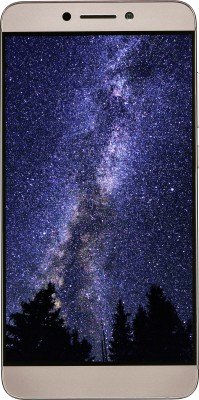
    LeEco Le 2 is the latest smartphone launched in India. It has got huge response from the smartphone enthusiasts. Great specification list, affordable price and much promoted CDLA technology are the main reasons for this. In this post we will have a look into some of the LeEco Le 2 cons. This might help you to decide on whether to buy this or not.

    LeEco Le 2 Cons

    Recommended Reading:

    LeEco Le 2 Vs Redmi Note 3

    LeEco Le 2 Features

    LeEco Le 2 Cons – Reasons not to buy

    Display quality control issue

    This is one of the major demerit of LeEco Le2 smartphone. When you press on the display, it produces kind of creaking noise. The reason for this might be due to display not struck well or there is hollow space below the display panel. The impact of this on the durability is not known. But in Spite of many people complaining about it, LeEco never bothered to clarify on the reason for the same. In summary, if you are looking for a durable smartphone, it is better to stay away from this smartphone till there is proper explanation from the company.

    No 3.5mm headphone jack

    In LeEco Le 2, 3.5mm headphone jack has been removed. Now it uses USB-C  port for the audio output. Unfortunately, LeEco’s  Type C earphone is the only available earphone which can utilize the new CDLA technology. This costs you around Rs.2000. The sound output via USB-C to 3.5 mm jack is not much different from the other smartphones in the same price tag.

    Heavily customised skin and delay in software updates

    LeEco Le 2 runs on EUI 5.8 on top of Android 6.0 Marshmallow. It comes with lot of bloatware. Considering the history of LeEco previous devices, there is a much delay in rolling out Android updates. Le 1s yet to get the Android 6.0 update. Lack of security updates might result in malware attacks.

    No expandable storage option

    LeEco Le 2 comes with 32GB of internal storage in which around 23GB is user available. Lack of expandable storage, might be a deal breaker for people who wants to save huge media collections.

    No NFC

    LeEco L2 does not have NFC.

    These are some of the LeEco Le 2 cons which you need to keep in mind before purchasing this device. It is a good smartphone, there is no doubt in that. But quality control issues and slow android updates are serious concerns of LeEco Le 2.

  • OnePlus 3 Tips and Tricks With FAQ

    OnePlus 3 comes with great features at attractive price tag. With Oxygen OS which is based on Android Marshmallow, you  have lot of features to customise your device. Here are some of the OnePlus 3 Tips and Tricks in the form of FAQ.

    OnePlus 3 Tips and Tricks

    Recommended Reading:

    Le Max 2 Features and FAQ

    OnePlus 3 Tips and Tricks

    What are the different gesture controls available on the OnePlus 3? How to enable it?

    It offers 4 different types of gesture controls. The details are given below.

    • Double tap to wake: Tap the screen twice to wake the device.
    • Open camera: Draw “O” on the screen to open the camera.
    • Toggle Flashlight: Draw a V on screen to toggle flashlight.
    • Music Control: Draw “||” with two fingers to play or pause music. Draw “<” or “>” to previous or next.

    You can access this settings from Settings->Gestures.

    How to customise LED notification light in OnePlus 3?

    You can customise Notification light colors by going to Settings->Customisation->LED notifications.You can select different colours for Global notifications, Battery full, Battery low or Battery charging.

    What are the different navigation bar customisation options available on OnePlus 3?

    There are many customisation options available for customising navigation bar. You can access it from Settings->Buttons.

    1. On-Screen navigation bar: Using this option you can toggle between onscreen software navigation bar or hardware capacitive touch button navigation bar.
    2. Swap buttons: This allows you to swap the recent and back buttons.
    3. Backlight: This allows you to toggle between capacitive key backlight LED turn off or on.

    Apart from this, you can assign different task to home, recent and back buttons for below actions.
    Long press action & Double tap action: You can assign task such as opening Recents, Search assistant, Turn off screen , open camera, Open voice search, Open last used app and Open shelf for these action for each buttons.

    How to enable power button to end call function in OnePlus 3?

    Go to Settings->Accessibility. Here you can enable power button to end call option.

    How to customise quick toggle menu buttons?

    For customising the quick toggle buttons, go to quick toggle menu and tap on to edit button. Now you can move quick toggle buttons according your requirement. You can also remove or add quick toggle buttons by tapping on it.

    What are OnePlus 3 camera tips and tricks?

    OnePlus 3 comes with Manual camera mode which allows you to tap to focus, set the exposure point etc. For accessing this setting, launch the camera app, swipe left for modes and select manual mode.
    Volume keys as shutter button: You can use shutter button to shoot the picture and to start or end video recording.

    You can enable double tap power button to Launch camera: To enable this, go to settings->Display. Now enable the Press power button twice for camera.

    How to take screenshot on OnePlus 3?

    The simple two method to take screenshot are default volume down+Power button method and Power button method.

    1. Default Android Volume down+Power button method
      • Go to the screen on which you want to take screenshot.
      • Press and hold volume down and power button at the same time.
      • Screenshot will be taken.
    2. Power button method
      • Go to the screen on which you want to take screenshot.
      • Now Press the power button.
      • In the options, select Screenshot. Screenshot will be taken.

    What are different ways to share mobile data from OnePlus 3 to PC or laptop?

    OnePlus 3 provide 3 different methods through which you can share the mobile data with other compatible devices. You can access these settings from Settings->More->Tethering & Hotspot.

    1. WiFi Hotspot: If you enable, you can make your OnePlus 3 as hotspot to connect other wifi enabled devices to internet using the mobile data of OnePlus 3.
    2. USB tethering: For enabling this, you need to connect the phone to PC/Laptop via USB cable.
      Now enable the USB tethering. It will start sharing the mobile data with Laptop or PC.
    3. Bluetooth Tethering: For to use this, first you need to pair your OnePlus 3 with laptop or desktop. Then enable the Bluetooth tethering.

    What are the other useful OnePlus 3 tips and tricks?

    • Left capacitive button long press- Shelf feature: The latest Android Marshmallow based Oxygen OS in OnePlus 3 has new feature called Shelf. You can access this feature by flicking your finger right across the home screen. This gives you the fast access to favorite contacts and apps, essential info and widget.
    • Swipe up for google now and swipe down for notifications.
    • Night Mode which you can access from the quick toggle menu.
    • Long press on toggle menu to go to settings: If you do long press on any of the quick toggle menu buttons, it will take you to relevant settings page.
    • Wave your hand to Ambient Display: This will give you an option to see lock screen notification by just waving your hand on the display.
    • Customise your Google search bar: Tap your right capacitive key, go to customize, swipe right on quick search and select the size of your search bar.

    These are only few OnePlus 3 tips and tricks. There are lot of customisation and features available on OnePlus 3. If you know other OnePlus 3 Tips and Tricks please share it in the comment section below.

  • Moto G4 Tips Tricks and FAQ

    Moto G 4th Generation is the cheaper variant of Moto G4 Plus. It features same SoC and display panel. However, there is no fingerprint scanner in this variant. There is a change in camera module as well.  Here are few Moto G4 tips and tricks with FAQ.

    Moto G4 Tips and Tricks with FAQ

    Moto G4 Tips and Tricks with FAQ

    What is the price of Moto G4 in India? Where can I buy this smartphone?

    Moto G4 price in India is Rs.12,499. You can buy it from the amazon.in. You can directly go to the product page by clicking here.

    What are the different colour options available?

    It is available in White and Black colour variants.

    What type of sim cards Moto G4 accepts? Does it has dedicated sim slots?

    It accepts two micro sim cards. You can use nano sim card also by using the adaptor which comes along with this device. It has 2 dedicated sim card slots.

    What is the maximum size of the microSD card capacity it supports? Can I use it to increase internal storage?

    It supports upto 128GB of microSD card. You can use it as internal storage.

    How to use microSD card as internal storage in Moto G4?

    You can use microSD card as internal storage by following the steps given below.

    • Go to Settings->Storage & USB.
    • Tap on to the SD card.
    • Now go to menu(3 dots in top right corner) and then Settings.
    • Select the option “Format as internal”.
    • Now, device will use sd card as internal storage.

    Note: Formatting the microSD card will erase all the data. So backup your data before formatting.

    What are the specifications of Moto G4?

    Below are the specification summary

    • Snapdragon 617 Octa core SoC and Adreno 405 GPU.
    • 2GB RAM and 16GB internal storage.
    • 5.5 inch full HD display screen.
    • Dual sim and microSD card support.
    • 13MP primary camera with LED flash and 5MP front facing camera.
    • 3000 mAh battery with fast charging support.

    What are the box content of Moto G4?

    In the box we get, smartphone, manual, USB charging cable, earphone and turbocharger.

    What are the drawbacks of Moto G4 compared to Moto G4 PLus?

    It lacks Fingerprint scanner. It has 13MP sensor without laser auto focus. Whereas, Moto G4 Plus has fingerprint scanner and it features 16MP primary camera with laser auto focus.

    How to take screenshot in Moto G4?

    You can capture screenshot in Moto G4 by press and hold power button and volume down button simultaneously. Below the video demonstration on how to take screenshot on Moto G4. The screen capture method on Moto G4 and Moto G4 Plus are same.

    How to set custom MP3 ringtone in Moto G4?

    I have made detailed post on this for Moto G4 Plus. It works on this device as well. You can refer it on my previous post how to set custom ringtone on Moto G4 Plus.

  • How to set Custom Ringtone in Nexus 5X and Nexus 6P

    The way to set  custom ringtone and notification in Nexus 5X and Nexus 6P are not direct. It needs little work around to get it done. There are multiple ways to do it. In this post, we will focus on two of the simple methods. So let’s get started on How to set Custom Ringtone in Nexus 5X and Nexus 6P.

    Set custom ringtone in Nexus 5X and Nexus 6p

    How to set Custom Ringtone in Nexus 5X and Nexus 6P

    If you want to set your favourite MP3 songs as ringtone or add a new ringtone to Nexus 6P or Nexus 5X, here are the two different ways to achieve it.

    How to set Custom Ringtone in Nexus 5X and Nexus 6P through PC without using the any App

    • Connect your phone to PC/ Laptop via USB cable.
    • Browse the folders of Nexus 5X/Nexus 6P from PC explorer.
    • Go to the folder called ringtones under internal storage.
    • Paste the MP3 or other ringtone which you want in this folder.
    • Now under, Sound and notification->Phone ringtone on your phone, you will find your ringtone. Tap on it to choose that ringtone.
    • If you want custom notifications, just paste the notification tone to the Notifications folder.

    How to set Custom Ringtone in Nexus 5X and Nexus 6P using a file explorer

    Here is the guide to set a custom ringtone using a file explorer which is easier and can be performed from the phone itself.

    • First install a file manager such as ES file explorer.
    • Now to go to Settings->Sound and notification->Phone ringtone.
    • Now select ” Complete action using ES File Explorer.
    • Go to the folder where you have saved the ringtone and select it.
    • By this way, you can set a custom ringtone on your Nexus 5X or Nexus 6p.

    How to set different ringtone to different contacts in Nexus 5X and Nexus 6P

    In Nexus 5X and Nexus 6P, you have the option to choose different ringtones to contacts. Here is the guide through which you can set ringtone to the contacts.

    • First go to the contact which you want to set ringtone.
    • Tap on to Edit and then go to menu(3 dots in the right top corner).
    • Now tap on to set  ringtone.