Author: Aniruddh

  • How to download Smart Switch Latest Samsung PC Suite

    Samsung Smart Switch is the latest PC suite for Galaxy smartphones. This is the updated version of Samsung Kies 3.0. Some devices such as Galaxy J5, J7 etc are compatible with Samsung Smart switch PC suite. The size of the download is around 40MB.  It is available for the smartphone as well as PC.  This PC suite is useful for connecting the Galaxy smartphone to PC and transfer contents from one device to another etc.

    Samsung Smart Switch for PC

    Samsung Smart Switch for PC Features

    Samsung Smart Switch PC version is available for both Windows and Mac systems.  So here are quick features of Samsung Smart Switch for PC suite.

    • Installing the USB drivers: Connecting your Galaxy device to PC through Smart Switch PC suite will install the required drivers for your device on the PC. So there is no need for searching USB drivers for your device.
    • Simple backup and restoration: With Smart Switch, you can easily back up or restore your data with simple steps.
    • Data synchronisation: This feature allows you to synchronise your contacts and your schedule between your devices with Windows Outlook or Mac Address Book and iCal.
      With this smart function, you can easily manage your schedule any time, anywhere.
    • Device software update: Updating your Galaxy smartphone with Smart Switch Pc version is very easy. Just connect your device to PC through USB cable. If any update is available, it will show the update and install if you need it.

    System Requirement

    Here are the system requirements to download and install the latest Samsung PC suite.

    OS: Windows XP (SP3), Windows Vista, Windows 7, Windows 8, Windows 10.
    CPU: Pentium 1.8 GHz or above (Intel Core i5 3.0 GHz or above (recommended)).
    Minimum memory size (RAM):1 GB (recommended).
    Free hard drive space: At least 200 MB (recommended).
    Screen resolution:1024 x 768 (600), (32 bit or above).

    For Mac Systems,
    OS: Mac OS X 10.5 or later
    CPU:1.8 GHz Intel or faster processor
    Minimum memory size (RAM):1 GB or more (recommended)
    Free hard drive space: At least 200 MB (recommended)
    Supported device: Android 4.1 JellyBean OS or over

    How to download Samsung PC suite Smart Switch

    You can download the latest Smart Switch PC suite for Galaxy devices from here.

    Note: You can still use Samsung Kies 3.0 PC suite. But according to Samsung, Smart Switch is faster and more convenient to use. If you want to know more on Samsung Kies PC suite, you can read it here.

    SmartSwitch Samsung PC suite Compatible devices

    All the latest Galaxy smartphones are compatible with Smart Switch for PC. To name few, Samsung Galaxy J5, Galaxy J7, Galaxy S7, Galaxy S7 Edge, Galaxy A5, Galaxy A7, Galaxy A3, Galaxy J3, Galaxy S8, Galaxy S9, Galaxy Note 9 etc.

  • Lenovo Vibe P1 Review- Cons and Pros

    Lenovo Vibe P1 is a mid range dual sim Android smartphone. The key attractions of this smartphone are 4900 mAh battery with quick charging option and fingerprint scanner. Lenovo Vibe P1 price in India is Rs.15,999, The device is available exclusively on Flipkart.

    Lenovo Vibe P1 is powered by 64 bit 1.5 GHz Snapdragon 615  Octa Core Processor with 2GB of RAM and Adreno 405 GPU. There is 32GB of onboard storage and option to add microSD card upto 128GB. The day to day performance is good. It was able to play casual games without any issue. However, when it comes to graphic intensive high end games, it struggles a bit. The cellular call quality and sound output on this device is very good.

    Lenovo Vibe P1 Dual sim

    Lenovo Vibe P1 sports 5.5 inch 1080p LCD screen which results in pixel density of  400 ppi. The viewing angles, color reproduction and sunlight visibility are good. There is option to customize the display color balance. You can change this settings from Settings->Display-> Display Color balance. It is recommended to enable ‘Smart brightness” option.

    Lenovo Vibe P1 houses 4900 mAh battery with quick charging option. The bundled 24W charger, fully charges the battery in around one and half hours. The battery life on this device is exceptional. It easily lasts more than one and half day.

    Lenovo Vibe P1 sports 13MP primary rear camera with LED flash and 5MP front facing camera. Both camera performance on outdoor conditions are very good. But in low light and artificial lighting conditions, performance is just average.  Vibe P1 also sports fingerprint scanner. It works as expected.

    Let us summarize the Lenovo Vibe P1 review into merits and demerits.

    Advantages and Disadvantages of Lenovo Vibe P1

    Pros of Lenovo Vibe P1

    • Excellent battery life.
    • Fast charging option and retail box has fast charger.
    • Loud and Clear speaker output.
    • Good cellular call quality.
    • Good build quality.
    • 32GB internal storage and support for microSD card support.

    Cons of Lenovo Vibe P1

    • Average camera performance.
    • Average gaming performance.
    • Feels bit heavy in hand.
    • Screen is fingerprint magnet.

    Lenovo Vibe P1 FAQ and Tips

    What is type of  sim card Vibe P1 accepts?

    Lenovo Vibe P1 accepts nano sim(both sim) and not microSIM).

    Can I use this device to charge other smartphones?

    Yes. You can charge other smartphones using Lenovo Vibe P1.

    Does Lenovo Vibe P1 supports USB OTG?

    Yes. It does support USB OTG.

    How to take screenshot on Lenovo Vibe P1?

    There are 2 option. One through tapping the screenshot icon in the quick settings options and another one through power and volume down key option. The method is same as that of Vibe P1m. You can read more on this here.

    Is it possible to share mobile data on  Lenovo Vibe P1 with other devices?

    Yes. You can. You can share mobile internet from Vibe P1 to other devices through USB tethering, WiFi Hotspot and Bluetooth tethering.

  • How to take screenshot on Samsung Galaxy On5 and On7

    Samsung Galaxy On5 and Galaxy On7 are two budget dual sim Android smartphone with 4G LTE connectivity. Both devices runs on Android 5.1.1 Lollipop with Touchwiz UI on top of it. In this tutorial, we will learn how to capture screenshot on Galaxy On5 and Galaxy On7.

    Capturing screenshot on both Galaxy On5 and Galaxy On7 are identical as both runs on the same version of Android and TouchWiz UI. Unfortunately, there is no palm swipe method of the screenshot is available. Taking the screenshot on Galaxy On5 and Galaxy On7 is very simple. It takes hardly few seconds.

    How to take screenshot on Samsung Galaxy On5 and Galaxy On7

    • First, you need to locate the power and home keys.
    • The power key is placed in the right of the side of the device. The home key is placed in between multitasking key and back keys below the display screen.
    • Now, go to the screen on which you want to take the screenshot.
    • Now press and hold power and home key simultaneously.
    • The screen will Flickr and shutter sound will be heard if you have managed to successfully capture the screenshot.
    • The taken screenshot will be saved in the Gallery folder.
    • From the gallery folder, you can share the screenshot using Whats app, mail, Bluetooth etc with your friends. Also you can copy to your computer using the USB cable.

    Video Guide on capturing screenshot on Samsung Galaxy On5 and Galaxy On7

    The method through which you take the screenshot on Galaxy j5, j7, j2, j1 and Galaxy On 5, On7 are identical. So below the video guide which demonstrates how to capture screenshot on Samsung Galaxy On series smartphone are Galaxy J series smartphone.

    Do let me know if you face any difficulty in the following the instruction or any error while you are trying to capture the screenshot. Don’t forget to share this tutorial with your friends if you find this helpful.

  • Terraa – Online Grocery shopping Mobile app

    Thanks to revolution of high speed broadband internet and smartphones. Now without stepping out of the house, we will be able to get the things home delivered. It is not only saves time, it also helps to save money and buy better product. Other buyers feedback and option to compare multiple products is an additional advantage .  Affordable smartphones and cheaper fast internet is another reason for the popularity of online shopping. We have online shopping portals and apps for almost all our daily needs. Groceries is one of the most important requirement of our daily needs. So in this post, I am going to introduce you to a new app called Terraa which is useful for Grocery online shopping.

    Online grocery shopping app

    Terraa offers wide range of products to choose from. There is also an offer of 10% discount on your first purchase. Other features which you expect such as fast delivery, card payment or even cash on delivery also available.  The Terraa online Grocery shopping Mobile app has got rating of 4.2 based on 91 voters as on writing this article. So, here is the quick features of Terraa mobile app for online grocery shopping.

    Features of Terraa – Online Grocery shopping Mobile app

    • The app largely uses its recommendation engine, wherein individual buying behaviors, locality patterns, and gender patterns are observed. This helps predict next items that can be suggested to the user to add to their cart, making their shopping experience easy.
    • Terraa has partnered with Reliance Fresh and gojavas, to bring the best experience to its users, as well as leverage their expertise and market intelligence.
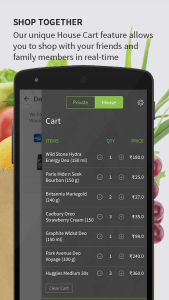
    • Terraa has the ‘house cart’ feature which allows the users to add, remove or update their shopping cart with friends and family in real-time.
    • The app also features prodicons (product icons) which brings the ‘store shelf experience’ into the app, allowing the user to view multiple products at a time.
    • Being a tech platform, Terraa is actively pursuing IoT options to make the entire shopping experience more convenient.

    It is fact that, there are many online grocery shopping apps such as bigbasket.com,  urdoorstep.com etc. It is all about option and availability. So while you are planning to shop online for Grocery next time, don’t forget to try Terra Online Grocery shopping Mobile app. For more info visit http://terraa.in.

  • Moto G Turbo Review- Cons and Pros

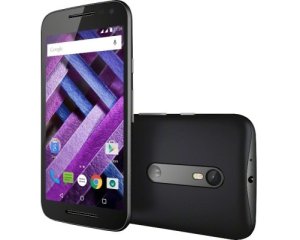
    Moto G first generation was the phone which redefined mid range smartphone standards. It was loved by most. It was a huge success at that time. But after that, things have changed very much. Now we have lot of options. Motorola once again came back with 3rd generation Moto G which bought water and dust resistant smartphone within 15k budget. Moto G Turbo is the improved version of Moto G 3rd generation. How well this smartphone performs? Does it manages to fulfill the expectations which is set by its own predecessor?  We will learn more on this in this Moto G Turbo Review.

    Moto G Turbo borrows  lot of features from the Moto G 3rd generation. The design and display are almost identical.  The phone features 5 inch IPS screen with resolution of 720 x 1280 pixels and 294 ppi pixel density.  The display is sharp, has good viewing angles. But colors look little dull compared to other similarly priced smartphones in this price segment such as Galaxy J5. There is also yellowish tint. In summary, it has good display but it could have been better.

    Moto G Turbo Dual sim

    Moto G Turbo sports 13MP rear camera with f2.0 aperture, auto-focus and dual-LED flash and a 5MP front-facing camera for selfies. In terms specifications, this is identical to Moto G 3rd Gen.  But when it comes to performance, we felt it is bit weak. The captured images came with  little grainy with not so accurate color reproduction. Low light performance is decent. The video recorded in 1080p resolution and 720p slow motion videos came out really good.

    Moto G Turbo is powered by 1.5 GHz Octa Core Qualcomm MSM8939 Snapdragon 615 Soc(quad-core 1.5 GHz Cortex-A53 & quad-core 1.0 GHz Cortex-A53 processor) with 2GB of RAM. For storage, it offers 16GB internal storage in which 11.8GB user available. It also offers expandable storage through microSD card. The device runs on Android 5.1.1 Lollipop out of the box. Moto G Turbo performance is very good. There is no lag observed while navigating through the phone’s menu, launching apps and switching between them. Gaming performance also good. Graphic intensive games like Asphalt 8, runs without encountering frame drops or freezes.

    Moto G Turbo has 2470 mAh battery with Turbo charging. Good part is the bundled charger supports turbo charging. It charges 50% battery in around 30 minutes. When it comes to battery life, it lasts more than Moto G 3rd gen. The connectivity features of the device are 3G, 4G, Wi-Fi, Bluetooth and GPS.

    Let us summarize the Moto G Turbo Review into merits and demerits.

    Advantages and Disadvantages of Motorola Moto G Turbo

    Pros of Moto G Turbo

    • Turbo charging and bundled charger with Turbo charging capability.
    • Good performance.
    • Sturdy build quality with water and dust resistance.
    • Stock Android experience.
    • Good speaker output and good signal reception.

    Cons of Moto G Turbo

    • No Android 6.0 Marshmallow out of the box
    • Feels bit heavy in hand.
    • Display could have been better.
    • Camera performance.

    Moto G Turbo FAQ and Tips

    Does Moto G Turbo supports USB OTG?

    Yes. It supports USB OTG.

    Does Moto G Turbo has heating issues?

    While charging, phone tends to become little hot. It is expected as it supports fast charging. When I bought the phone, before first charge there was a heating issue. But later it disappeared. Even with continuous gaming, phone just becomes warm and not gets heated up.

    How to capture screenshot on Moto G Turbo?

    I have already made an detailed post on the same. You can read my post How to take screenshot on Moto G Turbo.

    Can I connect to net from PC using Moto G Turbo?

    Yes. You can. The device supports USB tethering and Bluetooth tethering. You can also share internet with other wifi enabled devices using the WiFi hotspot feature.