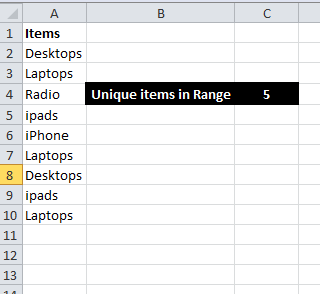
The above example has list of gadgets in Column A2 to A10. However there are duplicates in List. Our goal is calculate unique number of Gadgets. So the formula to count non duplicate entry is
=SUM(1/COUNTIF(A2:A10,A2:A10)) which returns 5. i.e out of 9 entries only 5 items are unique.
Note: For using array functions, press Ctrl+Shift+Enter(Not Just Enter). Excel surrounds the formula with braces to remind you that it is a array formula.
This formula is first used by David Hager and then passed around on various web sites and newsgroups. The above array formula works fine unless the range contains one or empty cells. To overcome this short fall we should use below formula with new IFERROR function.
=SUM(IFERROR(1/COUNTIF(A1:A10,A1:A10),0))
The preceding formula work with both values and text. If the range contains only numeric values or blank cells(But no text), we can use the below mentioned formula(This is not array formula) to count the number of non duplicate or unique values.
=SUM(N(FREQUENCY(A1:A10,A1:A10)>0))
Author: Aniruddh
-
Counting Non Duplicate Entries in a Range in Excel
When we are doing analysis in excel or preparing the reports, we will face situations where we need to calculate the unique entries. There is no direct function in Excel to calculate only non duplicate entries in a Range. However this can be achieved through array functions of Excel. Below is the example through which we will learn to use Excel function to calculate non duplicate entries count. -
Calculating Weighted Average in Excel
Excel inbuilt Average function returns the average(or Mean) of a range of a data. However in many occasions we are required to calculate weighted average. Though Excel do not comes with a straight function to calculate weighted average. This can be done with the use of SUMPRODUCT and SUM functions. Let us start learning about weighted average with an example.
Below is the sample data from a call center and let us calculate the Average Handle Time(AHT) for the day using different intervals calls and AHT. The below data shows that initial hours calls were less and the AHT too was less. But as the call volume increased the AHT also increased.,
The simple average formula =AVERAGE(C3:C9) returns 216.42. The problem with this is that it calculates average without considering the number calls. So we need to calculate average considering the number of calls received on each intervals. Ideally, the weighted average is the appropriate method to calculate like this calculations.
So weighted average formula for the above example is =SUMPRODUCT(C3:C9,B3:B9)/SUM(B3:B9)
This formula multiplies each AHT by its corresponding number calls and then adds all those products. The result is then divided by the number of days. This formula can be easily implemented to other types of calculations where weighted average is required. -
Creating a Drop Down List in a Cell in Excel 2012
There are situations, where we need to use restricted set of data in a list. When in data entry works are carried out by many people, chances are vast that small errors might occur. To overcome this, we can use drop down list in Excel. This not only restricts the user to enter the correct data also it helps to reduce the time to write it manually. So for creating Drop down list, do we need to use Excel VBA feature? No;. Excel provides this feature in the form of data validation. So let us see how to create drop down list in Excel.
Steps to Create Drop List in Excel:- Enter the list of items in a range
- Select the cell that will contain the drop down list
- Choose Data-> Data Tools->Data Validation
- In the data validation dialog box, click the settings Tab
- In the allow drop-down list select List.
- In the source box specify the range that contains the items
- Make sure that the In-Cell Drop down option is checked and Click OK
- You are done. The drop down list is created in your desired Cell.
Note:
- If your list is small, then you can manually enter the list of items in the source box in the Data Validation dialog box.
- You can copy paste the Drop down list created cell to other cells to carry the drop down list.
-
Nokia Lumia 900 Review Price Specifications
Nokia Lumia 900 is no more flagship model from Nokia as it has already launched new high end smartphone running on latest Windows 8 platform. Still this is one of the best hardware smartphone from Nokia with great features. Nokia Lumia 900 runs on Windows Mobile OS 7.5(Mango) and has 1.4GHz Qualcomm Scorpion processor along with 512MB RAM and Adreno 205 GPU. Nokia Lumia 900 Price in India is ₹31,131.
Nokia Lumia 900 sports 4.3 inch Super AMOLED Capacitive touch screen with WVGA screen resolution of 480*800 pixels. The device comes with 8MP primary camera with Dual LED flash capable of recording video in HD resolution of 720*1280 pixels.The camera features a 3x digital zoom as well as other useful features such as Carl Zeiss Optics, Geo-tagging and the option of auto and manual exposure. Adding to this, the device comes with 1MP front facing camera for video calling or self portrait.
Nokia Lumia 900 is powered by 1830 mAh battery which is rated to provide 8 hours of talk time and 300 hours of standby time. Internal storage capacitiy of this Nokia smartphone is 16GB. Unfortunately, there is no support for memory expansion through microSD card. The device comes packed with connectivity features such as GPRS,EDGE, 3G,WiFi, USB and Bluetooth.
Nokia Lumia 900 has GPS receiver with A-GPS support and free lifetime voice-guided navigation.
Summary of Nokia Lumia 900 Features:- Windows Phone 7.5 (Mango) OS
- 8 MP Primary Camera
- 1 MP Secondary Camera
- 4.3-inch AMOLED Capacitive Touchscreen
- 1.4 GHz Scorpion Processor
- GPRS,EDGE, 3G,WiFi, USB and Bluetooth connectivity
- 16GB internal memory and 512MB RAM
- Micro SIM Feature
- 1830 mAh battery which is rated to provide 8 hours of talk time and 300 hours of standby time
Advantages and Disadvantages of Nokia Lumia 900:
Pros of Lumia 900:- Active noise cancellation with a dedicated mic
- Excellent A-GPS support and free lifetime voice-guided navigation
- Vast service network
- Impressively deep and coherent SNS integration throughout the interface
- Scratch resistant Gorilla glass display with anti-glare polarizer
Cons of Lumia 900:- Will not get Windows Phone OS 8 update
- No USB mass storage(Zune only file management and sync)
- No native video calls
- Non-user-replaceable battery
- No memory card slot (and no 64GB version like the N9)
- microSIM card slot
- No native DivX/XviD support, videos have to be transcoded by Zune
- Expensive for the hardware it offers.
Nokia Lumia 900 sales box content: Handset, USB Charger, Data Cable, Headset, Quick Guide, User Guide, Leaflet SIM Door Key.
Nokia Lumia 900 Specifications:
- Operating Frequency:GSM – 850, 900, 1800, 1900; UMTS – 2100
- OS:Windows Phone 7.5 (Mango); will get Windows Phone OS 7.8 update
- Java:No
- Processor:1.4 GHz Qualcomm Scorpion
- Graphics:Adreno 205
- RAM; 512MB
- SAR Value:1.33 W/Kg
- Size:68.5 x 127.8 x 11.5 mm
- Weight:160 g
- Display: 4.3 inch AMOLED capacitive touch screen
- Screen resolution:WVGA, 480 x 800 Pixels,16M colors
- Primary Camera:Yes, 8 Megapixel
- Secondary Camera:Yes, 1 Megapixel
- Flash:Dual LED
- Video Recording:Yes, 1280 x 720, 30 fps
- HD Recording:HD
- Zoom:Digital Zoom – 3x
- Camera Features:Carl Zeiss Optics, Auto Focus, Geo-tagging, Touch Focus, Auto and Manual Exposure, Auto and Manual White Balance, Image Editor
- Battery Type:Li-Ion, 1830 mAh
- Talktime:8 hrs (2G), 7 hrs (3G)
- Standby Time:300 hrs (2G), 300 hrs (3G).
- Internal memory:16 GB
- Preinstalled Browser:Internet Explorer 9
- GPRS:Yes
- EDGE:Yes
- 3G:Yes, 42 Mbps HSDPA; 5.76 Mbps HSUPA
- WiFi:Yes, 802.11 b/g/n
- USB connectivity:Yes, micro USB, v2
- GPS Support:Yes, A-GPS with Nokia Maps, Bing Maps
- Bluetooth:Yes, v2.1, Supported Profiles (A2DP 1.2, AVCTP 1.0, AVDTP 1.0, AVRCP 1.0, AVRCP 1.3, GAVDP 1.2, HFP 1.5, HSP 1.1, PBAP 1.0, RFCOMM 1.0, EDR)
- Audio Jack:3.5 mm
- DLNA:Yes
- Music Player:Yes, Supports MP3, WAV, eAAC+
- Video Player:Yes, Supports 3GPP, H.263, ASF, H.264, AVC, MPEG4, VC-1, WMV9, HD Video Playback
- Sensors:3D Accelerometer, Proximity Sensor, Compass, Gyroscope, Ambient Light Sensor.
-
Using Absolute References in MS Excel
When we apply a formula in Excel which refers to another range or cell, the cell or range reference can be wither relative or absolute. The relative cell reference adjusts to its new location when the formula is copies and pasted in to new cell or range. An Absolute cell reference does not changes even when the formula is copy pasted elsewhere. An Absolute reference is specified with two doller($) signs. For example as mentioned below.
Examples for Absolute references:
=$C$10
=SUM($A$1:$G$25)
Examples for relative references:
=C10
=SUM(A1:S25)
Normally when we use cell or range references which will be relative references. Excel by default creates relative cell references in formulas except when the formula includes cells in different worksheet or workbook.
So where Absolute references are useful? I simple words, this is useful when we need to copy paste the formulas in different cells or ranges.The formula in the above example table D2 range which multiplies with quantity by the unit price is B2*C2. This formula uses the relative reference. Hence when we copy paste this formula to the next cell D3 it becomes B3*C3.
If we use absolute reference in this formula that is instead of B2*C2, D2*$C$2, copying the formula to the below produces incorrect results. The formula in cell D3 is exactly the same as the formula in Cell D2 and returns the total for laptops and not desktops.
Now let us use the same tablet to calculate sales tax. The sales tax rate is stored in cell B7. Here formula in Cell E2 is D2*$B$7.The total is multiplied by the tax rate stored in cell B7. As this is constant for all the items, we need to give absolute references. This reference do not change when we copy the cell. When the same formula in E2 is pasted to Cell E3, the formula becomes D3*$B$7. Here D3 is relative reference hence it changes but B7 remains same.