Congratulations on your new OnePlus 15R! Whether you are a long-time Android user or switching from an iPhone, the first few minutes with your device are crucial. In this tech2touch guide, we will walk you through the complete out-of-the-box setup process to ensure your smartphone is ready for peak performance.
If you prefer a visual guide, you can watch our full step-by-step video here: OnePlus 15R Setup Video by tech2touch.
Step 1: Powering on the Dragon’
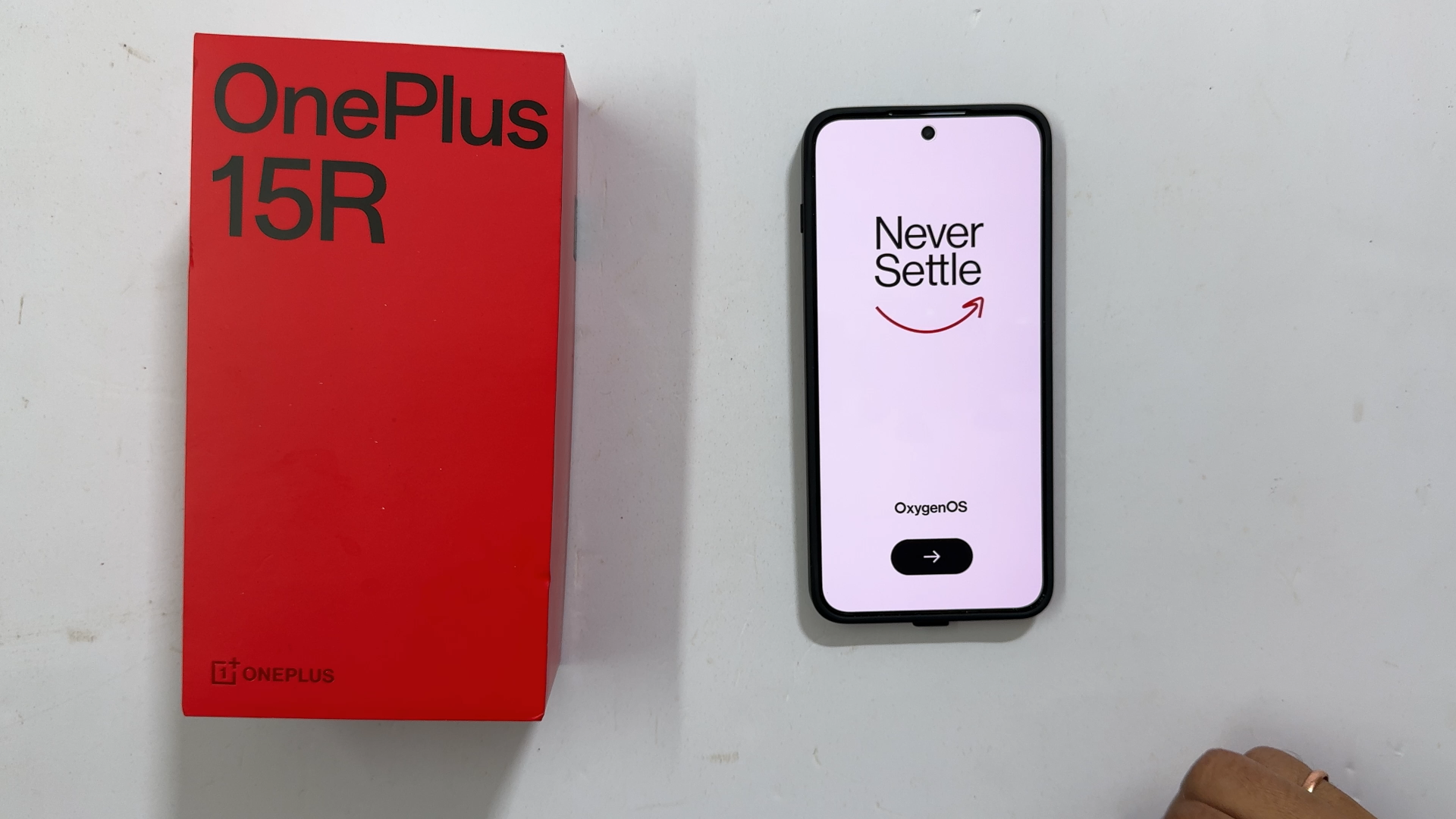
To begin, locate the power button on the right side of your device. Long-press it until you see the iconic OnePlus logo. After a few seconds of animation, you will be greeted by the “Never Settle” welcome screen.
- tech2touch Tip: Ensure your device has at least 30% battery before starting the setup to avoid any interruptions.
Step 2: Language and Region Selection
Tap the right arrow to start.
- Select Language: Choose your preferred language (English, Hindi, or other regional languages).
- Select Region: Choose your country (e.g., India) and tap Next.
- Legal Information: Review the User Agreement and Privacy Policy. Tap Agree to continue.
Step 3: Connectivity & Data Transfer
Next, you will reach the “Setup using another device” screen.
- Fresh Start: At tech2touch, we usually recommend a fresh setup for a cleaner experience. Tap Skip.
- Connect to Wi-Fi: Select your network and enter your password. This is essential for downloading system updates and Google services.
Step 4: Google Services and Security
The OnePlus 15R runs on OxygenOS 16 based on Android 16.
- Google Account: Sign in to your Gmail to sync your contacts, photos, and Play Store apps.
- Screen Lock: We highly recommend setting up a Fingerprint or Face Unlock immediately to keep your data secure.
Step 5: Final Customization (Buttons vs. Gestures)
One of the best parts of the OnePlus 15R is the customization. You will be asked to choose your navigation style:
- Buttons: The classic “Back, Home, Recent” buttons at the bottom.
- Gestures: A modern, full-screen experience using swipes.
Once you’ve made your choice, tap “Let’s Go” to enter your home screen!
Frequently Asked Questions (FAQ)
1. Does the OnePlus 15R come with a charger?
Yes! In our tech2touch unboxing, we confirmed the box includes an 80W SUPERVOOC fast charger and the signature red cable.
2. How do I take a screenshot on the OnePlus 15R?
The easiest way is to swipe down with three fingers on any screen. For more advanced methods, check out our dedicated OnePlus Screenshot guide on tech2touch.com.
Stay Connected with tech2touch
Found this guide helpful? Make sure to follow tech2touch across social media for more OnePlus tips, tricks, and hidden features!
- YouTube: tech2touch Channel
- Instagram: @tech2touch
- Twitter/X: @tech2touch
- Facebook: tech2touch Page
Leave a Reply