

Author: Aniruddh

  • ASUSPRO P5440 Review – Is it a ideal business Laptop?

    ASUS is a well known brand when it comes to gaming or innovative consumer laptops. Asus ROG series and Zenbook series laptops are popular for gaming and other mainstream uses. ASUSPRO P5440 is a new lineup from Asus which is targeted towards business users. Here is our ASUSPRO P5440 review based on our last 7 days of experience.

    ASUSPRO P5440 is one of the worlds lightest and compact 14 inch business laptop with dual storage. It is available in multiple variants. Our review has following specification.

    ASUSPRO P5440 Specification

    • 8th gen Intel core i7 processor with integrated Intel UHD Graphics 620.
    • 8GB of RAM with 256GB SSD and 1TB of hard drive.
    • 14 inch full HD 60Hz Anti glare display.
    • 3 cell 50 Wh polymer battery.
    • Ports: 1 x Microphone-in/Headphone-out jack, 1 x Type-C USB 3.0 (USB 3.1 Gen 1) with display and power delivery support, 1 x Type-A USB 3.1 (Gen 1), 1 x Type-A USB 3.1 (Gen 2), 1 x HDMI, 1 x Fingerprint reader, 1 x AC adapter plug.
    ASUSPRO P5440 Review

    Design and Build Quality

    ASUSPRO P5440 is not a stylish laptop like Zenbook series. But it is pleasant professionally looking laptop. It is reasonably thin and lightweight. Magnesium alloy based chassis with brushed metal finish in the palm rest area gives a premium feel to it. It passed the MIL-STD-810G standards for durability.

    Display

    This business laptop from Asus, sports 14 inch full HD anti glare display panel with 178 degree viewing angles. Unlike other Asus mainstream laptops, it can cover only 72% NTSC color gamut. However, it is not an issue for a business laptop as it is not designed for video/photo editors. It is purely for developers and those who perform day to day tasks. The 180 degree lay flat hinge is an added advantage.

    Keyboard and trackpad

    ASUSPRO P5440 comes with back-lit keyboard. It has 19.05mm key pitch and key travel of 1.5mm. Typing on the keyboard is a pleasant experience. The trackpad on this business laptop is good. There is also fingerprint scanner which allows you to use Windows Hello to login.

    Performance

    Core i7 processor with 256 of SSD provides smooth and lag free experience. Even with multiple application running at the time, it manages to handle with ease. It boots faster, opens the apps quicker. I have not experience any heating issues in my usage. Fan ran occasionally when doing heavy multitasking.

    Battery

    3 cell 50 wh polymer battery is rated provide upto 10 hours. In my usage, I got around 6 to 7 hours.

    ASUSPRO P5440 Review – Pros and Cons

    ASUSPRO P5440 Pros

    • Lightweight, compact and Sturdy build quality.
    • Good Keyboard and track pad.
    • Decent display panel.
    • Out of the box SSD and hard drive dual storage.
    • USB-C port which can be used for Display Port & Power Delivery.
    • Good performance.

    ASUSPRO P5440 Cons

    • Audio loudness could have been better.
    • No dedicated button in trackpad.
    • no LAN port. Need to use adapter.

    ASUSPRO P5440 Review summary

    ASUSPRO P5440 manages to fulfill the requirements of business laptop. If you are looking for a lightweight compact business laptop with good performance then ASUSPRO P5440 is worth considering. However, battery life is the one area it needs bit improvement.

  • How to download and install iPadOS

    The much anticipated iPadOS 13, the first iteration of iPad exclusive operating system is available for download. This will bring several enhancement to Apple iPad models. Download manager, file manager, new home screen widgets are some of the features to name few. In this post, we will learn how to download and install iPadOS.

    iPadOS will be available for all the iPads models starting iPad (5th generation), iPad mini 4, and iPad Air 2.

    How to download and install iPadOS ?

    You can download the latest version of iPadOS by going to Settings menu. It is recommended to take a backup before updating to iPad13. For updating the device, you should also have adequate amount of battery charge and enough space. The size of the iPadOS13.1 download is approximately 2.04 GB. You can follow the steps below to download the iPadOS 13.1.

    How to download and install iPadOS
    1. First go to Settings>General>Software update.
    2. It will check for update. If update available, it will ask you to begin the download process.
    3. Now tap on Download and Install to begin the update process.
    4. Dependending on your internet connection speed, download time may vary.
    5. Once download is completed, tap install. This will begin installing the iPad OS.
    6. You need to read and accept the terms by tapping Agree.
    7. Your device will restart once to complete the software installation.

    How to download and install iPadOS through iTunes

    If you want to download and install iPadOS through your PC or Mac, then you can use iTunes.

    • First, ensure you have the latest version of iTunes in PC or Mac.
    • Connect your iPad with your computer.
    • Device icon will be shown in the left top corner.
    • Click on the icon.
    • Then Click on Summary.
    • Now you will see Check for update button.
    • If it shows the update available, click on Download and update button,
    • Follow the onscreen instruction to complete the iPadOS installation process.
  • iPhone 11 FAQ – Features you may like to know

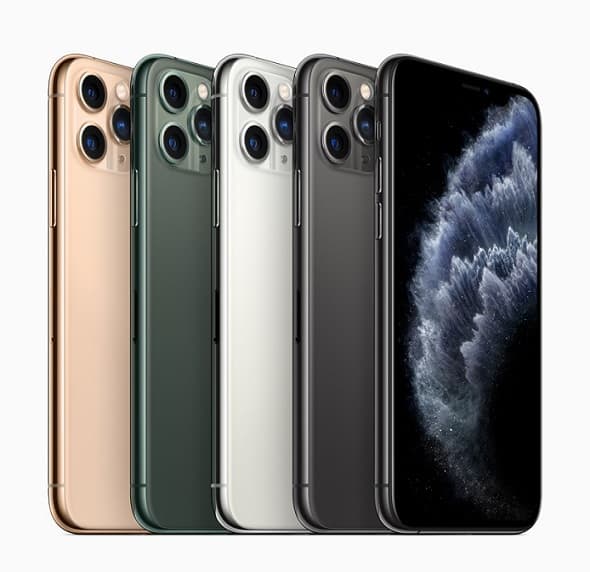
    Apple iPhone 11 is official now. The new lineup has several improvements which include raw performance as well as the camera. Here is the quick information in the form of iPhone 11 FAQ.

    Apple has made some major changes to the iPhone 11 lineup by adding better camera setup, smarter sound, new colour options and improved processor. Here is the quick summary of iPhone 11 lineup.

    iPhone 11 FAQ Features and Price

    iPhone 11 FAQ

    Image Source: Apple Newsroom

    You may like to read:

    How to take a screenshot in iPhone 11- 2 different methods

    What are the different variants of iPhone 11 available?

    The new iPhone 11 lineup consists of 3 major variants apart from storage. They are
    1. iPhone 11
    2. iPhone 11 Pro
    3. iPhone 11 Pro Max

    What is the difference between iPhone 11 and iPhone 11 Pro?

    Biggest difference between iPhone 11 and iPhone 11 Pro are display and camera setup. Key difference comparison is given below.
    Display
    iPhone 11: It has 6.1 inch LCD display panel(Liquid Retina HD display) with the screen resolution of 1792×828 and 326 PPI pixel density. 1400:1 contrast ratio. and 625 nits max brightness.
    iPhone 11 Pro: It has 5.8 inch OLED screen(Super Retina XDR display) with the screen resolution of 2436×1125 and 458 PPI pixel density. 2,000,000:1 contrast ratio and 800 nits max brightness.
    Camera
    iPhone 11: Rear dual camera setup.12MP Ultra Wide and 12MP Wide cameras.
    iPhone 11 Pro: Rear triple camera setup. 12MP Ultra Wide and 12MP Wide cameras. It also has additional 12MP Telephoto camera.

    How much is the new iPhone 11 in India?

    Based on storage, it is available in three price variants.
    64GB variant of iPhone 11 price is ₹64,900.
    128GB variant of iPhone 11 price is ₹69,900.
    256GB variant of iPhone 11 price is ₹79,900

    Does iPhone 11 support dual sim cards? What type of sim cards can be used?

    Yes. It supports 1 nano sim card and another eSIM. You can read more on this here.

    Is the iPhone 11 water and dust resistant?

    Yes. It is rated IP68(maximum depth of 2 metres up to 30 minutes) under IEC standard 60529.

    Does iPhone 11 have Wireless charging support?

    Yes.

    Does the iPhone 11 have USB C?

    No.

    Why are there 3 cameras on the iPhone 11 Pro?

    First one is a wide-angle lens. The second one is the ultra-wide-angle lens. The third one is the telescopic lense.

    What size is the iPhone 11?

    It has 150.9 mm (5.94 inches) of height. 75.7 mm (2.98 inches) of width and 8.3 mm (0.33 inches) of depth. iPhone 11 weighs 194 grams.

    How much is the iPhone 11 Pro Max in India?

    Based on storage, it is available in three price variants.
    64GB variant of iPhone 11 Pro Max price is ₹1,09,900.
    128GB variant of iPhone 11 Pro Max price is ₹1,23,900.
    256GB variant of iPhone 11 Pro Max price is ₹1,41,900.

    How much is the iPhone 11 Pro in India?

    Based on storage, it is available in three price variants.
    64GB variant of iPhone 11 Pro price is ₹₹99,900.
    128GB variant of iPhone 11 Pro price is ₹1,13,900.
    256GB variant of iPhone 11 price Pro is ₹1,31,900.

    What is the difference between iPhone 11 Pro and iPhone 11 Pro Max?

    iPhone 11 Pro Max has a bigger display screen size and better claimed battery life.

  • Samsung Galaxy A50s vs Galaxy A50 – Which is better value

    Samsung has unveiled Galaxy A30s and Galaxy A50s in India which company claims that upgrade to the popular mid range smartphones Galaxy A30 and Galaxy A50 respectively. Here is quick comparison between Galaxy A50s Vs Galaxy A50 comparison based on the specifications.

    Samsung Galaxy A50s Vs Galaxy A50

    Here is the list of differences between these two smartphones based on the information we have at the time of writing this.

    You may like to read:

    How to take screenshot in Samsung Galaxy A50- 3 different ways.

    Samsung Galaxy A50s vs Galaxy A50

    Design

    Galaxy A50s has few changes in terms of design. Now it features 3D design with glossy pattern. Also new color variants are introduced. They are Prism Crush Violet, Prism Crush Black, and Prism Crush White colours. The design looks impressive compared to its predecessor.

    Camera

    Samsung Galaxy A50s features triple camera setup triple rear with a 48-megapixel primary shooter with f/2.0 aperture, 8-megapixel ultra-wide-angle shooter and a 5-megapixel depth sensor.  For selfies, it has 32MP shooter with f/2.0 aperture. It also has Night Mode.

    In the camera segment, Galaxy A50s has major improvements at least on paper.

    Processor

    Samsung Galaxy A50s comes with Octa Core Exynos 9611 SoC compared to Octa Core Exynos 9610 SoC in Galaxy A50.

    Price

    Samsung Galaxy A50s is price at Rs.22,999 for 4GB RAM+64GB internal storage variant. 6GB RAM variant is priced at Rs.24,999. Galaxy A50 4GB+64GB variant is available at 18,490 and 6GB RAM variant is available at Rs.21,490.

    Common features between Galaxy A50s and Galaxy A50

    SoC, RAM and storage

    Both smartphones are powered by octa-core Exynos 9610 SoC based on 10nm manufacturing process and Mali-G72 MP3 GPU with 4GB/6GB RAM and 64GB of internal storage. Both the devices runs on Android Pie with OneUI.

    Display

    Galaxy A50s as well as Galaxy A50 sports 6.4 inch full HD plus (1080×2340 pixels) Infinity-U Super AMOLED display.

    Battery and Fingerprint scanner

    Samsung Galaxy A50s as well as Galaxy A50 houses 4000 mAh battery with in display fingerprint scanner.

    Galaxy A50s Vs Galaxy A50 summary

    Going by the specifications, Galaxy A50s provides better camera and design.

  • How to set custom ringtone in Galaxy M20, M10 and M30

    If you don’t like default ringtone of your new Samsung Galaxy smartphone, you can customise it with your choice of ringtone. Galaxy M20, M10 and Galaxy M30 provides the option to have different ringtone to each sim card and each contact. In this tutorial, we will explore way on how to set custom ringtone in Galaxy M20, M10 and M30.

    Samsung Galaxy M20, M10 and M30 supports dual sim cards. You can set the different ringtone to each sim card. If you want to set the different ringtone to some of your contacts, that option also available.

    You may like to read:

    How to take a screenshot on Galaxy M20, M10 and Galaxy M30

    How to set custom ringtone in Galaxy M20, M10 and M30

    Set custom ringtone to each sim card in Galaxy M20, Galaxy M10 or Galaxy M30

    • Go to Settings->Sounds and Vibration.
    • Select RINGTONE.
    • Select the SIM you want to set custom ringtone.
    • You can choose pre installed ringtones or add custom ringtone by tapping on ADD in the right top corner.
    • Select the ringtone from your phone internal storage.
    • Then Tap on Done.

    Set custom ringtone to contacts

    To set different ringtone to contacts,

    • Open the Contacts app.
    • Select the contact you want to set custom ringtone.
    • Now tap on “EDIT”. Then select “View more”.
    • Navigate the contacts details. You will find “Ringtone” option. Tap on it.
    • You can set ringtone from the pre set list or add new ringtone by tapping “ADD”.
    • Once done, select “Done”.

    Set custom tone for notification sounds

    • Go to Settings->Sounds and Vibration.
    • Select Notification Sounds.
    • Choose the tone you want to have as notification sound.

    How to enable or disable dialing keypad tone and keyboard sound in Galaxy M20, M10 and Galaxy M30?

    • Go to Settings->Sounds and Vibration.
    • Scroll down.
    • You will find options Keyboard Sound. You can enable or disable.
    • Similarly you can enable or disable Dialing Keypad tones.

    Summary: This way you can set custom ringtone in Galaxy M20, M10 or M30. Personalising the smartphone with custom ringtone is recommended as to avoid confusion in crowded places.