Author: Aniruddh

  • How to Turn off iPhone 13- 2 Ways

    iPhone 13 comes with a side key and not a power key. What it means is that, holding the side key launched SIRI instead of power menu. So how to power off or restart iPhone 13. Here is the quick tutorial.

    This post covers the ways to switch off, restart and force restart iPhone 13 in case if it is freezed.

    Recommended Reading

    How to power off or Switch off iPhone 13, iPhone 13 Pro, iPhone 13 mini or iPhone 13 Pro Max

    There are two different ways to get power menu on iPhone 13 series phones. First method is using two button combination and the second is using the software.

    Method 1 : Power off using the two button combination

    To use this method, just press and hold either of the volume keys that is Volume up or Volume Down with Side key. You will get the power menu. Here select whether you want to switch off or restart.

    Method 2: Switch off using the Software

    To use this method,

    • Go to Settings and here General.
    • Swipe down till the end. You will find this ShutDown option.
    • Tap on it and slide this power icon to power off. 

    How to force restart iPhone 13, iPhone 13 Pro, iPhone 13 mini or iPhone 13

    To force restart the iPhone 13, we need to use three buttons in a sequence. The Volume up button, Volume Down button, and then hold the side button until the phone restarts and the Apple logo appears on the screen. Force restart will be helpful if your screen is frozen or unresponsive or if you cannot turn it off in a traditional way, then you can use this method.

  • iPhone 13 : How to take screenshot- 3 Ways

    You just got your new iPhone 13( 13 Pro, 13 Pro Max) and want to know how to share something on screen with someone. A simple way to do that is through the screenshot on the iPhone 13. It is quick, easy and does not need any third party apps. You can take screenshot, edit and share it to someone via WhatsApp, Instagram DM or Twitter DM or just save it for your future reference in less than a minute. So here we going to cover how to take screenshot on iPhone 13.

    There are multiple ways to capture a screenshot on iPhone. In this post we will cover 3 different ways. That is Button combination, Backtap and Assistive touch. With iOS 13, there is an easy way to take scroll screenshot of web pages in PDF format. We will cover that as well.

    How to take screenshot on iPhone 13

    Method 1: Using Two button combination

    To take screenshot on iPhone 13 using this method,

    • Navigate to the page you want.
    • Press and release Volume Down and Power Keys together.
    • Screenshot will be saved.

    Method 2: Using the backtap method

    Tp perform iPhone 13 screenshot this way,

    • Go to Settings -> Accessibility and tap touch.
    • Now scroll all the way down and tap back tap. H
    • ere you can assign a double-tap or triple tap on the back of your iPhone to take a screenshot.
    • Choose screenshot. Now double tapping or triple tapping on the back of your iPhone 13 will capture a screenshot.

    Method 3: Using Assistive Touch Method

    To take screenshot using this method,

    • Go to Settings -> Accessibility– > Touch -> AssistiveTouch.
    • Enable AssistiveTouch.
    • To take a screenshot, tap on this Virtual button and then device. Tap More. Here you will get this screenshot button. Tap on that. It will take the screenshot. 

    Scroll screenshot on iPhone 13

    In iPhones scroll screenshot option is available only on Safari browser. To take long screenshot,

    • Go to open the web site you want to capture screenshot.
    • Take screenshot using any of the method.
    • Tap on the screenshot preview.
    • Select “Full Page” tab.
    • Tap done and select “Save PDF to Files”.

  • How to set any song as ringtone on iPhone – iOS15

    iOS 15 is released to general public. It has many new features and iPhone 13 is coming with this latest iOS version out of the box. Ringtone and text tone are the feature which many of us want to customise according our preferences. iOS 15 comes with many good ringtones but if you want to set any MP3 song as ringtone, then it needs some work. So this post covers how to set any song as ringtone or text tone in iPhone running on iOS 15.

    Starting with iOS 13, you can download files directly from Safari browser. Using this feature along Garageband app, we can convert any song into ringtone. Though there is not much changes in the procedure on iOS 15, some minor UI changes compared to iOS 13 or iOS 14.

    How to set any song as ringtone on iPhone

    There are many ways to set custom MP3 as ringtone on iPhone. However, this video covers the simple, 100% free and without jailbreak method. You can use this method on iPhone X, iPhone XR, iPhone XS, iPhone 11, iPhone 11 Pro, iPhone 11 Pro max, iPhone 12, iPhone 12 mini, iPhone SE, iPhone 12 Pro or any iPhone running on iOS 15.

    If you have questions on this way of setting MP3 song as ringtone, please write in the comment section of this post or on the video.

  • Samsung Galaxy Z Flip 3 /Galaxy Z Fold 3: How to turn off or restart

    Galaxy Z Flip 3 and Galaxy Z Fold 3 are the latest foldable smartphones from Samsung. Like some of the Galaxy A series smartphones, these phones too comes with a side key which is assigned with a Bixby voice instead of Power menu. So how to turn off or restart Samsung Galaxy Flip 3 or Galaxy Z Fold 3.

    How to power off or restart Samsung Galaxy Z Flip 3 or Galaxy Z Fold 3

    There are many ways to power off or restart these smartphones. This post covers 2 ways to get power menu.

    Method 1: Using the Software Power icon

    To use this method,

    1. Go to the Quick Settings menu by swiping down twice. 
    2. Here from the top-right icon set, tap this 2nd symbol to show the Power off menu.
    3. Select Power off or restart based on your preference.

    Method 2: Customising the Side key to power off

    To switch off Galaxy Z Flip 3 in this way, .

    • Go to Settings and then find and tap on Advanced features.
    • On this page, Choose the Side key.
    • In this press and hold segment, choose the Power off menu.
    • Now, if we long-press the side key, we will get the Power off menu. Here you choose to turn off or restart as you usually do.

    These are the two simple ways to power off or restart Samsung Galaxy Z Flip 3 or Galaxy Z Fold 3.

  • How to take screenshot on Samsung Galaxy A52s 5G – 5 Ways

    Screenshots are the essential feature of a smartphone. To save the payment receipt, share the game score or just share or save anything on screen, screen capture becomes handy. In this post, let us explore how to take screenshot on Samsung Galaxy A52s 5G.

    Different ways to take screenshot on Samsung Galaxy A52s 5G

    There are multiple ways to capture a screenshot on this phone. Some are built in functions and some need to install third party apps. This post covers on 5 built ways to capture screenshot.

    Method 1: Using the hardware button combination

    To use this method,

    • Go to the page you want to capture screenshot.
    • Press and release Power and Volume Down key together.
    • It will save the screenshot.

    Method 2: Using the Palm Swipe Gesture

    To capture screenshot on Galaxy A52s 5G using palm swipe gesture,

    • Navigate to the page you want to screenshot.
    • Swipe your palm from right to left or Left to right.
    • It will save the screenshot.

    Method3: Using the Assistant Menu

    • Go to Settings->Accessibility->interaction and dexterity.
    • Enable Assistant menu.
    • Whenever you want to take a screenshot on Samsung A52s, tap the Assistant menu and select screenshot.

    Method 4: Using the Tasks Edge Panel

    • Go to Settings->Display->Edge Panel. Enable Edge Panel.
    • Tap on Panels. Add Tasks board by selecting it.
    • To take screenshot, go to Edge Panel. Navigate to Tasks.
    • Tap on Take Screenshots.

    Method 5: Using Smart Select

    • Open Edge Panel and go to Setting.
    • Add Smart Select board.
    • Now on Edge Panel, navigate to Smart Select page.
    • Select the shape you want to take screenshot.

    Long or scroll screenshot

    If you want to take a long or scroll screenshot,

    • Take screenshot using any of the first 4 methods.
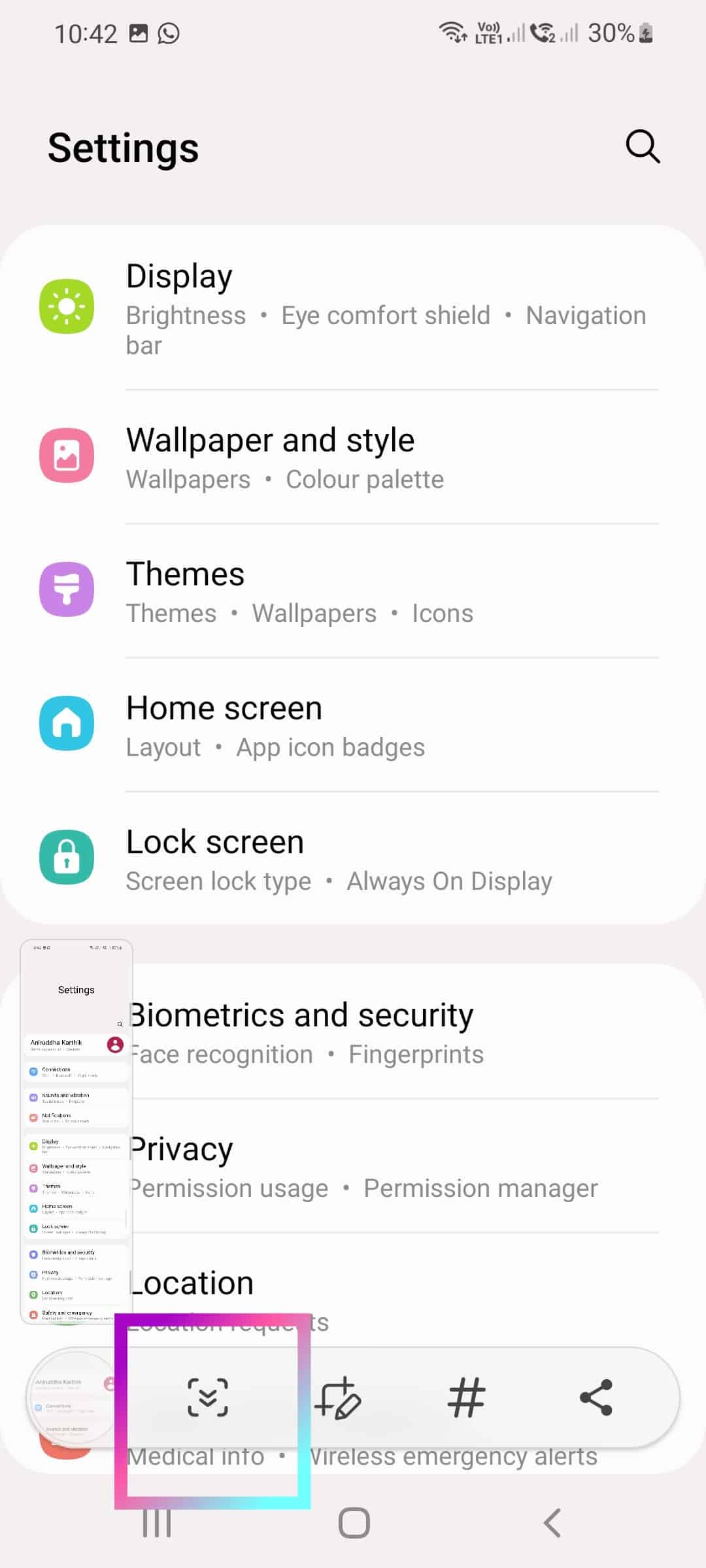
    • You will get a screenshot toolbar.
    • Tap on scroll button(First button on the screenshot toolbar).