Whether you want to shutdown or restart OnePlus Nord CE 3 Lite, long pressing the power key no longer works. Instead, it brings the Google Assistant. But how to turn off OnePlus Nord CE 3 Lite? Here is the step by step guide.
2 Ways to Turn off OnePlus Nord CE 3 Lite
Method 1: Using Volume up and Power button
One of the most convenient ways to switch off OnePlus Nord CE 3 Lite is using the Hardware button combination. So Press and hold Volume up and Power button simultaneously for a second. You will get the power menu. You can move the button to up to restart or down to Power off.
Method 2: Remapping the power key to the power menu in OnePlus Nord CE 3 Lite
If you want to turn off your new OnePlus phone in the traditional way, i.e by long pressing the power key, then you have the option for that too. To do that,
Go to Settings->Additional Settings. Tap Power Button.
Choose “Press and hold the power button”.
By default, you will see Voice Assistant is selected. Change it to Power menu.
Thats it.
In the future, long pressing the power button, brings power menu.
That’s it for this quick post on how to power off OnePlus Nord CE 3 Lite 5G and remap the power button to power menu.
If you’re using a Samsung Galaxy S23, S23 Plus or S23 Ultra, you might be interested in changing your device’s ringtone and notification sound. While the default sounds are good, customizing these tones can help personalize your phone and make it more identifiable especially when you are in crowd with many Samsung phones. In this blog post, I will show you how to set a custom ringtone and notification sound on Samsung Galaxy S23,S23 Plus and S23 Ultra.
How to set custom ringtone and notification tone on Samsung Galaxy S23, S23 Plus and S23 Ultra
Changing the Ringtones
To change the ringtone on your Samsung Galaxy S23, you’ll need to go to the Settings app and then tap on Sounds and Vibration. From there, select Ringtone. If you use dual sim cards, you can choose the SIM you want to change the ringtone for.
On this page, you’ll see all the preloaded ringtones. You can browse through them and select the sound you want to set as your ringtone. If you want to add an MP3 song as a ringtone, tap the “+” sign. You may need to allow “Sound picker” to access your media files. Select the tone and tap “Done”. The selected sound will become your default ringtone.
Changing the Notification Sound on Samsung Galaxy S23,S23 Plus and S23 Ultra
To change the default notification sound on your Samsung Galaxy S23, you need to go to Settings, then Sound and Vibration, and then Notification sound. If you use dual sim cards, choose the SIM you want to set a custom notification sound for.
On this page, you’ll find all the preloaded notification sounds. To select a new notification sound, simply tap on the tone you want to use. The selected tone will become your default notification sound.
Setting a Custom MP3 Music File as Notification Sound
If you want to set a custom MP3 music file as your notification sound on your Samsung Galaxy S23, you’ll need to use the “My Files” app. Browse to the path where you have saved your notification sound. For example, if you’ve saved it in the Audio folder, go inside it. Choose the music file by long pressing on the tone. You can select multiple files at once by tapping on them. Next, tap copy. Now, go back to internal storage and select All. Scroll down and find the folder called “Notifications.” Tap on it and then paste the notification tone by tapping “copy here”.
Once you’ve added the custom tone, you can assign it as a notification sound. Go to Settings and then “Sounds and Vibration”, then “Notification sound”. Select the SIM you want to set the custom tone for. You’ll see the new sound in the list. Select it to set it as your notification sound.
Changing the Notification Tone for Text Messages
To change the notification tone for text messages on your Samsung Galaxy S23 or S23 Plus, you need to launch the “Messages” app. Next, tap on the profile icon and select “Messages Settings”. Here, tap on Notifications. Make sure you have selected “Allow sound and vibration”. Then, scroll down and tap on “Notification categories” and then “Incoming messages”. Here, tap on “sound”. You’ll see all the available Samsung notification tones for messages and custom tones if you have added any as mentioned before. Choose the notification sound you want to set for incoming messages. The selected sound will become your default notification tone for text messages.
Changing the Notification Tone for WhatsApp
To change the notification tone for WhatsApp on your Samsung Galaxy S23 or S23 Ultra, launch WhatsApp and tap on the three vertical dots. Select Settings and then tap on Notifications. Here, tap on “Notification tone”. You’ll see the preloaded Samsung notification tones and custom notification tones. Select the one you wish to set as a notification tone.
These are the different ways to customise Samsung Galaxy S23 series phone by changing the ringtone and notification tones.
When you make phone calls in noisy environments like cafes, busy streets, or even at home with family members making noise the person in the other side of the phone call will have difficulty in listening to your voice. To overcome this situation, Apple has introduced Voice isolation feature to phone calls.
In this post, we will show you how to enable voice isolation for phone calls on iPhone running iOS 16.4.
How to activate Voice isolation on phone calls in iPhone
Voice isolation is a feature available on iPhone that enhances the audio quality of phone calls by reducing the amount of background noise. It works by isolating the sound of the person’s voice while blocking out any other sounds in the background. This feature is especially useful in noisy environments, allowing you to have clearer conversations without any distractions. Here is the guide on how to enable this feature on iPhone.
You can enable the voice isolation feature for phone calls during an active call. So, when you are in an active call, whether it’s an incoming call or an outgoing call, go to Control Center by swiping down from the top right corner of your iPhone’s screen.
In the Control Center, you will see various options. Look for the mic mode button and tap on it. You will see three options: Standard, Voice Isolation, and Wide Spectrum.
Select the “Voice Isolation” option. This will reduce the surrounding noise and make your voice stand out, allowing the person on the other end of the call to hear you clearly.
That’s it. This way you make use of the new Voice isolation feature for phone calls in iPhone.
Whether you’re a new user or just looking for an easier way to shut down Galaxy A34, here is the four different ways. This includes changing the Side Key settings to remap side key to the power menu.
How to Switch off Samsung Galaxy A34 5G
Method 1: Using Quick Panel
The first method is by using the Quick Panel. To access it, swipe down with two fingers from the top of your phone. You will see a power icon, tap on it and then select “Power off” option. If you’re sure you want to switch off your phone, tap on “Power off” again. Your Galaxy A34 will now turn off.
Method 2: Using Hardware Button Combination
The second method is by using the hardware button combination. Press and hold the volume down and the side key simultaneously for a second. A power menu will appear, and you can select the “Power off” option to shut down your phone.
Method 3: Making use of Bixby
The third method is using Bixby, Samsung’s virtual assistant. To launch Bixby, long press the Side key and say “Switch off my phone”. You will receive a confirmation prompt, tap on “Power off” to turn off your device.
Method 4: Remapping the Side Key to the Power Menu
Lastly, you can remap the side key to power off Galaxy A34. To do this, go to the Quick Panel, tap on the power icon and select “Side key settings”. Next, select the “Power off” menu under the press and hold section. Now whenever you press and hold the side key, the power menu will appear, and you can select “Power off” to turn off your phone.
That’s it for this tutorial on how to turn off Samsung Galaxy A34 5G. I hope you found these methods useful. If you have any questions or feedback, please share them in the comments below.
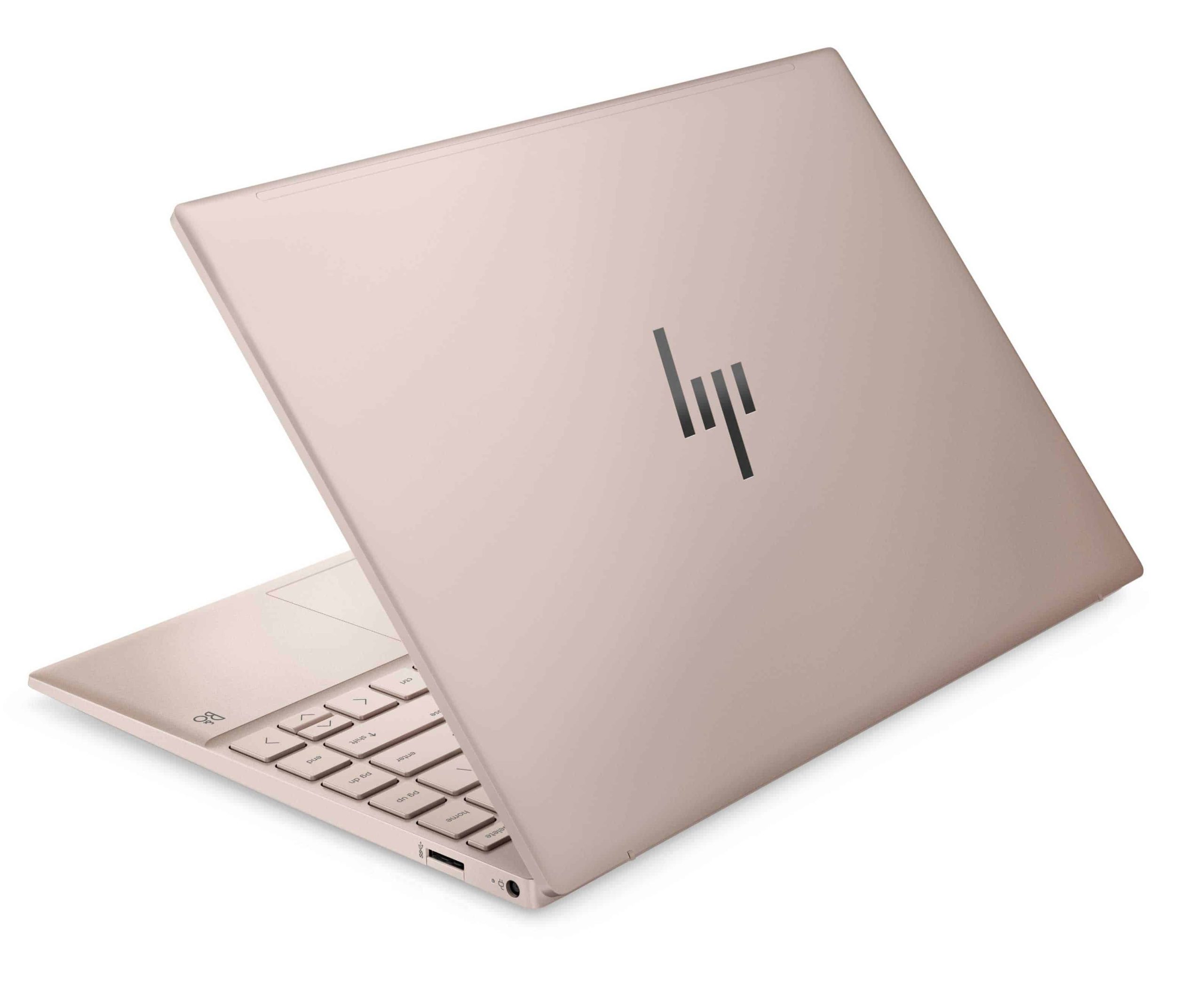
HP today launched of its latest Pavilion Aero 13 notebooks in India, powered by AMD Ryzen 7 Processor with Radeon Graphics for ultra-strong performance. The device is built for modern consumers – GenZs and Millennials, enabling them to work and learn productively anytime, anywhere.
The new HP notebooks are designed keeping in mind about environment. It contains Post-Consumer Recycled and Ocean-Bound Plastics and uses water-Based Paint that Reduces VOC Emissions. It comes with flicker-free screen to enable work all day and play all night. Additionally, the 2.5k resolution gives sharp images and text on screen. It has narrow bezels in all the 4-sides.
HP Pavilion Aero 13 Key Features
Display
· HP’s first Pavilion laptop with a 16:10 Aspect Ratio
· 400 nits of brightness to enable seamless browsing
· Built with Flicker-free screen
· 4-sided narrow bezel display to prevent blocking of view
· 2.5k resolution for sharp images and text
· 400 nits of brightness to enable browsing in the sunlight
· Wider color palette with 100% sRGB
Performance
· AMD Ryzen 7000 series Processor with Radeon Graphics for smooth performance
· Reliable and fast connectivity with Wi-Fi 6
· 10.5 hours of battery life for uninterrupted learning and work
· AI noise Removal for better video calls
· Comes with DDR5 RAM to handle demanding tasks
Design
· Weighs 970 grams to ensure portability
· Available in four colours – Rose Pale Gold, Warm Gold, and Natural Silver
HP Pavilion Aero 13 Price in India
· The Pavilion Aero 13 with Ryzen 5 is available at a starting price of INR 72,999/-
· The Pavilion Aero 13 with Ryzen 7 with 1TB SSD is available at a starting price of INR 82,999/-
While launching the new notebook, Vickram Bedi, Senior Director – Personal Systems, HP India, said, “PCs are increasingly becoming an important aspect of people’s lives in the hybrid environment. We are proud to introduce the new HP Pavilion Aero 13, which is designed to meet the increasing demand for versatile and powerful computing solutions in today’s world. It offers exceptional performance and mobility, allowing users to stay productive and entertained while on-the-go. With the HP Pavilion Aero 13, users are getting a premium and beautifully crafted laptop that empowers them to work and play seamlessly.”