Today to troubleshoot battery not charging issue due to over heating on my Dell laptop running on Windows 8, I have decided to load the Ubuntu OS onto my system. Ubuntu is known as one of the best free Linux operating system available today. I have downloaded the Ubuntu and installed in a new partition on my hard disk. It got installed properly without any issues. I was able to boot and work on Ubuntu OS. But when I restarted my PC, Windows 8 is not loading! However I was able to boot on Ubuntu. I am new to Ubuntu eco system, so I did research on forums to fixing this problem. My Windows 8 partition is intact and the only problem is, GRUB is not working as expected. After a some 8 to 10 minutes of research on forums, I got a very simple and quick solution to it. So I am sharing the same solution to you which worked for me.
Steps to Fix Windows 8 Booting Issue after Installing Ubuntu
Boot-Repair Tool
To Fix this, there is a simple program called Boot-Repair. It is a small and very useful tool to fix issues such as, you can’t boot Ubuntu after installing Windows or another Linux distribution, or when you can’t boot Windows after installing Ubuntu, or when GRUB is not displayed anymore, some upgrade breaks GRUB, etc. Below are the steps to fix the boot loader. Ensure you are connected to the Internet before starting below steps.
1. First you need to install the Boot-Repair Tool. To do this, first open Terminal by pressing Keyboard shortcut Ctrl + ALT + T. In the terminal enter the code given below. (You can copy and paste the code in Terminal. To do so, just copy the codes given below and go to the Terminal, right click on the mouse and select Paste. The Ctrl+V shortcut doesn’t work in Terminal..)
It will ask for your admin password. Enter it. It will download all the required repositories. Once it completes , enter the below code in the Terminal.
2. It will finish installing the Boot-Repair tool. 3.Launch ‘Boot-repair’ by typing ‘boot-repair‘ in a terminal 4.Then click the “Recommended repair” button. It will take some time to repair. Once the repair is finished, note the URL (paste.ubuntu.com/XXXXX) that appeared in a paper, then reboot. My problem is resolved at this stage. 5. If you still face issue then, indicate the URL which you have noted down to people who help you by email or forum which is provided in the last screen of the repair process.
Steps to Fix Ubuntu Booting Issue after Installing Windows 8
This one I have not tried. However, I am just quoting the solution provided in the forum. Here I assume that you have installed Ubuntu first and then installed Windows 8. Now you cannot boot on to Ubuntu. In this case, first boot your computer ona Ubuntu live-CD or live-USB.Then follow the same procedure mentioned above. It updates GRUB and you will be able to access Ubuntu.
The Inbound call center or contact center service level is one of the key factors to track the performance. Though it cannot be defined directly. This is because, the calculation depends on requirements. Some companies consider abandoned calls and some do not consider. In general we can define service level as the number of calls answered within the threshold. Below is the formula to calculate service level percentage.
Formula to Calculate Service Level Percentage in Inbound Call Center
As said above, the formula to calculate changes with company to company. So below is the formula which most of the companies use.
Service Level %= (Total Calls Answered within threshold/Total Calls Offerred)*100
The above formula is not considering the abandoned calls. So if you need to consider that, then you should use below formula.
Service Level %=(Total Calls Offerred-Total Calls Answered after threshold-Total calls abandoned after threshold)/(Total Calls offered-Total calls abandoned within threshold))
Where ‘Total Calls Answered after threshold’ is nothing but the number of calls answered after the target time frame. Depending on the business, each company defines the time. Some may say 20 sec ,10 sec,120 sec etc to answer the call, Abandoned after threshold or Within Threshold- This is the calls abandoned within the target time. Some companies do not consider calls which gets abandoned within 10sec or 20 sec. It can be a higher value too.
Examples on calculating service level % in a Inbound contact center
In a day, a contact center gets 1000 calls and 40 calls answered after the threshold time of 20 sec. 60 calls got abandoned after threshold of 10 sec and 30 calls within threshold. What is service level?
The total calls answered=(1000-30+60)=1030
Total calls answered within threshold is (910-40)=990
Service level=(1000-40-60)/(1000-30)=92.78%
In excel we can use a date in different formats according to our wish by clicking on format cells and selecting the required Date format. This works on most of scenarios. But using formula to set the format of date comes handy at times. So in this Excel tips and tricks guide we will learn to use Excel formula which converts date into desired format.
Excel Formula to Convert Date in desired Format
This way of formatting comes very handy when you are using nested function or output of any function which is date. For example you are creating template and sharing with other. They might not be knowing the formatting. So when extend the formula to some other row or column, they will not get the date in desired format. So if you embed the date format in the excel function itself, then it will be more easier. For formating the date in excel using function, text worksheet function is useful. Example is given for such scenario is given in the end of this post.
Syntax of Text worksheet function
=text(Date, Date Format)
Example:
Let us say, the date is in cell A1, then the formula will be
=TEXT(A1,”dd-mmm-yyyy”) which returns date in 24-Apr-2013
=TEXT(A1,”dd-mm-yyyy”) returns date in 24-04-2013 format
=TEXT(A1,”dd-mmmm-yyyy”)return date as 24-April-2013
=TEXT(A1,”yyyy”) returns 2013
=TEXT(A1,”mmmm”) returns April
Hope you got the concept of using Excel formula to get Date format. This Excel formula to format date is very useful when you are using date inside or along with another Formula. For example, let us say in cell A1 we have “todays date” and in cell B1 we have 24-April-2013. When we concatenate these two cells, the result shows todays date41388. To make date to appear in correct formar we need to enter the formula as mentioned below.
=A1&TEXT(B1,”dd-mmm-yyyy”) which returns todays date24-Apr-2013.
Please let me know if you need further details on the same.
I have already written on basic vlookup function and conditional vlookup function. In this Excel tutor, i will show you how you can use vlookup function along with IF function. Recently i came across a situation where i need to use different vlookup formula when there is a different scenarios. So i thought even this one will help you also. This excel tips guide will help you on how to perform different range conditional vlookup in excel.
Using VLOOKUP formula with Nested IF function
Actually, i came across this formula, while i was working on a annual salary revision data for a company. There it had all the countries employees with different grades and bands in one sheet. I have been provided with a grid which has increment amount for each grade, grade upgrade and promotion for different countries. The employee data has country details, previous grade, current grade and the band. One way is to split the employee data into three different sheets and performing. But i had a restriction on that. I should do for all countries in one sheet. Below is the steps I have done.
1. I have created one more table for the Proposed Salary increment Grid. A unique id created by concatenating the previous grade, current grade and Band with the help of separating operator !. Please refer the below excel sheet. From A1: F12 contains original data table. From H2: K 12, the calculated salary increments for the different scenarios.
2. Then created the unique code in the employee sheet too with the same logic of concatenating previous grade, current grade and Band with the help of separating operator !. In the example, employee data is in A15 to G21. Added unique code in Column G.
3. Now, in the increment amount field column F17, inserted the vlookup formula with Nested If function as mentioned below.
4. Copied the same formula to all the employees. The employee sheet has the increment amount for all the employees based on their grade upgradation or promotion and their countries.
The above logic is simple, Tested the condition and while the condition is met, executed one set of vlookup formula while that condition is not met, tested one more criteria and ran different set of vlookup formula and so on. By default you can Nested if for 7 times. For using IF formula more than 7 times, you need to take help of Excel VBA custom function.
Share your thoughts on the same. If you have any better solution for this or if you need any clarification on this, share it in the comment section below.
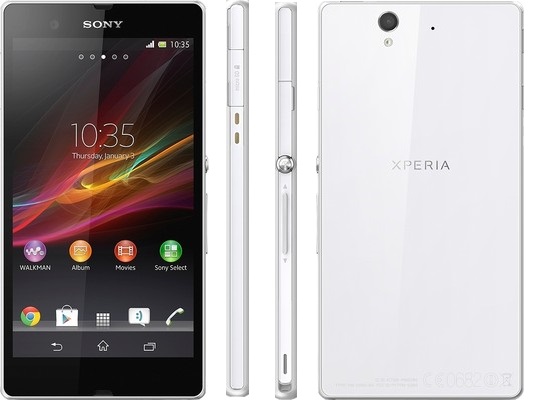
Sony Xperia Z is Android 4.1 Jelly Bean running smartphone with 5 inch Full HD display screen. The device is powered by quad core 1.5 GHz Qualcomm Snapdragon S4 Pro processor with 2GB RAM and Adreno 320 GPU. The price of Xperia Z is Rs 34,990.
Sony Xperia Z sports 5 inch TFT capacitive touch screen with a screen resolution of 1080 x 1920 pixels resulting in a pixel density of 441 ppi and has 16M color depth. The display is shatterproof and scratch resistant glass. The internal storage of the device is 16GB and supports microSD card upto 64GB.
Sony Xperia Z has 13.1MP auto focus primary camera with LED flash and 2.2MP front facing camera. Both front and back cameras can record 1080p HD videos at 30fps.
For connectivity, Xperia Z supports Wi-Fi, 2G, 3G, Bluetooth 4.0,NFC and microUSB 2.0. This Xperia smartphone can be used as modem to connect to internet from PC with its tethering capability. It supports both USB and WiFi tethering. The Xperia Z has Non-removable Li-Ion 2330 mAh battery which is promises to provide upto 11 hours of talk time and 550 hours of standby time.
Advantages and Disadvantages of Xperia Z
Pros of Xperia Z
IP57 certified water and dust resistant build
Appealing distinctive design
Great Camera performance
Memory expansion option
Powerful performance with quad core processor
Cons of Xperia Z
Non removable battery
The viewing angles of the display screen is not very great
Low light camera performance is not very great
Few Firmware Glitches
No out of box Android 4.2 Jelly Bean OS
Sony Xperia Z Specification
Chipset:Qualcomm MDM9215M / APQ8064
Processor:Quad-core 1.5 GHz Krait
GPU:Adreno 320
RAM: 2GB
Dimensions:139 x 71 x 7.9 mm
Weight: 146grams
Primary Camera:13.1MP auto focus with LED flash
Camera Features:Geo-tagging, touch focus, face detection, image stabilization, HDR, sweep panorama
Secondary Camera: 2.2 Megapixel,1080p@30fps
Display: 5-inch TFT capacitive touch screen
Display Screen resolution:1080 x 1920 pixels(~441 ppi pixel density).
Display features:Shatter proof and scratch-resistant glass and Sony Mobile BRAVIA Engine 2